Tips & tricks · Communication · Everywhere · ~5 min a day · 2 min read
Alt+click in Slack: a message stays unread until you deal with it
Last reviewed:
In this article
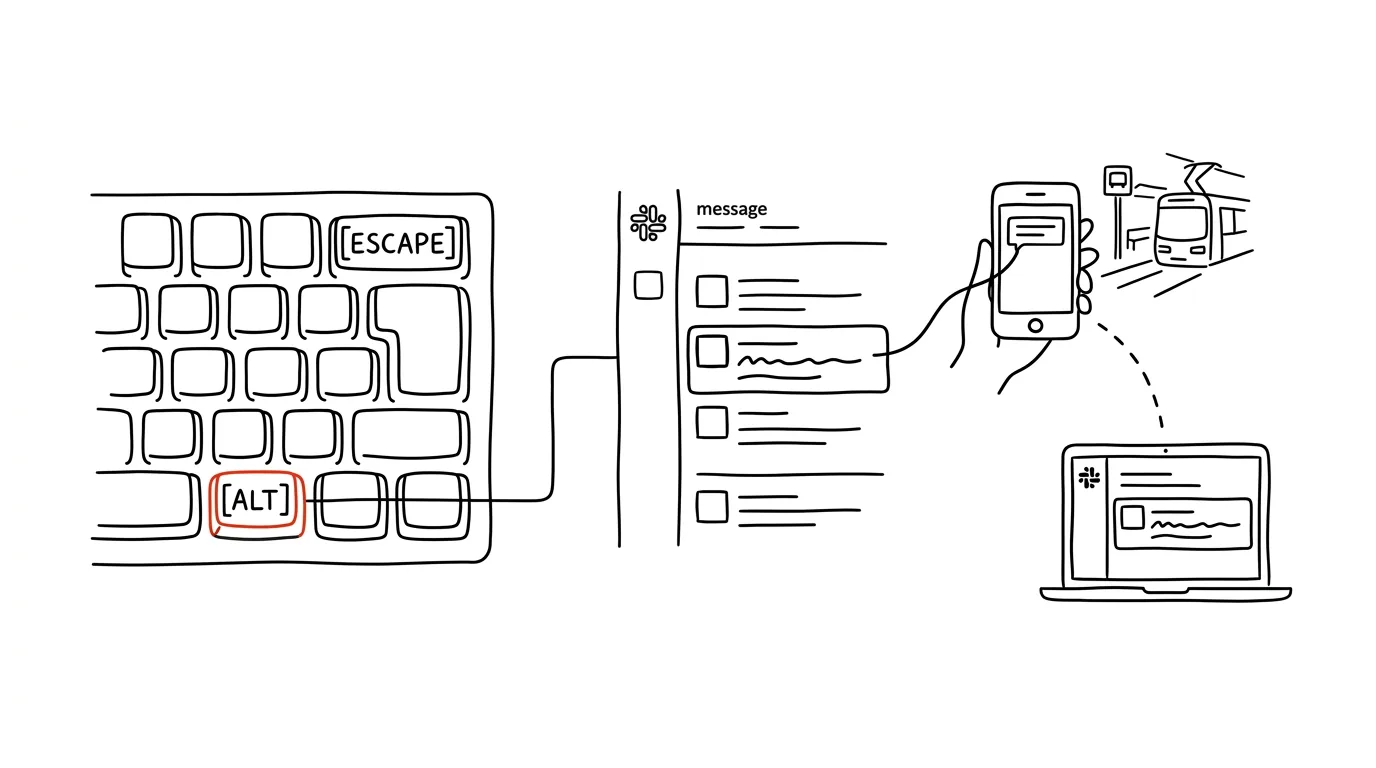
The most treacherous messages in Slack are the ones you've already seen. You opened them on your phone in the coffee line, thought to yourself “I'll deal with it at my desk” — and with that, it vanished: the channel went gray, nothing's lit up, nothing reminds you. Slack has a quiet feature for exactly this: any message can be put back among the unread. The channel lights up bold again, and next time you'll start reading from exactly that spot — replacing your own memory with a mechanism that doesn't forget.
How to do it
- Hold Alt (on a Mac, Option) and click the message — the channel marks itself unread from that point.
- The same thing without the keyboard: hover over the message, three dots → Mark unread. In the mobile app, long-press the message and choose mark as unread from the menu.
- It also works the other way, for a quick cleanup: Esc marks the current channel as read, Shift + Esc clears everything — every channel and message at once.
- One useful setting related to unread messages: in Preferences → Advanced, you can choose to have a channel jump to where you left off last time when you open it — so you pick up a long discussion from the right spot instead of the end.
A typical scenario
On the tram in the morning, you scroll through Slack on your phone: two FYI messages, but one needs a considered reply — a colleague's asking for an effort estimate. You hold it, mark it unread, and put the phone away. At the office, exactly that one channel is lit up in the left panel; you open it, read from the right spot, and reply calmly from your keyboard. Without this trick, the message would have stayed “read” — and you'd only remember it Thursday, when the colleague follows up.
What you get out of it
Reading on your phone stops being a trap. You can scroll through Slack anywhere, because anything that needs a real response gets held open with one gesture — nothing falls into the gap between “I saw it” and “I handled it.” The Esc shortcut, meanwhile, saves clicking in the evening: whatever's left and doesn't matter, you clear with one hand. Together it forms a simple system: unread = waiting on me, read = handled. Slack then behaves like a proper inbox instead of an endless river where responsibility drifts downstream and disappears.
Pro tip
For messages you won't handle today, a reminder works better — the message pings you back at a time you set, and stays dark until then. Keep unread reserved for things due today; otherwise, lit-up channels just turn into another neglected to-do list. A good rule of thumb: what I'll handle by evening, I mark unread — what's for tomorrow or later, I set a reminder for.
Want to go deeper? The handbook has a whole chapter on it — Professional email communication.
Similar tips
Alt + Tab: switch windows without touching the mouse
Alt+Tab
The most famous shortcut, and most people only use half of it. Hold Alt and cycle through.
In-depth guide · 27 min
Data Analysis in Plain Language: A Persistent Skill Built on DuckDB
A guide with prompts: why a chatbot silently gets math wrong, how a persistent DuckDB skill lets you query CSV or Excel in plain words — and check results.
Swiped Away a Notification by Accident? Android Has a History
Notification history shows everything from the last 24 hours — including notifications you swiped away before you had a chance to read them.
Was this helpful?
Liked this tip?
I send one like it every week by email. Two minutes to read, hours saved.
The Top 30 tips e-book, free — it lands in your inbox right away.
Then 1 tip a week · no spam · unsubscribe in one click
Prefer a system to single tips? The free email course — seven days, seven emails, one skill a day.