Tips & tricks · Shortcuts · Windows · ~3 min a day · 3 min read
Alt + Tab: switch windows without touching the mouse
Last reviewed:
Alt+TabWin+Tab
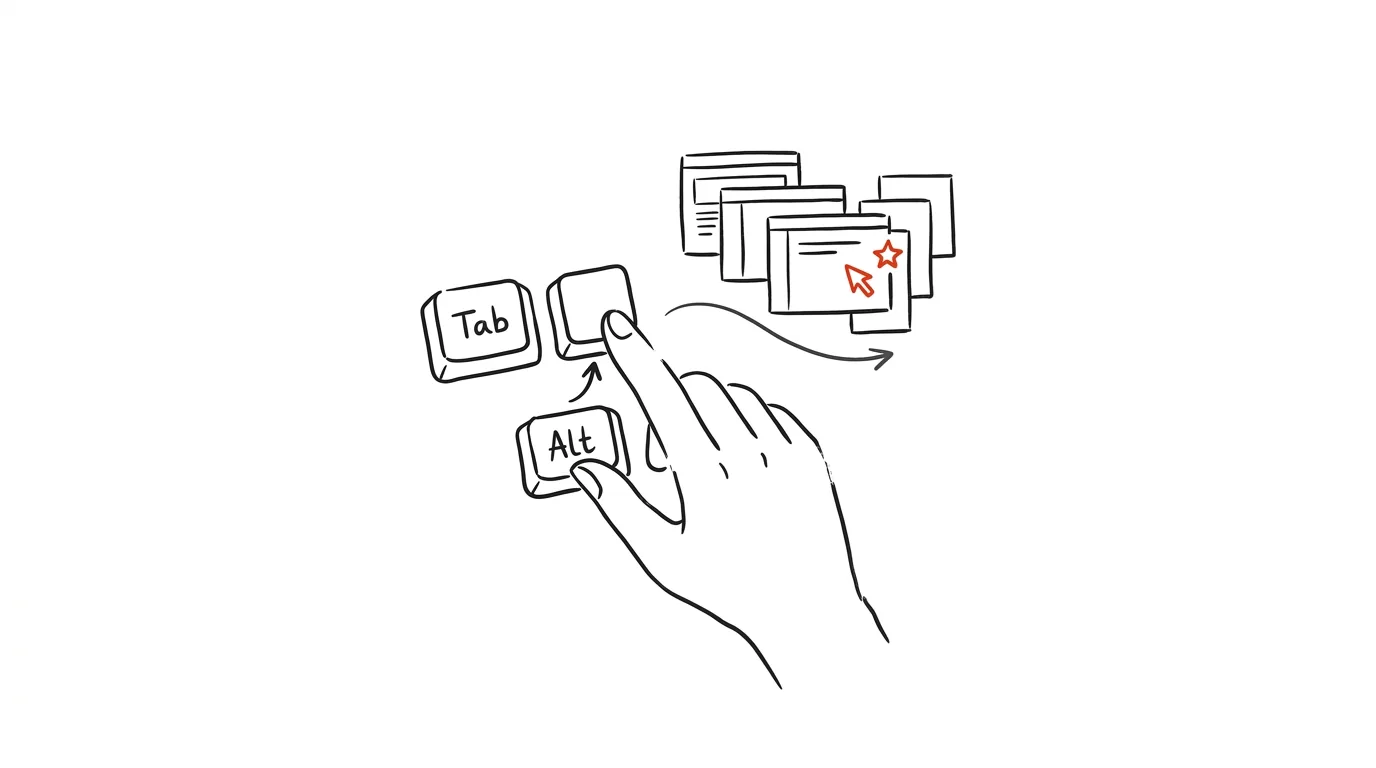
Moving your hand from keyboard to mouse and back — that's a second or two, every single time. Switch windows a hundred times a day and it adds up to minutes you never even notice losing. Almost everyone knows Alt + Tab, but most people only use its simplest form — one quick tap, jump to the last window, and nothing more.
A typical scenario
Petr, an analyst, has Excel, email, a browser with five tabs, and a notes document all open. To switch to a specific window, he reaches for the mouse, moves to the taskbar, hunts for a moment among similar-looking icons, and clicks. Ten times an hour, forty times a day — and each time his hand leaves the keyboard, so he has to find his place again to keep typing.
With Alt + Tab, his hand never leaves the keyboard at all. A quick tap jumps to the last window; holding it down shows previews of every open window, and he picks with the arrow keys. A switch that used to take two or three seconds with a detour to the mouse now takes a fraction of a second, with no interruption to his typing.
How to do it
- Tap Alt + Tab briefly — you jump to the previous window. Ideal when you're constantly switching between two apps (say, a document and a browser).
- Hold Alt and keep tapping Tab — previews of all open windows appear and you cycle through them. Releasing Alt confirms whichever one you land on.
- If you overshoot, there's no need to go all the way around again — hold Shift as well and cycle the other direction: Alt + Shift + Tab.
- Win + Tab opens Task View with all windows and virtual desktops at once — useful when you work across multiple desktops and are hunting for a window across all of them.
- In Task View from Win + Tab, you can also drag windows between virtual desktops with the mouse, not just switch between them.
The best tools
- Built-in Alt+Tab and Win+Tab in Windows — nothing to install, works on every Windows computer.
- PowerToys — Alt+Tab enhancements — a free add-on from Microsoft that lets you filter which windows show up or change how the previews look.
- PowerToys FancyZones — if you're switching windows a lot simply because you have too many open on screen, this helps by laying them out into fixed zones instead.
- On Mac: the equivalent role is played by Cmd + Tab for switching apps and Cmd + ˜ for switching between windows of the same app.
What you get out of it
- Time: a few seconds per switch, across dozens of switches a day, adds up to roughly 3 minutes that would otherwise go into the trip to the mouse and back.
- Smoother work: your hands never leave the keyboard, so your typing flow and focus don't get interrupted.
- Fewer mistakes: cycling through previews is more accurate than clicking tiny taskbar icons, where similar apps are easy to mix up.
Pro tip
If you work across multiple virtual desktops, combine Win + Tab for a quick overview across desktops with classic Alt + Tab for switching within one desktop — together they cover the vast majority of situations where you'd otherwise reach for the mouse. Try tracking for a week how often you actually reach for the mouse just to switch windows — most people are surprised how high the number is, and how quickly it drops once the shortcut becomes a habit.
Want to go deeper? The handbook has a whole chapter on it — The app categories that matter.
Similar tips
Delete an annoying suggestion from the address bar: Shift+Delete
Shift+Delete
Does your browser keep offering a typo or an old site? Select the suggestion with the arrow key and press Shift+Delete — it's gone for good.
Select an entire line with a single press
Shift+End
Shift + End selects text from the cursor to the end of the line, Shift + Home to the start. No dragging with the mouse.
Ctrl+R in the terminal: type a piece of a command, history finds it
Ctrl+R
You don't have to fish a long command from last week out with the up arrow. Ctrl+R searches history for any fragment and autocompletes the whole thing.
Was this helpful?
Liked this tip?
I send one like it every week by email. Two minutes to read, hours saved.
The Top 30 tips e-book, free — it lands in your inbox right away.
Then 1 tip a week · no spam · unsubscribe in one click
Prefer a system to single tips? The free email course — seven days, seven emails, one skill a day.