Tips & tricks · Shortcuts · Everywhere · ~5 min a day · 3 min read
Ctrl+R in the terminal: type a piece of a command, history finds it
Last reviewed:
Ctrl+R
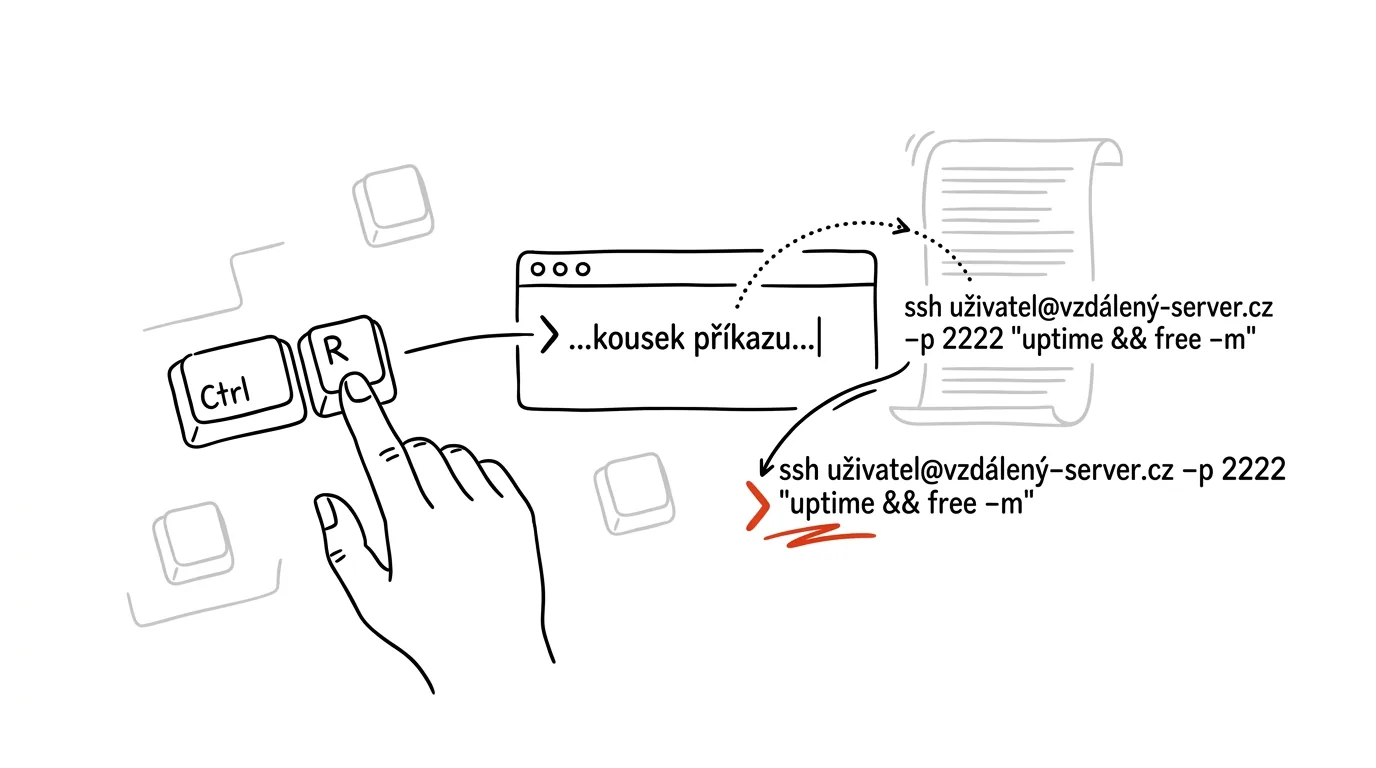
The up arrow is the slowest way to get back to a command you typed two days ago — fifty other commands stand between you and it. Ctrl+R launches a reverse search through your history: you start typing any fragment of the command you're looking for (even from the middle), and the shell instantly suggests the most recent command that contains it. It works in bash, zsh, and PowerShell, making it one of the few shortcuts you can rely on on almost any computer.
How to do it
- In the terminal, press Ctrl + R — a reverse-search prompt appears on the line (in bash it looks like
(reverse-i-search)). - Type any part of the command you're looking for — say just
migrateor a filename. It doesn't have to be the start of the command; the search matches anywhere inside it. - The shell immediately shows the most recent matching command from history. If it's not the right one, press Ctrl + R again — you'll move to an older match, and you can repeat this as many times as you like.
- Enter runs the found command right away. The right arrow or Esc instead drops it onto the line for editing — handy when you just want to change one parameter.
- Cancel the search with Ctrl + G (in PowerShell, Esc) to return to an empty line.
A typical scenario
A developer ran a database export last week with five flags — she obviously doesn't remember the exact combination. Instead of scrolling with the up arrow or hunting through notes, she presses Ctrl+R, types dump, and the whole command appears, down to the last flag. Enter, done, five seconds. The same trick works for “how do I even connect to that test server again” — all she needs is to recall a single word from the command.
Over time it becomes a habit that changes how you work: you stop copying long commands out of documentation, because you know that once you've typed a command, you'll always find it again in a few keystrokes. Your shell history turns from a trash bin into a personal cookbook. And when you find yourself pulling the same command out via Ctrl+R day after day, that's a reliable sign it deserves its own shortcut — which is what the tip on aliases and scripts is about.
What you get out of it
The most common terminal activity — “run again what I've typed before” — shrinks from tens of seconds of scrolling to two or three keystrokes. You stop saving long commands into text files and pasting them with the mouse. And because the shortcut works in bash, zsh, and PowerShell, the habit follows you to every machine you log into. There's just one condition: the shell has to be storing history — if Ctrl+R only finds you the last few commands, increase the history limit in your shell config (the HISTSIZE and HISTFILESIZE variables) so your cookbook reaches months into the past.
Want to go deeper? The handbook has a whole chapter on it — The app categories that matter.
Similar tips
Three tasks for the day: pick in the morning, check in the evening
Not a list of twenty items, but three things that absolutely must get done today. Everything else is a bonus.
Vertical tabs: on a wide monitor, read names, not icons
Edge and Firefox can move your tabs into a column on the side. Twenty tabs with readable titles instead of a row of nameless little teeth.
Turn on captions during a meeting — they work in Czech too
Teams, Zoom, and Meet can all show live speech captions, and Czech is among the supported languages. A lifesaver in noise, with bad audio, or a quiet speaker.
Was this helpful?
Liked this tip?
I send one like it every week by email. Two minutes to read, hours saved.
The Top 30 tips e-book, free — it lands in your inbox right away.
Then 1 tip a week · no spam · unsubscribe in one click
Prefer a system to single tips? The free email course — seven days, seven emails, one skill a day.