Tips & tricks · Communication · Everywhere · ~4 min a day · 3 min read
Teams: Ctrl+E to search, and jump anywhere from there
Last reviewed:
Ctrl+E
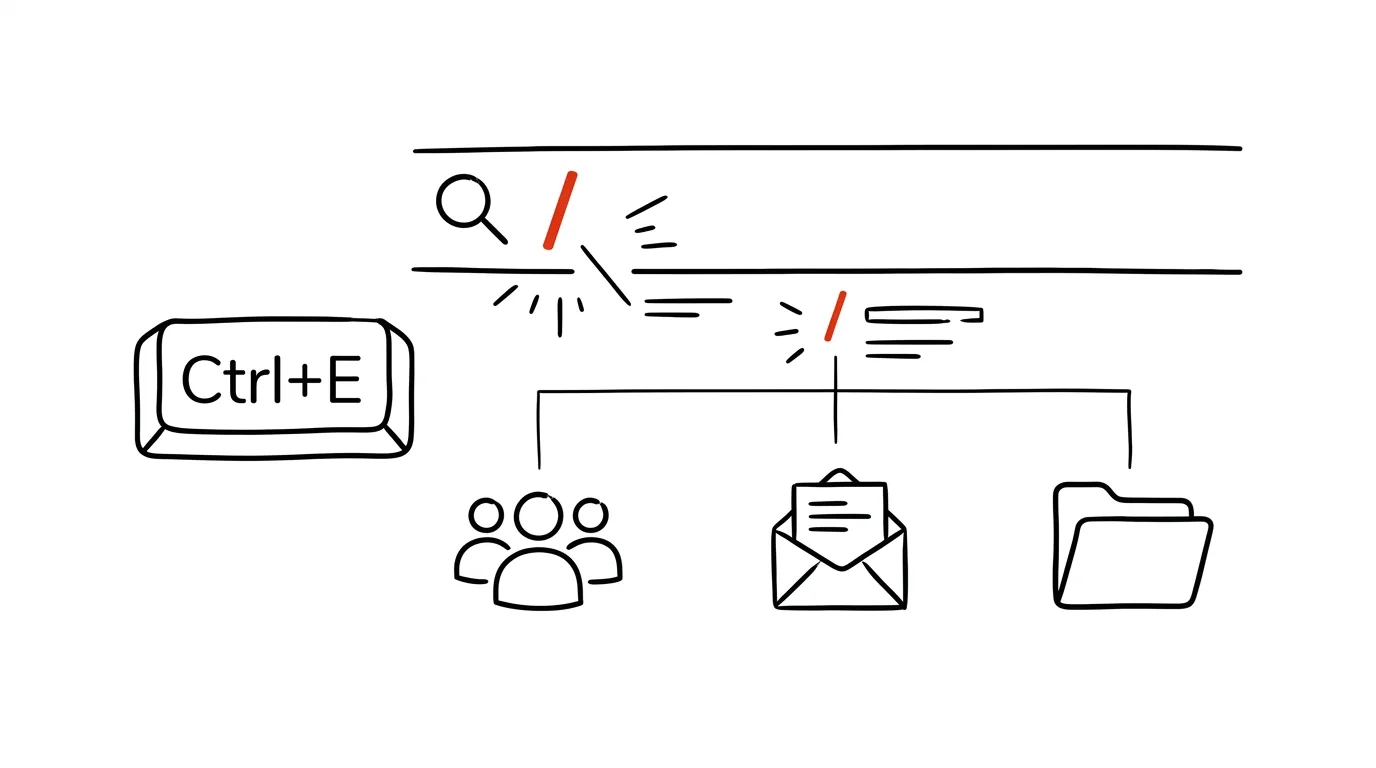
Clicking your way through Teams' sidebar to find a person, channel, or file is slow — especially at a company with dozens of teams and hundreds of coworkers. There's a faster route that works from anywhere in the app and doesn't even require touching the mouse.
A typical scenario
You need to quickly message a coworker from another department you last chatted with a month ago. The usual route: search for her in the team list, click through shared channels, or scroll down through your chat history until you spot her. Finding her takes half a minute, and the thought you wanted to send her is half-forgotten by the time you do.
With search, it's one keystroke and a few letters of a name — the conversation opens before you'd even have had time to reach for the mouse.
How to do it
- Press Ctrl + E from anywhere in the app — the cursor jumps straight into the search bar at the top, no clicking required.
- Start typing your coworker's name, a team or channel name, or even part of a text you remember from a message or file.
- Results split into tabs: Messages, People, Files — switch between them to see exactly where the content you're looking for actually lives.
- Clicking (or using the arrow keys and Enter) on a result opens the relevant chat, channel, or document directly — no need to hunt for which team it belongs to.
- You can also type a slash / followed by a command in the same field — Teams uses this to launch quick actions, like changing your status or opening a specific app, without having to find the right menu.
- Search also works across your entire conversation history, so it's handy for tracking down a message or file from weeks ago that you only remember a fragment of.
The best tools
- Teams' built-in search (Ctrl+E) — the fastest way to reach anything in the app, no extra installation needed.
- Slash commands (
/) right in the search bar — a shortcut for common actions, like changing your status or opening your calendar. - Search in Outlook for the same principle with email, if your company uses Teams and Outlook together — the “shortcut instead of clicking around” habit carries over between apps.
- A global launcher like PowerToys Run or Spotlight on macOS, if you want equally fast search outside of Teams, across your whole computer.
What you get out of it
- Time: an estimated 3–5 minutes a day, since you're not clicking through the sidebar and scrolling team and channel lists.
- A preserved train of thought: finding a person or file faster means you write the message before you forget what you wanted to say.
- Fewer extra open windows: search opens the target chat or document directly, so you don't end up with five open tabs before finding the right one.
- A habit that transfers everywhere: a keyboard shortcut for quick search is standard across apps (Slack, Outlook, browsers) — a reflex learned once saves time elsewhere too.
Pro tip
If you're looking for a specific file rather than a person or message, switch straight to the Files tab in the search results — Teams also searches the contents of documents stored in linked teams, not just their names, so you'll find a file even if you don't remember its exact name.
Want to go deeper? The handbook has a whole chapter on it — Professional email communication.
Similar tips
Snooze an email until you can actually do something about it
The Snooze feature hides an email from your inbox and brings it back at a time you choose. Your inbox stays clean and nothing gets lost.
Forward as an Attachment: A Whole Thread in One Email
Gmail can forward an email as an .eml attachment — even ten messages at once. The recipient gets the originals, headers and all, not a mangled copy.
Templates in Gmail: never write the same reply twice
Answering similar questions over and over? Save the reply as a template and drop it in with two clicks.
Was this helpful?
Liked this tip?
I send one like it every week by email. Two minutes to read, hours saved.
The Top 30 tips e-book, free — it lands in your inbox right away.
Then 1 tip a week · no spam · unsubscribe in one click
Prefer a system to single tips? The free email course — seven days, seven emails, one skill a day.