Tips & tricks · Shortcuts · Windows · ~2 min a day · 3 min read
Quick settings and notifications without a mouse
Last reviewed:
Win+A
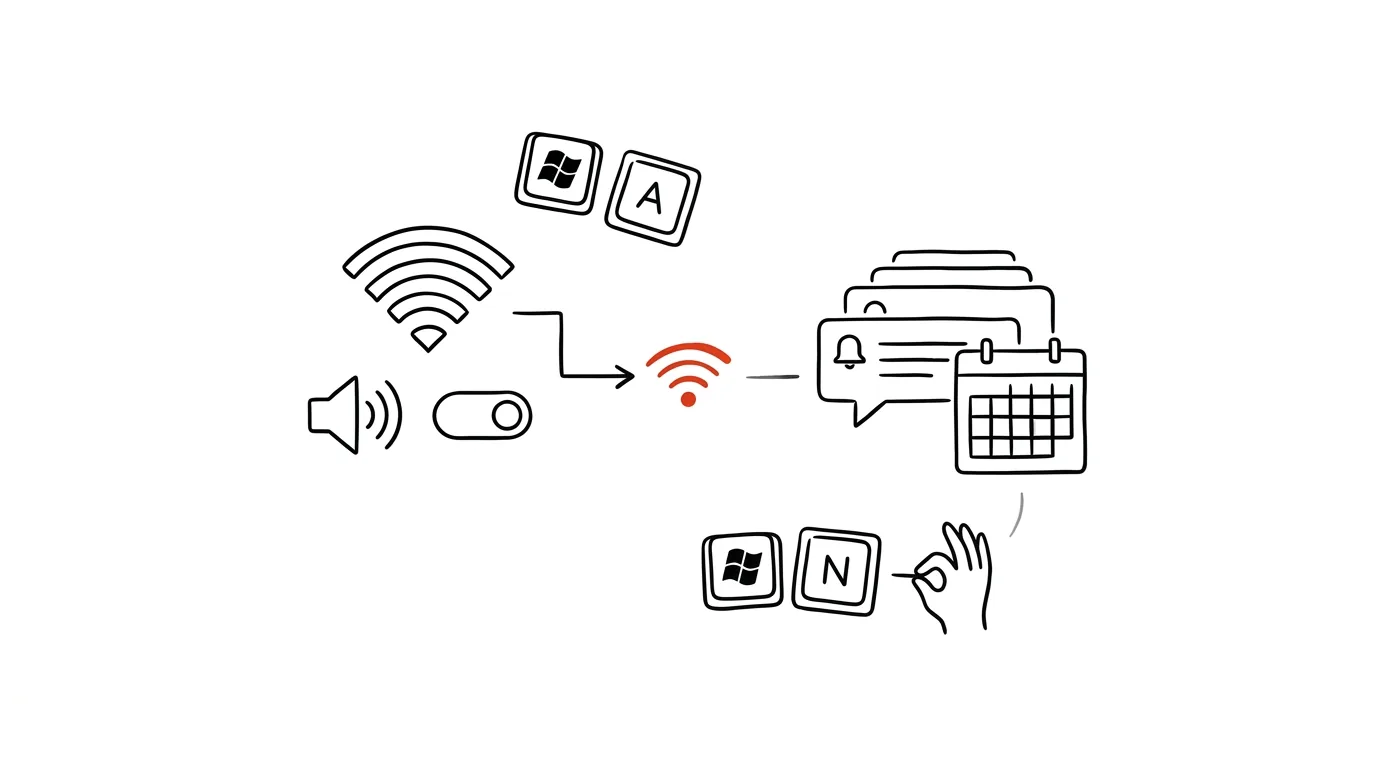
Wi-Fi, Bluetooth, and Do Not Disturb are one shortcut away. Instead of clicking tiny icons in the bottom-right corner of the screen — where it's easy to miss by a pixel and hit something else — one keypress brings up a panel with everything that matters, right on screen.
A typical scenario
You need to quickly turn off Wi-Fi before a flight, lower the volume during a call, and turn on Do Not Disturb before diving into focused work. Without the shortcut, that means moving the mouse to the bottom-right corner, hitting a small cluster of icons, waiting for the panel to expand, and then hunting for the right toggle among ten others.
With Win + A, the panel appears instantly, no matter where your mouse cursor happens to be — even in the middle of a text editor or a full-screen app. Your hands stay on the keyboard, no hunting with the mouse in the corner of the screen. In a game or a full-screen presentation, this difference is especially noticeable, since the mouse often isn't even visible there.
How to do it
- Press Win + A — the quick settings panel opens with toggles for Wi-Fi, Bluetooth, focus mode, screen brightness, and volume.
- For notifications and a calendar, use Win + N — a separate panel opens with an overview of recent notifications and a small calendar at the bottom.
- In the quick settings panel, click the pencil icon (bottom-right of the panel) — it opens edit mode, where you can add, remove, or rearrange toggles based on what you use most.
- You can also add less common toggles, like projecting to a second screen or night light — if you don't see them in the default set, try looking in the panel's edit mode.
- The panel closes with Esc or by clicking anywhere outside it.
- The volume and brightness sliders in the panel can also be adjusted with the keyboard arrows once you've tabbed to the toggle, so you can make the adjustment entirely without a mouse.
The best tools
- Windows' built-in quick settings (Win + A) — the fastest route to the most-used toggles, nothing to install.
- Notification Center (Win + N) — an overview of messages from the system and apps in one place, including a quick calendar glance.
- PowerToys — for more advanced tweaks to system behavior and additional keyboard shortcuts, if the built-in options aren't enough.
- Taskbar customization (right-click the clock or the icons in the bottom-right) — an alternative route to the same settings, when you'd rather not use the keyboard shortcut.
- Settings (Win + I) — for more permanent or detailed adjustments that don't fit in the quick panel.
What you get out of it
- Time: a few seconds saved each time you switch Wi-Fi, volume, or a mode adds up to a few minutes across repeated use during the day.
- Less frustration hitting tiny icons: the keyboard shortcut works reliably every time, unlike precisely aiming the mouse at a small icon in the corner of the screen.
- Faster reactions to common situations: muting before a call, enabling Do Not Disturb before focused work — all one keypress away, no delay.
- Customizability: a panel arranged to your needs stays that way every time you open it again.
Pro tip
Use the pencil button in quick settings to arrange the panel so the first row holds exactly what you use most — move less-used toggles further down or remove them entirely, so the panel stays uncluttered.
Want to go deeper? The handbook has a whole chapter on it — The app categories that matter.
Similar tips
Widgets: information without opening apps
Calendar, tasks, and weather on your home screen mean you open your phone, glance, and close it — instead of a tour through your apps.
Lending your phone? Lock it into one app
Guided Access on iPhone and app pinning on Android keep a phone stuck in a single app — a kid watching a cartoon, a colleague viewing a photo, nothing more.
Silence an annoying notification right from the shade
No need to dig through settings: swiping on a notification on iPhone offers an hour of silence; holding one on Android turns off just the annoying category.
Was this helpful?
Liked this tip?
I send one like it every week by email. Two minutes to read, hours saved.
The Top 30 tips e-book, free — it lands in your inbox right away.
Then 1 tip a week · no spam · unsubscribe in one click
Prefer a system to single tips? The free email course — seven days, seven emails, one skill a day.