Tips & tricks · Apps · Windows · ~4 min a day · 2 min read
Quake mode: a terminal that slides out from anywhere on Win+`
Last reviewed:
Win+`
In this article
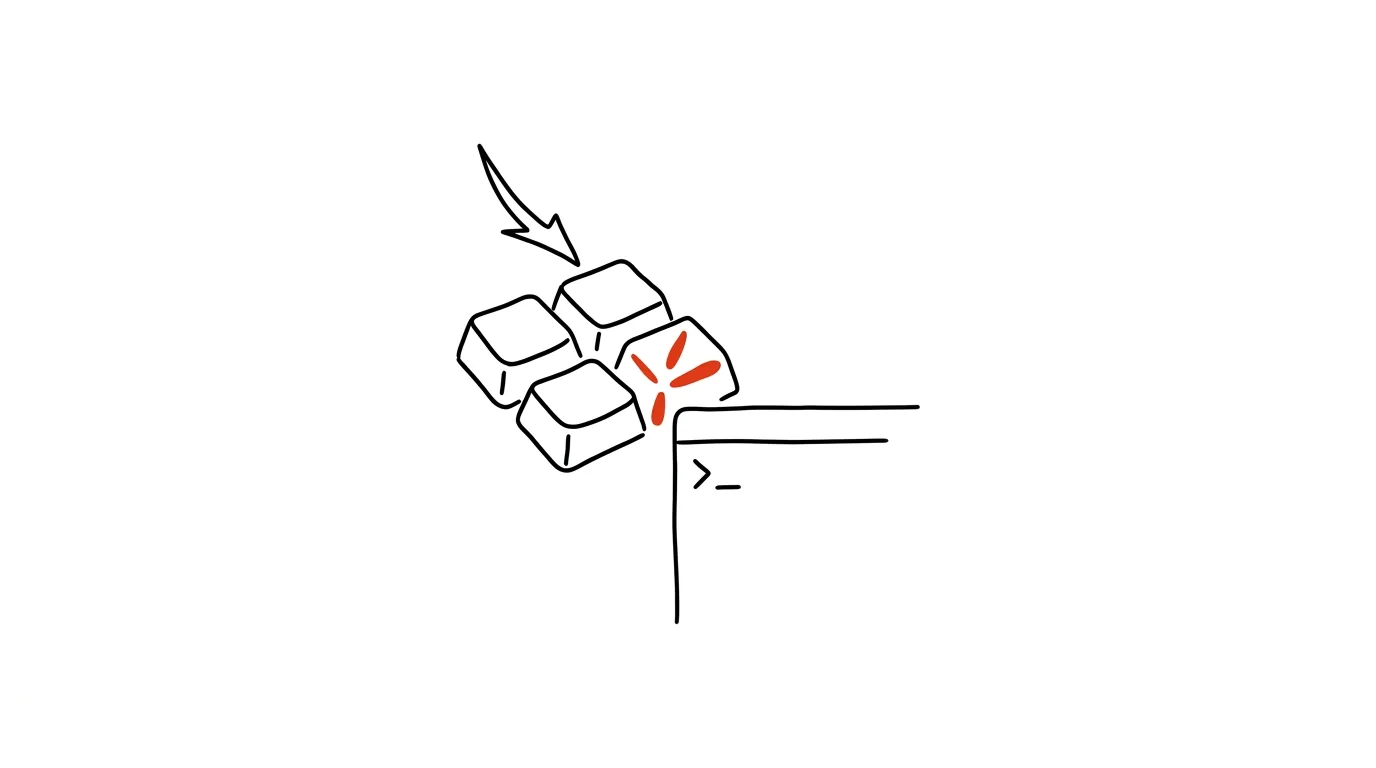
You need a terminal twenty times a day, for ten seconds at a time: run a script, glance at git status, kill a process. And twenty times a day you go hunting for it among windows, or open a new one and breed a graveyard of terminal windows on the taskbar. Windows Terminal has an elegant built-in answer, borrowed from old-school shooters: quake mode. One global shortcut, and the terminal slides down over whatever you're doing; the same shortcut and it's gone again. Always the same one, always at hand, never in the way.
How to do it
- Make sure you have Windows Terminal (default on Windows 11; on Windows 10 you install it free from the Microsoft Store).
- Press Win + ` (the tilde key, top left, below Esc). A terminal window slides down from the top edge of the screen across the full width.
- Type a command, read the output — and the same shortcut hides the window again. The terminal keeps running the whole time: processes in progress, history, and working directory all stay put; next time it slides down exactly where you left off.
- The quake-mode window can be resized with the mouse to a different height, and behaves like any other terminal window — tabs, panes, and profiles all work normally.
- The shortcut works globally, whether you're in an editor, a browser, or mail — the terminal slides down over anything.
A typical scenario
You're writing code in an editor and need to quickly check whether a deploy finished. In the past: Alt+Tab, hunting for the right one among your terminal windows, checking, Alt+Tab back — and with a bit of bad luck you'd brush past mail along the way and lose your train of thought. Now: Win+, the command, a glance at the output, Win+. Two seconds, your eyes never even left the line you were writing.
After a few days it becomes a reflex — the terminal stops being a window you manage and becomes a layer of the system that's simply there when you call it.
What you get out of it
- No more hunting for the terminal: there's always exactly one, and always on the same shortcut — the graveyard of six open windows disappears.
- Faster micro-tasks: commands that take ten seconds stop costing thirty seconds of switching and searching.
- Less broken focus: the terminal slides in over your work and vanishes again — no rearranging windows, no detours.
- A permanent home for long-runners: watching logs or a running dev server can live right here — you won't accidentally close the window while tidying up, because most of the time it simply isn't visible.
Pro tip
Quake mode pairs beautifully with the trick of typing cmd into File Explorer's address bar: the pull-down terminal serves as a permanent “command bridge,” while cmd from File Explorer opens a one-off terminal exactly in the folder you're currently looking at.
Want to go deeper? The handbook has a whole chapter on it — The app categories that matter.
Similar tips
A Drop-Down List in a Cell: No More Typos
Data validation turns a cell into a menu of allowed values. Task statuses or categories can no longer be typed wrong.
Grouping Sheets: Edit a Dozen Excel Sheets at Once
Ctrl+click on sheet tabs groups them — and whatever you type into one gets written into all of them. Fix twelve monthly sheets in one move.
Sum and Average Without a Formula: Just Select
Select the cells and look down at the status bar — the sum, average, and count are always right there.
Was this helpful?
Liked this tip?
I send one like it every week by email. Two minutes to read, hours saved.
The Top 30 tips e-book, free — it lands in your inbox right away.
Then 1 tip a week · no spam · unsubscribe in one click
Prefer a system to single tips? The free email course — seven days, seven emails, one skill a day.