Tips & tricks · Shortcuts · Browser · ~2 min a day · 2 min read
.new addresses: a blank document in one second
Last reviewed:
In this article
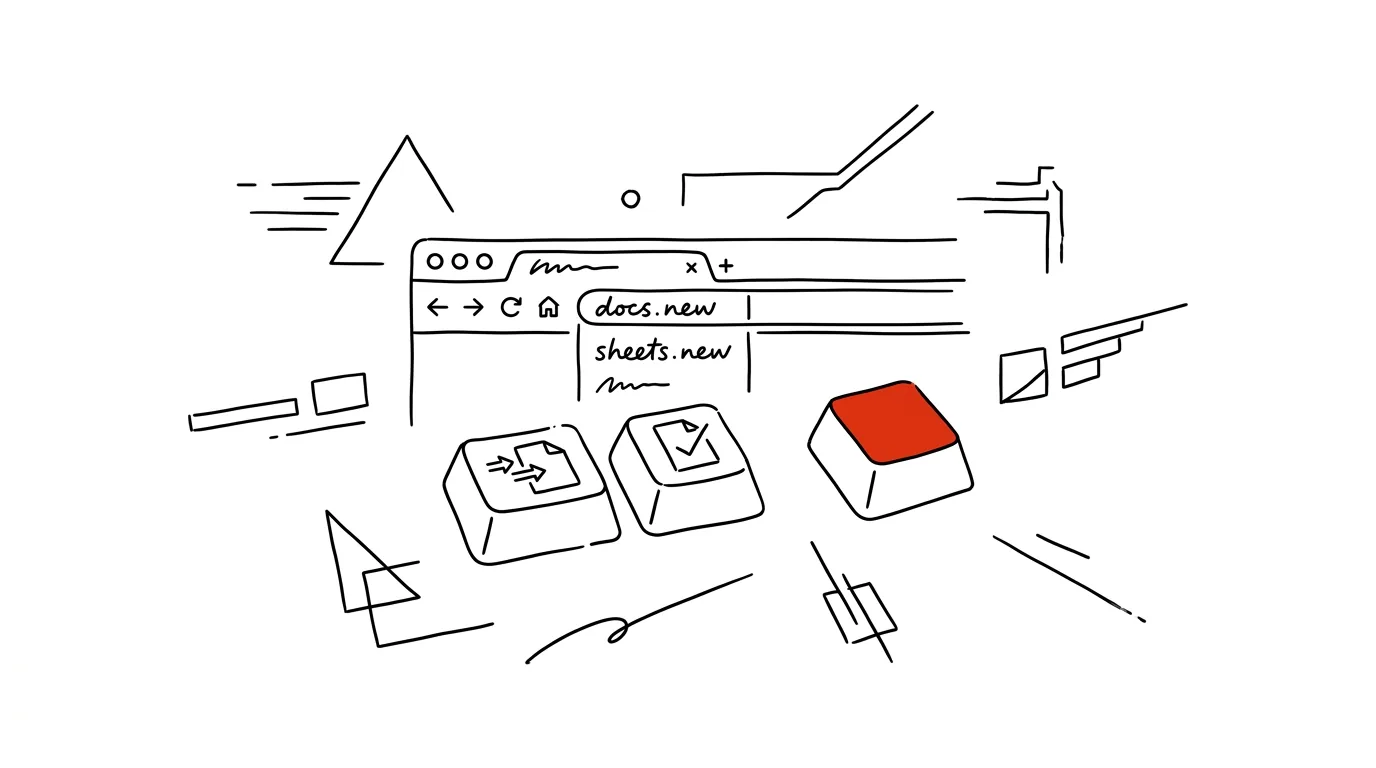
Starting a new document is a small ceremony: open Google Drive, find the New button, pick a file type, wait. Yet there's a shortcut right in the browser's address bar: type docs.new and a new blank document just opens. Google and Microsoft have both built a whole family of these addresses — for spreadsheets, presentations, forms, and notes. It's the fastest way there is to start writing, calculating, or jotting something down.
How to do it
- Click into the address bar (fastest with the shortcut Ctrl + L), type the address, and press Enter:
- docs.new — a new Google Doc, sheets.new — a new spreadsheet, slides.new — a new presentation, forms.new — a new form, keep.new — a new note
- cal.new — a new event in Google Calendar, meet.new — an instant video call
- You need to be signed in to your Google account; the file is created in your Drive as usual, and you can rename it or move it into a folder right away.
- If you use Microsoft 365, the same thing works: word.new, excel.new, and powerpoint.new open a new file in the corresponding web app.
- Your browser quickly learns these addresses — after a few uses, typing “do” is enough for it to suggest the full address.
- If you have multiple Google accounts (work and personal), the file gets created in whichever one you're signed into first in the browser — check by clicking the avatar in the top right after the document opens, and either recreate it from the right account, or use a separate browser profile for each account.
A typical scenario
Mid-call, you need to start typing minutes. The old way: a new tab, drive.google.com, waiting for Drive to load, the New button, Google Docs — ten-plus seconds, during which a colleague has already rattled off half the action items. With docs.new: a new tab, four letters, Enter, you're typing. Same with sheets.new when you want to quickly sketch out numbers during a meeting, or cal.new when the next meeting's time gets decided.
What you get out of it
Going from “I need to write this down somewhere” to “already writing” takes one second. Sounds like a small thing, but exactly this kind of friction decides whether a note, a set of minutes, or a deadline actually gets recorded right away — or gets a “later” that never comes. Four letters in the address bar are faster than any bookmark you'd have to go find.
Pro tip
A new document is nice, but a new document with structure is even better: right after opening docs.new, type an @ sign and pick a template — say, meeting minutes with pre-built sections.
Want to go deeper? The handbook has a whole chapter on it — The app categories that matter.
Similar tips
Where's the Setting? Ask AI Instead of Digging Through Menus
Tell AI the app, version, and what you're looking for — you get the exact path in the settings. No more clicking blind or following guides written for a five-year-old version.
In-depth guide · 20 min
A prompt library: don't rewrite what already works
A complete guide with prompts: where to keep a library, how to version and improve prompts, how to share them in a team — and ten every library needs.
In-depth guide · 17 min
Let AI find the holes in your proposal
A complete guide with prompts for hard critique: untraining AI from agreeing with you, decision premortems, red-teaming a proposal — and when to ignore it.
Was this helpful?
Liked this tip?
I send one like it every week by email. Two minutes to read, hours saved.
The Top 30 tips e-book, free — it lands in your inbox right away.
Then 1 tip a week · no spam · unsubscribe in one click
Prefer a system to single tips? The free email course — seven days, seven emails, one skill a day.