Tips & tricks · Apps · Browser · ~15 min a day · 2 min read
Edge Will Read an Article — or a PDF — Out Loud: Ctrl+Shift+U
Last reviewed:
Ctrl+Shift+U
In this article
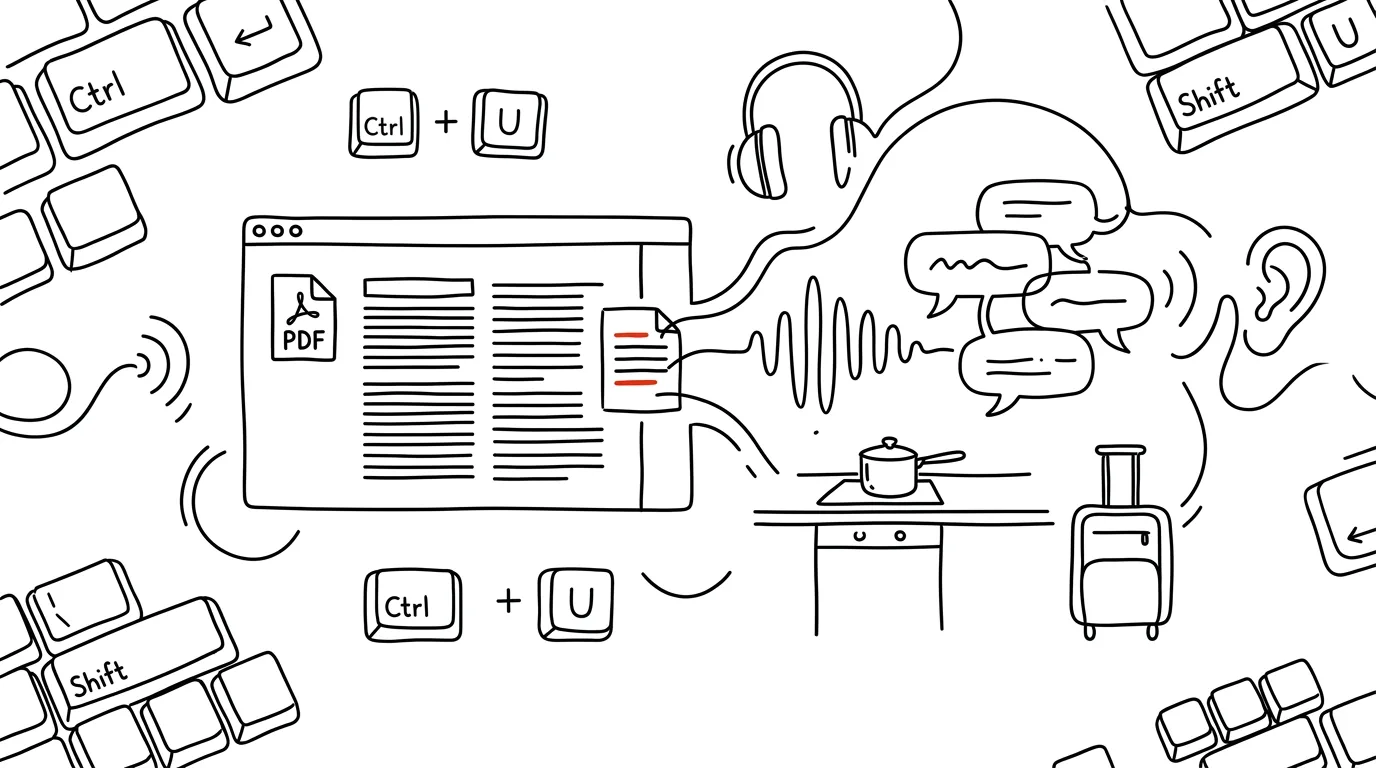
A long article, a study text, or a PDF report — and you know focused reading at a monitor isn't happening today. Microsoft Edge has a built-in Read Aloud feature that turns any page or PDF into an audiobook. And this isn't robotic '90s text-to-speech: the online voices are surprisingly natural, and there are dozens of languages among them. No extra app, no account — just a shortcut.
How to do it
- Open a page or PDF in Edge and press Ctrl + Shift + U. You'll find the same feature in the browser menu as Read aloud.
- A player bar appears at the top: pause, skip a paragraph forward and back. Edge highlights the word being read as it goes, so you can listen and follow along with your eyes at the same time.
- In Voice options on the bar, pick a voice — try a few, they differ in tone and personality. The same menu lets you set reading speed; experienced listeners tend to speed up over time.
- You can also start reading from a specific spot: right-click into the text and choose Read aloud from here.
- It works on PDFs opened in Edge too — course readings, contracts, annual reports. Just drag the file into Edge and start reading with the same shortcut; the player bar works exactly the same as on a web page.
A typical scenario
A student has a forty-page PDF to read by tomorrow. By evening her eyes already ache from the screen, so she has the text read to her: Edge reads, she follows the highlighted words, and stops to take a note at key passages. The combination of listening and reading also helps her keep her attention — she's taking in the text through two channels at once.
A teacher uses read-aloud in class differently: students with specific learning differences have assignments and texts read to them at their own pace, with word highlighting that helps connect the written and spoken forms. No special software required — just a browser already sitting on the school's Windows computers.
What you get out of it
Texts you "don't have time for" become manageable with your ears — while cooking, ironing, or on the train. And for anyone who finds reading from a screen difficult, it's the most accessible assistive technology there is: already installed, free, and available in dozens of languages.
Pro tip
Read-aloud is an excellent proofreading tool: have your own text read back to you — an email, a chapter of a paper, an article. Awkward sentences, missing words, and typos that your eye automatically corrects during silent reading, your ear catches without fail. For long, focused listening, there's the reader mode, which strips a page of ads first, so only the article itself gets read aloud.
Want to go deeper? The handbook has a whole chapter on it — The app categories that matter.
Similar tips
A physical Pomodoro timer instead of an app
A mechanical kitchen timer or a TimeFlip cube. Visible, tangible — and it doesn't tempt you to pick up your phone.
Three fingers on iPhone: copy, paste, and undo
The iPhone has gestures for working with text: a three-finger pinch copies, a spread pastes, and a swipe left undoes the last action.
iPhone: tapping the back triggers anything
A double-tap on the back of your phone can launch the flashlight, a screenshot, or a shortcut. A hidden button hardly anyone knows about.
Was this helpful?
Liked this tip?
I send one like it every week by email. Two minutes to read, hours saved.
The Top 30 tips e-book, free — it lands in your inbox right away.
Then 1 tip a week · no spam · unsubscribe in one click
Prefer a system to single tips? The free email course — seven days, seven emails, one skill a day.