Tips & tricks · Shortcuts · Everywhere · ~5 min a day · 3 min read
F4 in Excel: Repeats Your Last Action and Locks a Reference
Last reviewed:
F4
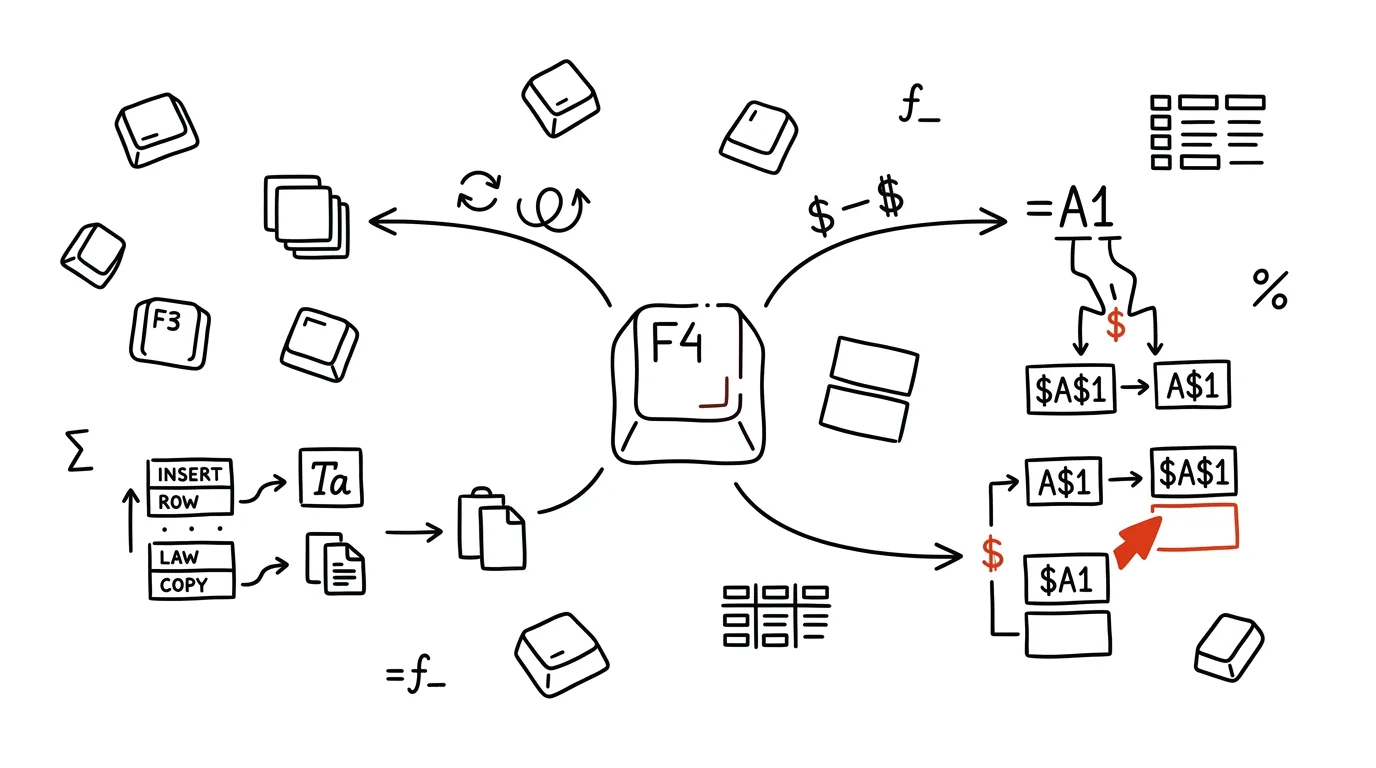
F4 in Excel does two completely different things depending on when you press it — and both save time you'd otherwise spend repeating the same action or rewriting formulas. Outside of cell editing, it repeats the last command you ran. Inside a formula, on a cell address, it toggles between reference types — and that second ability tends to be the key one for more advanced Excel work.
A typical scenario
Honza needs to color twenty non-adjacent cells the same yellow as a flag for missing data. Without F4, he'd have to reopen the color palette every time, find the same shade, and click — the same routine, twenty times over.
With F4, he colors the first cell normally, then just clicks the next cell and presses F4 — the color repeats without change. Twenty cells take a few seconds, and the color palette never has to open a second time.
How to do it
- Repeating the last action: make any change (coloring a cell, inserting a row, changing a format, clearing content), move to a different cell or selection, and press F4 — the same action repeats exactly as you last did it.
- It works for most one-off actions: formatting, inserting and deleting rows or columns, changing column width, and the like — it doesn't work on actions that need a dialog with new input every time.
- Toggling reference type in a formula: while typing or editing a formula, click a cell address (say A1) and press F4 repeatedly — Excel cycles through A1 → $A$1 → A$1 → $A1 and back to A1.
$A$1(an absolute reference) doesn't change at all when the formula is copied;A$1and$A1(mixed references) lock only the row, or only the column;A1(relative) shifts along with the copied formula in both directions.- Locking a reference is typically useful for a formula you're copying down an entire column that needs to point to one fixed cell (say, a VAT rate in the header) — without the dollar signs, it would drift away from that cell as you copy.
The best tools
- The built-in F4 key (Excel) — two features on one key, works in every current version with nothing to configure.
- Google Sheets — F4 also toggles between relative and absolute references in a formula; the habit carries over unchanged.
- On a Mac with default function-key settings, you may need to press Fn + F4 if the keyboard's F-keys are set to other functions by default (brightness, volume, etc.).
What you get out of it
- Time: roughly 5 minutes a day on repeated formatting and formula edits that would otherwise mean reopening dialogs or retyping dollar signs by hand.
- Fewer formula errors: a correctly locked reference means a formula won't snap onto the wrong cell when copied.
- Smoother work: repeating an action with one keypress instead of repeating the whole mouse-driven process.
Pro tip
Repeating an action with F4 also works right after inserting a new row or column — insert one, move to where you need the next, and F4 repeats it without having to go back through the menu.
Want to go deeper? The handbook has a whole chapter on it — The app categories that matter.
Similar tips
Pinning in Teams: important chats stay on top, key messages above the conversation
Right-click pins a chat to the top of the list, and a key message above the whole conversation — visible to everyone. No more hunting for a link from last week.
Set your Teams status with a duration, not just a toggle
“Do not disturb until 12:00” tells coworkers more than a permanent red dot — and it turns itself off.
Teams in meetings: mute and camera from the keyboard
Ctrl+Shift+M
Ctrl+Shift+M toggles your mic, Ctrl+Shift+O toggles your camera. When it's suddenly your turn to talk, you're not hunting for a button.
Was this helpful?
Liked this tip?
I send one like it every week by email. Two minutes to read, hours saved.
The Top 30 tips e-book, free — it lands in your inbox right away.
Then 1 tip a week · no spam · unsubscribe in one click
Prefer a system to single tips? The free email course — seven days, seven emails, one skill a day.