Tips & tricks · Communication · Browser · ~3 min a day · 2 min read
Send and Archive: Two Actions, One Button
Last reviewed:
In this article
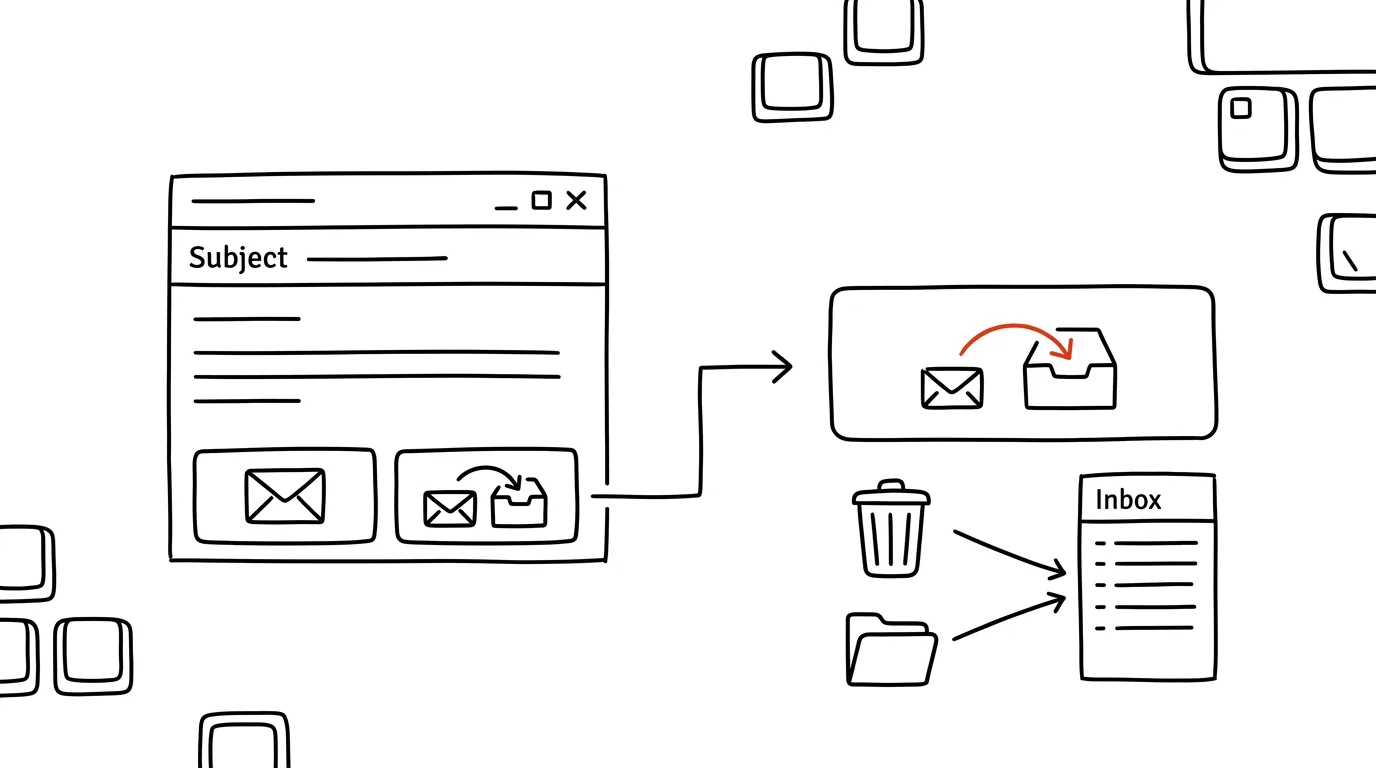
You reply to an email — and then what? A finished conversation has no business sitting in your inbox, so you archive it. Except that's two separate actions every time: send, then archive. Gmail has a hidden setting for a Send & Archive button that does both in one move: your reply goes out and the thread disappears from your inbox. If the other side replies later, the conversation comes right back into your inbox on its own — you lose nothing, it just doesn't sit there in the meantime staring at you as an unresolved item.
How to do it
- In Gmail, click the gear icon → See all settings.
- On the General tab, find Send and Archive and choose Show "Send & Archive" button in reply.
- Save changes. From then on, every reply shows two buttons: a blue Send & Archive (with a down arrow) and a plain Send.
- When you're wrapping up a conversation for good, click the first one; when you expect to be the one coming back to the thread yourself, leave it in your inbox with the second. The button only shows up on replies and forwards — a brand-new message has nothing to archive, so it just shows Send.
- If you work by keyboard, the classics still apply: Ctrl + Enter sends, E archives the open conversation.
A typical scenario
Accountant Hana handles twenty emails every morning: confirming receipt of an invoice, answering a question, sending over documents. She used to click Send on each one, wait for the thread to close, then archive it — forty clicks and a lot of waiting. Now it's twenty clicks on one button, and the inbox empties itself with every reply she sends. What's left in it is only what's still waiting on her — and at the end of the morning email block, she can see at a glance exactly how much that really is.
What you get out of it
An inbox where only unresolved items remain — with no extra discipline, since the cleanup happens as a side effect of replying. Across dozens of replies a day you save hundreds of clicks a week, and above all you stop re-reading the same finished email a second time just because it caught your eye.
And just to be safe: archiving deletes nothing. The message just disappears from your inbox and keeps living in All Mail, where search and labels still find it. If the conversation comes back with a new reply, it jumps straight back into your inbox on its own — so archiving something finished is always safe.
Pro tip
The button pairs best with the habit of working through mail top to bottom and handling each one right away — as recommended by the two-minute rule for your inbox. Reply, click, the email's gone. At the end of the pass, your inbox is empty, not just read.
Want to go deeper? The handbook has a whole chapter on it — Professional email communication.
Similar tips
In-depth guide · 23 min
Small scripts without coding: AI writes them for you
A complete guide with prompts: get a script written and explained, run it safely on a copy of your data, and build a tool library — without writing code.
A Glossary for Your First Meeting: AI Explains the Acronyms in Your Materials
New project, and a document full of acronyms and jargon? AI pulls out every term and explains it in context — flagging what it's only guessing.
Word on the Tip of Your Tongue: AI as a Reverse Dictionary
You know the meaning but not the word? Describe it to AI and get ten candidates with the shades of difference between them. Works for technical terms and cliché-free synonyms too.
Was this helpful?
Liked this tip?
I send one like it every week by email. Two minutes to read, hours saved.
The Top 30 tips e-book, free — it lands in your inbox right away.
Then 1 tip a week · no spam · unsubscribe in one click
Prefer a system to single tips? The free email course — seven days, seven emails, one skill a day.