Tips & tricks · Apps · Mobile · ~5 min a day · 3 min read
Voice capture: write down an idea even when you can't type
Last reviewed:
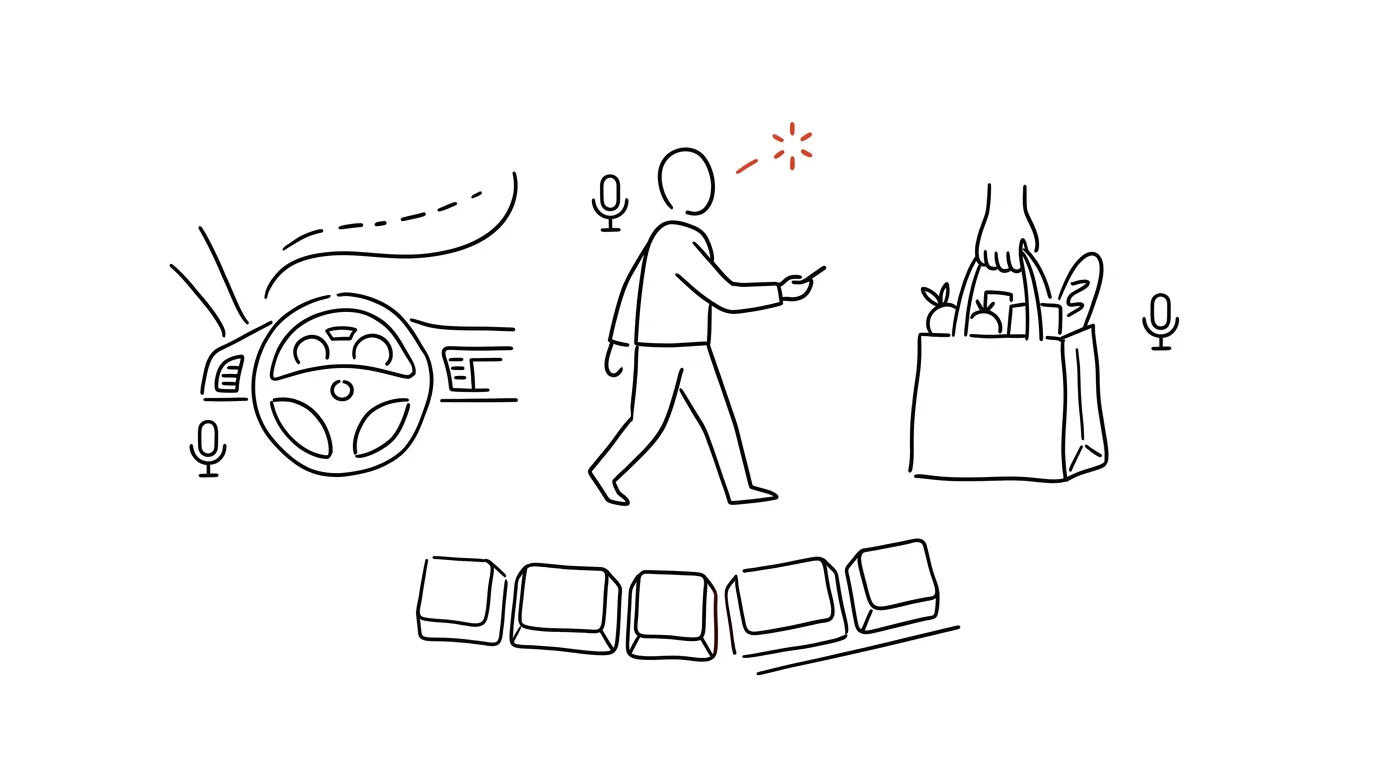
The best ideas show up at the worst moments — in the car, with your hands covered in dough, on a walk with the dog. Your voice is the fastest capture method you always have on hand: no need to find paper, unlock your phone, or open an app. Just say a few words and the thought is captured before it disappears.
A typical scenario
You're driving and suddenly think of a great argument for tomorrow's presentation. You can't stop and write it down, and by the time you get home, the thought has dissolved among ten other things that crossed your mind along the way. You say out loud, "Hey Siri, add to my notes…" and the sentence is written down while you keep watching the road. At home, you just move it to the right place — nothing was lost.
How to do it
- For quick tasks, use a direct command to your assistant: "Add milk to my shopping list" — Siri or Google Assistant write the item straight into the relevant app, even with your hands full.
- For reminders with a time attached, say: "Remind me tomorrow at 9 to call the doctor" — the assistant creates a reminder without you having to so much as touch your phone.
- For longer thoughts (a project idea, a note from a meeting on the go), use a voice memo — modern note-taking apps transcribe it to text right away, so you don't have to come back and listen to the whole recording later.
- Activate the voice assistant either by calling out to it or holding down a button — it works just as well on a locked phone as on an unlocked one.
The best tools
- Siri / Google Assistant — built-in assistants that handle tasks, reminders, and notes with a single voice command.
- Dictation in Notes / Google Keep — for longer thoughts you want as readable text right away.
- Otter.ai — transcribes longer voice memos and meeting recordings into text with higher accuracy.
- A task manager app with voice input (Todoist, TickTick) — if you want voice capture to land directly in your task system, not just in general notes.
What you get out of it
- Time: manual capture takes tens of seconds (unlock, find the app, type); by voice it's five seconds — across dozens of ideas a day, that adds up to real minutes.
- Fewer lost ideas: a thought you don't capture within thirty seconds tends to disappear for good.
- Safety: while driving or with your hands occupied (cooking, shopping, holding a child), voice is the only safe way to capture something.
- Peace of mind: knowing nothing important slips away reduces the need to keep repeating things to yourself in your head.
Pro tip
The key is making sure voice captures don't scatter across ten different places, but always flow into one main system — reminders into your task manager, notes into a single inbox. Once your captures are spread across Notes, Reminders, and voice memos at the same time, you end up creating exactly the place where things quietly die — the very thing voice capture was supposed to help you avoid.
Want to go deeper? The handbook has a whole chapter on it — The app categories that matter.
Similar tips
In-depth guide · 18 min
A calendar that defends itself: an AI scheduler instead of your willpower
A complete guide with prompts: write your priority rules in plain language, connect Google Calendar, and let AI watch collisions and plan time blocks.
Where's the Setting? Ask AI Instead of Digging Through Menus
Tell AI the app, version, and what you're looking for — you get the exact path in the settings. No more clicking blind or following guides written for a five-year-old version.
In-depth guide · 20 min
A prompt library: don't rewrite what already works
A complete guide with prompts: where to keep a library, how to version and improve prompts, how to share them in a team — and ten every library needs.
Was this helpful?
Liked this tip?
I send one like it every week by email. Two minutes to read, hours saved.
The Top 30 tips e-book, free — it lands in your inbox right away.
Then 1 tip a week · no spam · unsubscribe in one click
Prefer a system to single tips? The free email course — seven days, seven emails, one skill a day.