Tips & tricks · Shortcuts · Mobile · ~2 min a day · 2 min read
Three fingers on iPhone: copy, paste, and undo
Last reviewed:
In this article
On a computer you have Ctrl+C, Ctrl+V, and Ctrl+Z. On an iPhone you have the same thing — almost nobody knows it, because it's hidden in three-finger gestures. Instead of hunting for the small Copy and Paste bubble that likes to vanish before you tap it, you do the three basic text operations with a single hand movement. This tip applies to iPhone and iPad only; Android has no equivalent system-wide clipboard gestures.
How to do it
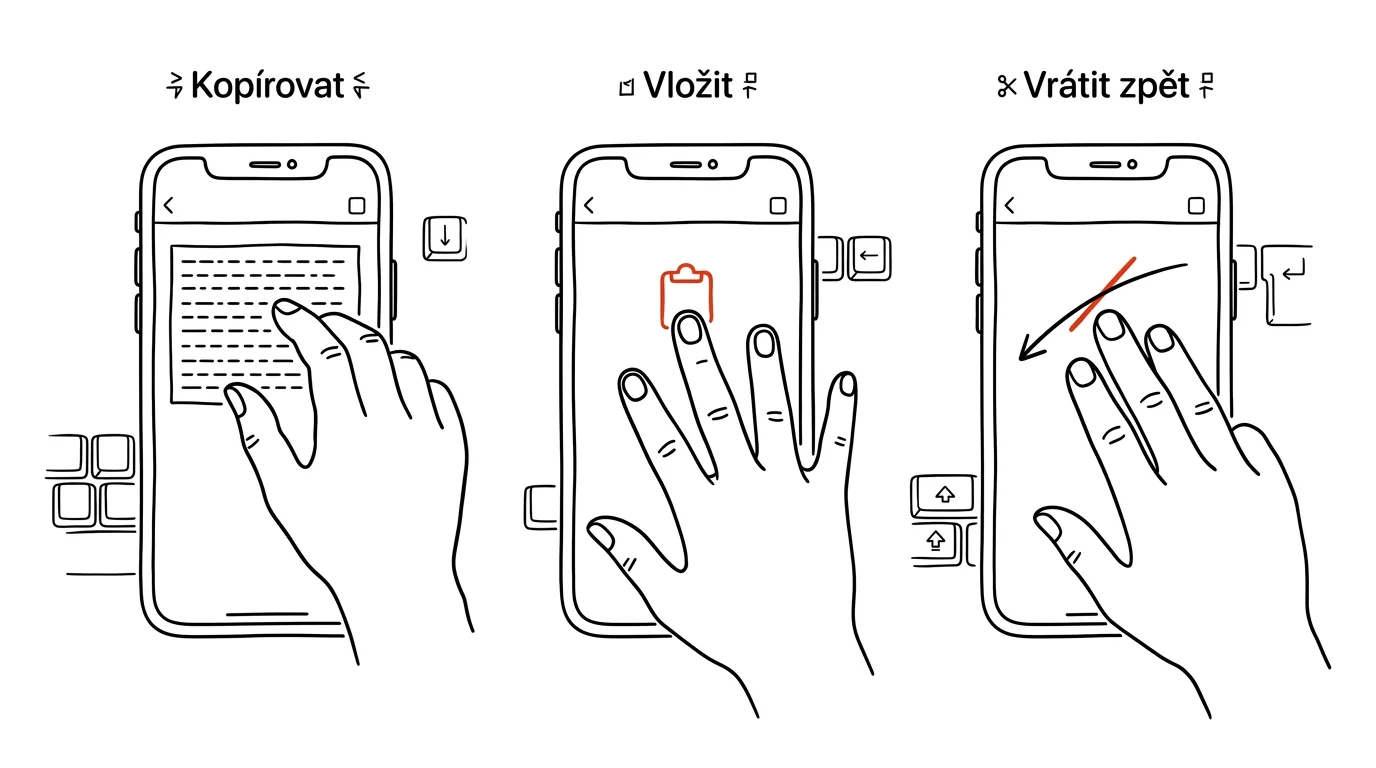
- Select text and pinch three fingers together (as if picking something off the screen) — the text copies. A brief "Copy" confirmation flashes at the top.
- A double pinch with three fingers cuts the text instead of copying it.
- Where you want to paste, do the opposite motion — spread three fingers apart — and the clipboard contents drop in.
- Swipe three fingers left to undo the last action (works for typing, deleting, and pasting). Swiping right redoes it.
- Can't remember the gestures? Just tap once with three fingers — a bar with Undo, Cut, Copy, Paste, and Redo buttons appears at the top.
- An old-school fallback that still works: shake the phone and the iPhone offers "Undo Typing" — reverting the last chunk of text you typed or deleted.
A typical scenario
You're writing a longer email reply and accidentally delete an entire paragraph — your thumb grazed the selected text and it's gone. Without gestures, panic sets in and you start retyping from memory. With a three-finger swipe left, the paragraph is back in half a second, just as reliably as Ctrl+Z on a computer.
Or you're moving an order number from a spreadsheet into a message: select, pinch, switch apps with a swipe along the bottom edge, spread your fingers — done. No waiting for a bubble to pop up, no missed taps.
What you get out of it
Text editing is the clunkiest part of using a phone — and these gestures are exactly what smooths it out. You'll copy and paste faster, but the bigger win is a reliable Undo that saves you every time autocorrect or a clumsy thumb wrecks something. The gestures work in any app with a text field: Mail, Notes, Messages, and browser forms alike.
To land the cursor at an exact spot in the text, hold down the space bar — combine the two techniques and the iPhone turns into a surprisingly capable tool even for longer writing.
Pro tip
The gestures take a day or two of practice — especially the pinch, which at first sometimes registers as a zoom instead. The trick is to make the motion short and decisive, with your fingers starting well apart. And if you're not sure a gesture landed, watch the top edge of the screen: the iPhone briefly confirms every action there, so you instantly know whether you copied or cut.
Want to go deeper? The handbook has a whole chapter on it — The app categories that matter.
Similar tips
In-depth guide · 19 min
AI voice mode: think out loud while you walk
A complete guide with prompts: when talking to AI beats typing, how to run a conversation that resolves something, and where voice mode hits hard limits.
Gboard Has a Clipboard History — Win+V in Your Pocket
The Gboard keyboard remembers what you last copied, and you can pin important items permanently. Just turn it on.
Quick Share: Files From Android to Windows, No Cable
AirDrop's counterpart is built into every newer Android phone — and with a free app from Google it sends photos and files to Windows too.
Was this helpful?
Liked this tip?
I send one like it every week by email. Two minutes to read, hours saved.
The Top 30 tips e-book, free — it lands in your inbox right away.
Then 1 tip a week · no spam · unsubscribe in one click
Prefer a system to single tips? The free email course — seven days, seven emails, one skill a day.