Tips & tricks · Shortcuts · Mobile · ~2 min a day · 3 min read
Tap the clock to jump a long page back to the top
Last reviewed:
In this article
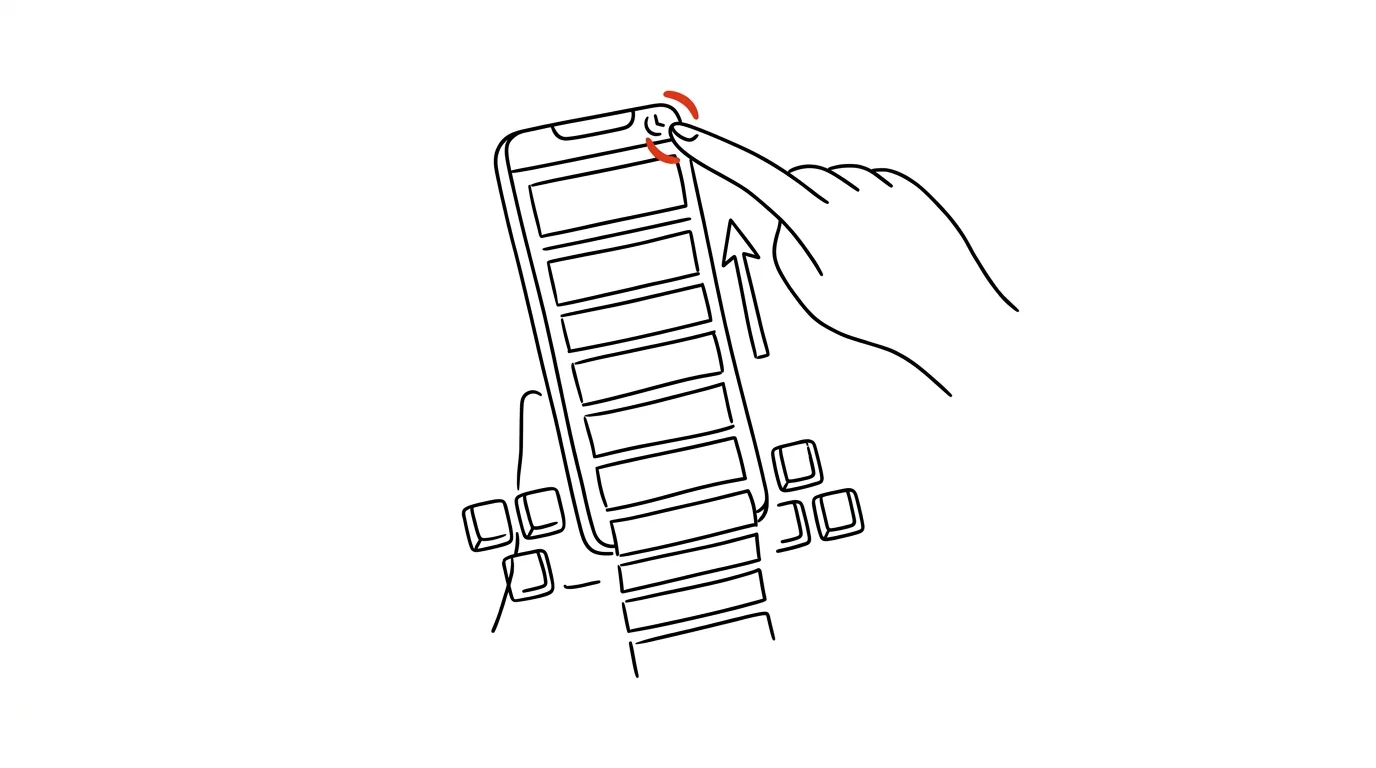
You scroll to the end of a long article, a thread, or a settings screen — and now you need to get back to the top. With your thumb, that's ten long swipes, twenty for an endless feed. Yet the iPhone has a system shortcut as old as the iPhone itself that surprisingly few people know: tapping the status bar (where the clock and battery icon live) instantly scrolls the content all the way back to the top. It works in almost every app because it's built directly into the system. Android has no across-the-board equivalent — tapping the active tab icon helps there, but only in some apps.
How to do it
- Anywhere in long content, tap the top edge of the screen — the status bar area with the clock or battery. On iPhones with a Dynamic Island, tap beside it, not on it.
- The page smoothly scrolls back to the top. No gesture, no holding — just one tap.
- It works in Safari, Mail, Messages, Notes, Settings, and most third-party apps: social media, news, chat.
- In Safari with the bottom tab bar, the trick has an extra layer: with multiple tabs open, the tap always scrolls the current one — handy when comparing two long pieces of text.
- One exception to watch for: apps with their own custom top bar (maps, games) may not respond to the shortcut, because there's nothing above to scroll to.
A typical scenario
You're scrolling through a long thread with a client, looking for a request from last week, and end up scrolled all the way to last Christmas. Now you need to get back to today and reply. Instead of a marathon of swipes, you tap the clock — and you're at the end of the conversation, right at the reply field. It works the same way reading a long contract in Safari when you want to jump back to the table of contents at the top, or in settings when you've dug deep into a list.
What you get out of it
The saving per tap is a couple of seconds, but the frequency is huge — you jump back to the top in practically every app you open during the day. The trick also saves your thumb and your attention: twenty swipes are twenty chances to glimpse something along the way that pulls you off track, while one tap takes you straight to your destination. It belongs to the same family of small gestures as space-bar trackpad mode — tiny on their own, but together the reason your phone feels fast.
Pro tip
There's no way back, unfortunately — no tap returns you to where you jumped from. So before tapping the clock in the middle of reading a long text, think about whether you'll want to return to that spot; in Safari you can instead lean on find-on-page, which will quickly carry you back down to a specific paragraph after you scroll to the top.
Want to go deeper? The handbook has a whole chapter on it — The app categories that matter.
Similar tips
Noise suppression: the mower outside your window stays yours alone
Zoom and Teams can filter out barking, keyboard clatter, and next-door drilling. Just switch noise suppression to high in your audio settings.
Turn on captions during a meeting — they work in Czech too
Teams, Zoom, and Meet can all show live speech captions, and Czech is among the supported languages. A lifesaver in noise, with bad audio, or a quiet speaker.
In-depth guide · 17 min
From a box of business cards to a CRM table in one evening
A guide with 13 prompts: Claude Cowork pulls contacts and notes from scanned cards, prepares a CSV for your CRM, and drafts follow-ups. A human sends them.
Was this helpful?
Liked this tip?
I send one like it every week by email. Two minutes to read, hours saved.
The Top 30 tips e-book, free — it lands in your inbox right away.
Then 1 tip a week · no spam · unsubscribe in one click
Prefer a system to single tips? The free email course — seven days, seven emails, one skill a day.