Tips & tricks · Apps · Mobile · ~5 min a day · 2 min read
Text from paper straight into a field: Live Text and Google Lens
Last reviewed:
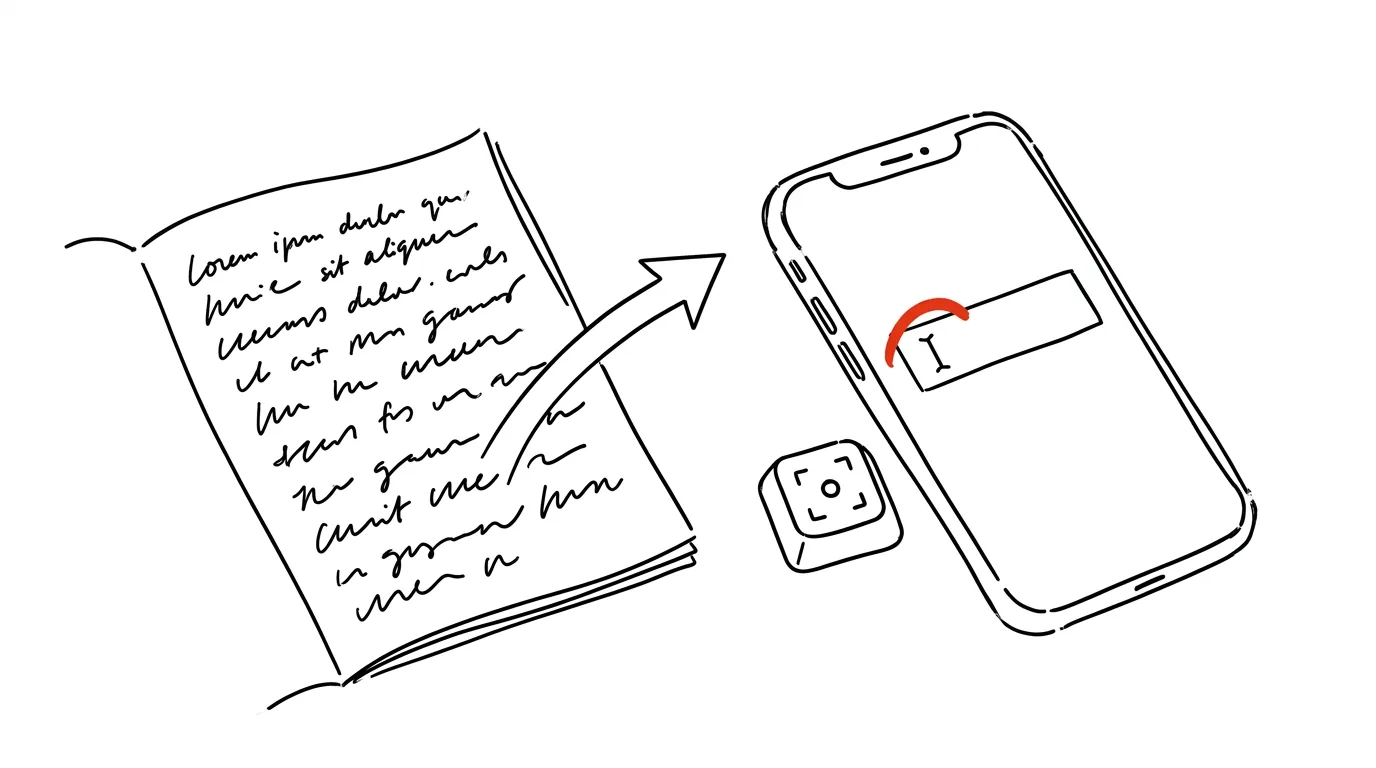
An account number off an invoice, a password from a router, an email from a business card, a paragraph from a book — how many times have you retyped these by hand, hoping you didn't make a typo? Both mobile systems can recognize real-world text with the camera and insert it as plain text you can work with. On iPhone the feature is called Live Text, and it can do something few people know about: scan with the camera directly into a text field, with no separate photo-and-copy step.
How to do it
iPhone (Live Text):
- Tap into any text field (email, note, form) and choose Scan Text from the bubble above the cursor (the item with a scanner icon; you may need to nudge the bubble with the arrow to find it).
- A viewfinder opens above the keyboard — point it at the paper, and the recognized text inserts directly into the field. Tap Insert to confirm.
- A second route: in the Camera app, point at text, tap the Live Text icon in the corner of the viewfinder, then select and copy the text. The same works retroactively on anything in Photos.
- Always double-check accented characters and less common scripts — Live Text doesn't officially support every language, so diacritics and special characters can occasionally come out slightly off.
Android (Google Lens):
- Open Google Lens — through the Google search widget (camera icon), in the Camera app on many phones, or on an existing photo in Google Photos.
- Point at the text, tap it, and choose Select Text → Copy. Lens handles a wide range of languages and accented characters very well.
- A bonus feature: the Copy to Computer option sends the text straight to the Chrome clipboard on a computer signed into the same Google account — from paper into an in-progress document with zero retyping.
A typical scenario
A paper invoice arrives and you need to pay it. Instead of retyping the account number and reference number into your banking app (and triple-checking every digit), you tap into the field in the payment form, choose text scanning, and point at the invoice. The number inserts itself, accurately. The same trick saves a teacher transferring exercises from a printed textbook into a test, and a student copying out citations from books.
What you get out of it
The most annoying kind of retyping disappears — short but critical details where every typo hurts. And because the recognized text is just plain text, you can immediately send it, save it, or search it. For whole documents, reach for scanning with OCR into a PDF instead; Live Text and Lens are for quick snippets, when you need three lines, not an archive.
Both features also work on text displayed on screens — from a presentation slide, a TV, or a checkout terminal display. Whenever you're about to copy something out by hand, try pointing your phone at it first.
Want to go deeper? The handbook has a whole chapter on it — The app categories that matter.
Similar tips
Swiped Away a Notification by Accident? Android Has a History
Notification history shows everything from the last 24 hours — including notifications you swiped away before you had a chance to read them.
A Kid's Account: Limits and App-Install Approval
A child's first phone doesn't have to be a battle. Family Link and Screen Time give parents install approval and time limits — set up in advance, not after the conflict.
Stop clicking through menus: Settings has a search bar
Looking for where to turn on the hotspot or turn off vibration? Type it into the Settings search bar — you'll land right on the correct screen.
Was this helpful?
Liked this tip?
I send one like it every week by email. Two minutes to read, hours saved.
The Top 30 tips e-book, free — it lands in your inbox right away.
Then 1 tip a week · no spam · unsubscribe in one click
Prefer a system to single tips? The free email course — seven days, seven emails, one skill a day.