Tips & tricks · Apps · Windows · ~4 min a day · 2 min read
Peek: preview a file with Ctrl+Space, no app required
Last reviewed:
Ctrl+Space
In this article
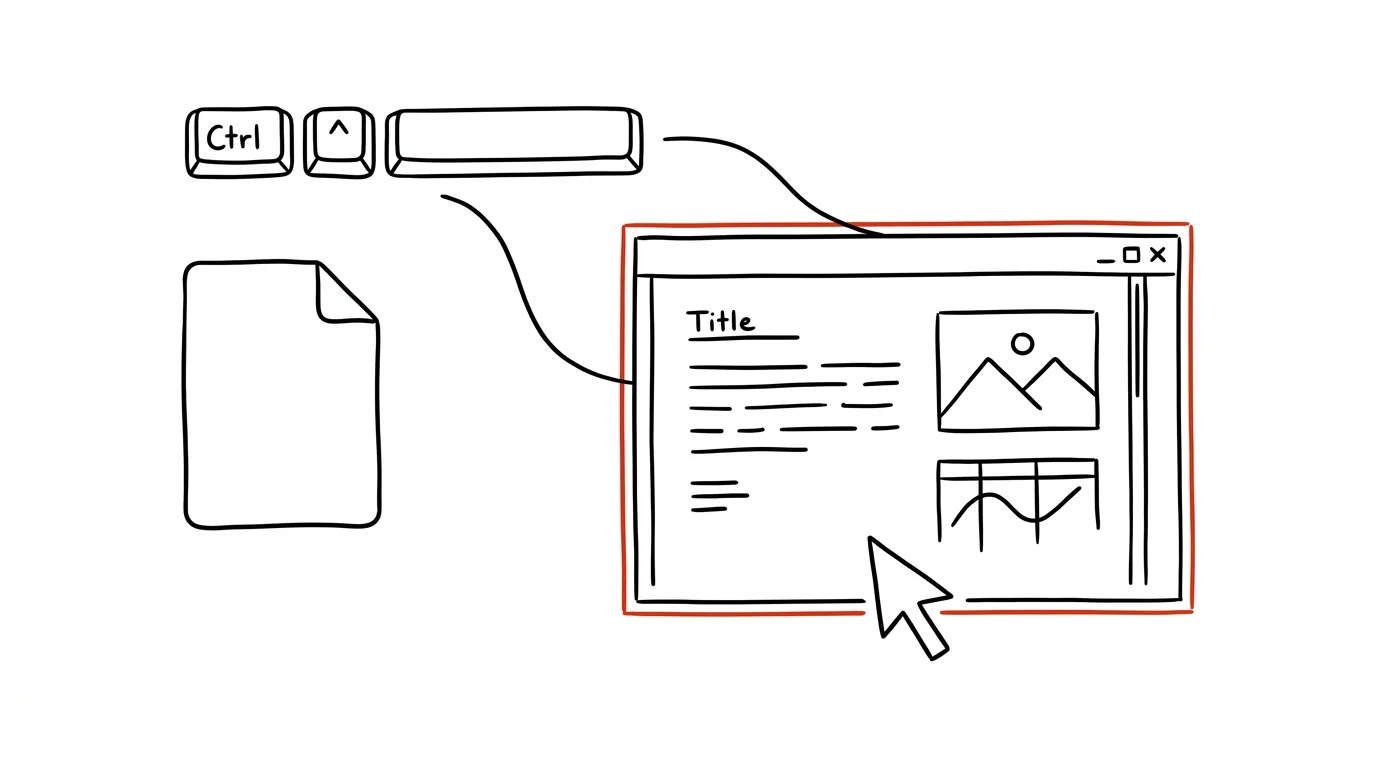
Mac users have the Space bar: select a file, press it, and see the contents. On Windows, the same thing has traditionally meant opening the whole app — and waiting for it to launch. Microsoft's free PowerToys fill that gap with the Peek module: select a file in File Explorer, press Ctrl+Space, and a lightweight window instantly shows what's in it. Arrow keys then flip through the other files in the folder without opening anything.
How to do it
- Install PowerToys (Microsoft's free toolkit, available in the Microsoft Store) and confirm in the settings that the Peek module is turned on.
- In File Explorer, select a file and press Ctrl + Space — a preview window opens: images, text files, code, web pages, and a range of other formats.
- The left and right arrow keys step through previews of the other files in the folder — ideal for quickly scanning a whole batch.
- A button in the preview lets you open the file directly in its default app once you've confirmed it's the right one. Close with Esc.
- If the shortcut clashes with another app, you can change it in the PowerToys settings.
A typical scenario
You're hunting for one specific version of a contract among twelve files named “contract_final,” “contract_final2,” and “contract_final_REALLY.” Without a preview, that means opening Word twelve times, waiting, closing. With Peek, you select the first file, press Ctrl+Space, and arrow through all of them in a few seconds — you spot the right one by eye and open it directly.
It works just as well on a folder of phone photos, a batch of downloaded PDFs, or checking what's actually in a file a colleague sent with a meaningless name.
What you get out of it
- Time: launching a heavy app for a three-second glance is one of the most expensive operations in an office day — and you do it many times a day.
- Faster decisions: delete, rename, forward? You decide based on the content, not the filename.
- Fewer open windows: searching doesn't leave your desktop buried under six app windows you never actually needed.
- Safer handling of unfamiliar files: you can check the contents of an attachment or a downloaded file without launching it in a full app — a saner first step for anything suspicious.
Pro tip
File Explorer also has a built-in option: the preview pane, toggled with Alt + P, keeps a preview of the selected file permanently visible on the right side of the window. It's handy when you're sorting files for a longer stretch; Peek, by contrast, is better for a quick one-off glance. The two complement each other nicely — and on a Mac, Quick Look via the Space bar does the same job.
Want to go deeper? The handbook has a whole chapter on it — The app categories that matter.
Similar tips
The Address Bar Is Also a Calculator
Type 154*1.21 into the address bar and the result shows up right in the suggestions — no Enter, no opening a calculator.
Gboard Has a Clipboard History — Win+V in Your Pocket
The Gboard keyboard remembers what you last copied, and you can pin important items permanently. Just turn it on.
Swiped Away a Notification by Accident? Android Has a History
Notification history shows everything from the last 24 hours — including notifications you swiped away before you had a chance to read them.
Was this helpful?
Liked this tip?
I send one like it every week by email. Two minutes to read, hours saved.
The Top 30 tips e-book, free — it lands in your inbox right away.
Then 1 tip a week · no spam · unsubscribe in one click
Prefer a system to single tips? The free email course — seven days, seven emails, one skill a day.