Tips & tricks · Apps · Windows · ~10 min a week · 2 min read
PowerRename: rename a hundred files by a rule
Last reviewed:
In this article
A client rebrands, a project gets a new code, and you're left with a folder of eighty files that all carry the old name. Doing it by hand is half an hour of numbing work. With the PowerRename module from the free PowerToys suite, it's one operation: select the files, specify “replace what with what,” and see the result in a preview before anything actually changes.
How to do it
- Install PowerToys (Microsoft's free toolkit) and confirm the PowerRename module is turned on.
- In File Explorer, select the files, right-click, and choose PowerRename (on Windows 11 you may need to look under Show more options).
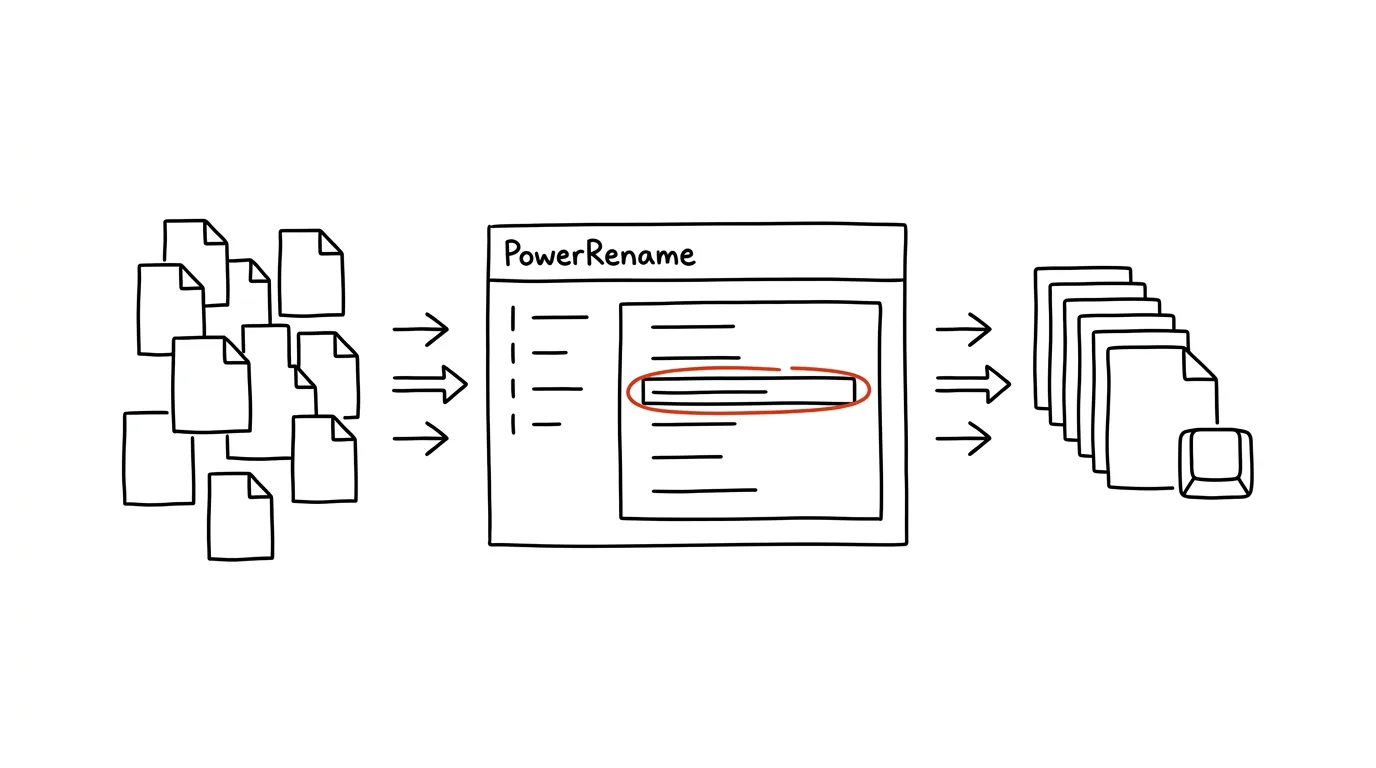
- In the Search field, type the text you want to find in the names; in the Replace field, the new text. The right-hand column instantly shows what the names will look like — nothing happens until you click Apply.
- Checkboxes let you fine-tune the details: case sensitivity, whether the change should apply to extensions too, to files only, or folders as well.
- More advanced tricks: PowerRename supports regular expressions (say, to rearrange parts of a name) and variables for numbers or the creation date — turning a mess into a consistent pattern like “2026-08_report_01.”
- If you make a mistake, Ctrl + Z in File Explorer undoes the whole batch.
A typical scenario
A designer gets 120 files named “IMG_20260812_143005.jpg” from a photographer, and the client wants them named “fall-collection” with sequence numbers. By hand, that's an afternoon. In PowerRename, she selects everything, strips the “IMG_” prefix with one rule, adds the collection name and numbering with a second — and checks the result in the preview before clicking Apply. Three minutes.
The same situation comes up for a developer refactoring data files, and for a freelancer archiving invoices who wants a consistent year-month order in the filenames so they sort chronologically.
What you get out of it
- Minutes instead of half-hours: bulk renaming by a rule is exactly the kind of work a computer should do, not a human.
- Confidence from the preview: you see all eighty future filenames in advance — no “oops” halfway through the batch.
- Order that lasts: consistent naming patterns mean correct sorting and easy searching, permanently.
Pro tip
You don't need to open PowerRename for small stuff: plain F2 with the Tab key handles quick renaming of a few files in a row right in File Explorer. Save PowerRename for when you're dealing with dozens of files and an actual pattern. And if regular expressions aren't your thing, have AI suggest the expression for your specific rename: describe what the names should become, paste the expression into the Search field, and the preview in the right column shows you — before you click Apply — whether it does exactly what you wanted.
Want to go deeper? The handbook has a whole chapter on it — The app categories that matter.
Similar tips
Search Gmail like a pro: from:, has:attachment, older_than:
Search operators find in seconds an email you'd otherwise spend fifteen minutes hunting for by hand.
In-depth guide · 75 min
An internal CRM with Supabase: a detailed guide from data to deployment
A continuation of Marta the roastery owner’s story: a complete beginner’s guide to turning contacts in your phone and orders in spreadsheets into your own CRM — from explaining what a database even is, through click-by-click Supabase setup and deployment on Vercel, to a cost reckoning with real numbers against off-the-shelf CRMs.
The Action Button: A Physical Shortcut on the Side of Your iPhone
Newer iPhones have a programmable button above the volume controls. Voice memo, flashlight, camera, or a custom shortcut with one press-and-hold.
Was this helpful?
Liked this tip?
I send one like it every week by email. Two minutes to read, hours saved.
The Top 30 tips e-book, free — it lands in your inbox right away.
Then 1 tip a week · no spam · unsubscribe in one click
Prefer a system to single tips? The free email course — seven days, seven emails, one skill a day.