Tips & tricks · Gear · Everywhere · ~5 min a day · 2 min read
Speed up key repeat: the cursor flies, so does deleting
Last reviewed:
In this article
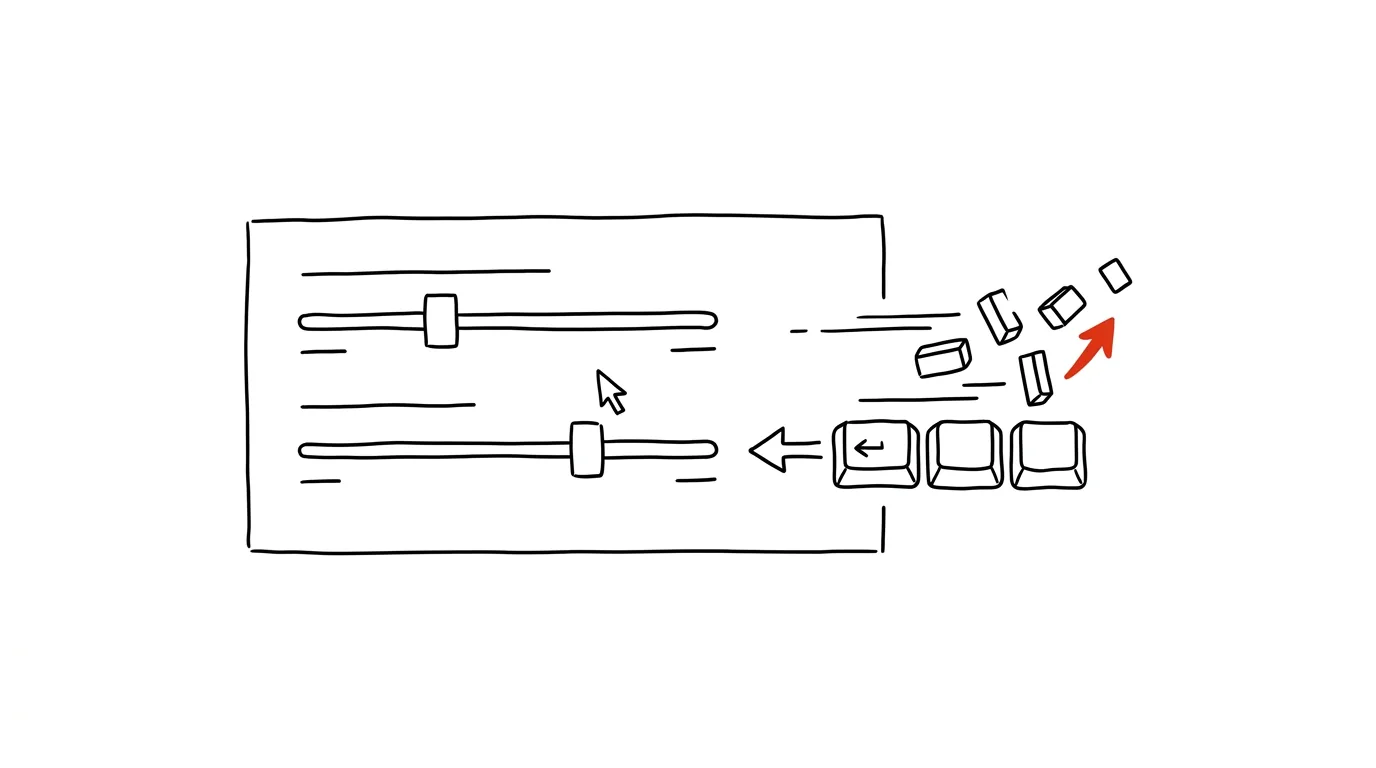
Hold down an arrow key, Backspace, or Delete, and after a moment the key starts repeating. How long that moment is, and how fast the repeat then runs, isn't fixed — they're two sliders in your settings, and both Windows and Mac ship with them set very conservatively by default. Most people don't know they exist, so for years they wait for the cursor to “take off” and then watch it crawl lazily along the line. Yet one minute of setup makes moving through text and deleting noticeably snappier — it's one of those changes that makes a computer feel brand new.
How to do it
- On Windows, press Win + R, type
control keyboard, and confirm — the Keyboard Properties window from Control Panel opens (this option isn't in the modern Settings app). - Drag the Repeat delay slider toward Short and Repeat rate toward Fast. Hold down a key in the test field below the sliders and you'll see the difference immediately.
- On a Mac, open System Settings → Keyboard and set Key Repeat Rate to the fastest and Delay Until Repeat to the shortest value.
- Try normal work for a few days. If keys start repeating even during ordinary typing, dial the delay back one notch — but feel free to leave the repeat rate at maximum.
A typical scenario
Accountant Jane is fixing numbers in long forms: she holds down an arrow key to get to the middle of a line, and waits. The cursor sits still for a second, then crawls character by character. With a short delay and fast repeat, she's at the same spot in a fraction of the time — and holding Backspace deletes the wrong entry before she'd even have reached for the mouse. For a programmer or a student writing a paper, the same tiny difference repeats a hundred times a day: moving along lines, deleting, indenting, scrolling through long lists with arrow keys.
What you get out of it
Each individual speedup is tiny, but these are movements you make constantly while typing — together they add up to minutes a day, and more importantly, that faint feeling of always waiting on the computer disappears. Text under your hands responds instantly, so you handle more from the keyboard instead of reaching for the mouse.
Pro tip
On a Mac, holding down a letter with diacritics brings up a character picker with accents instead of repeating — that's a different feature, unrelated to the sliders, and doesn't affect arrow keys or deleting. How to use it fully is covered in the tip hold a key and pick a character. And while you're in settings, also set up faster movement through text with Ctrl/Option plus arrow keys — deleting whole words at once is covered in the tip delete by word, not by letter.
Want to go deeper? The handbook has a whole chapter on it — The complete guide to an effective home office.
Similar tips
Text from paper straight into a field: Live Text and Google Lens
Stop retyping details off paper. iPhone can scan text with the camera directly into a text field; Android does the same through Google Lens.
Widgets: information without opening apps
Calendar, tasks, and weather on your home screen mean you open your phone, glance, and close it — instead of a tour through your apps.
Silence an annoying notification right from the shade
No need to dig through settings: swiping on a notification on iPhone offers an hour of silence; holding one on Android turns off just the annoying category.
Was this helpful?
Liked this tip?
I send one like it every week by email. Two minutes to read, hours saved.
The Top 30 tips e-book, free — it lands in your inbox right away.
Then 1 tip a week · no spam · unsubscribe in one click
Prefer a system to single tips? The free email course — seven days, seven emails, one skill a day.