Tips & tricks · Communication · Everywhere · ~5 min a day · 3 min read
Custom channel sections: important on top, noise below
Last reviewed:
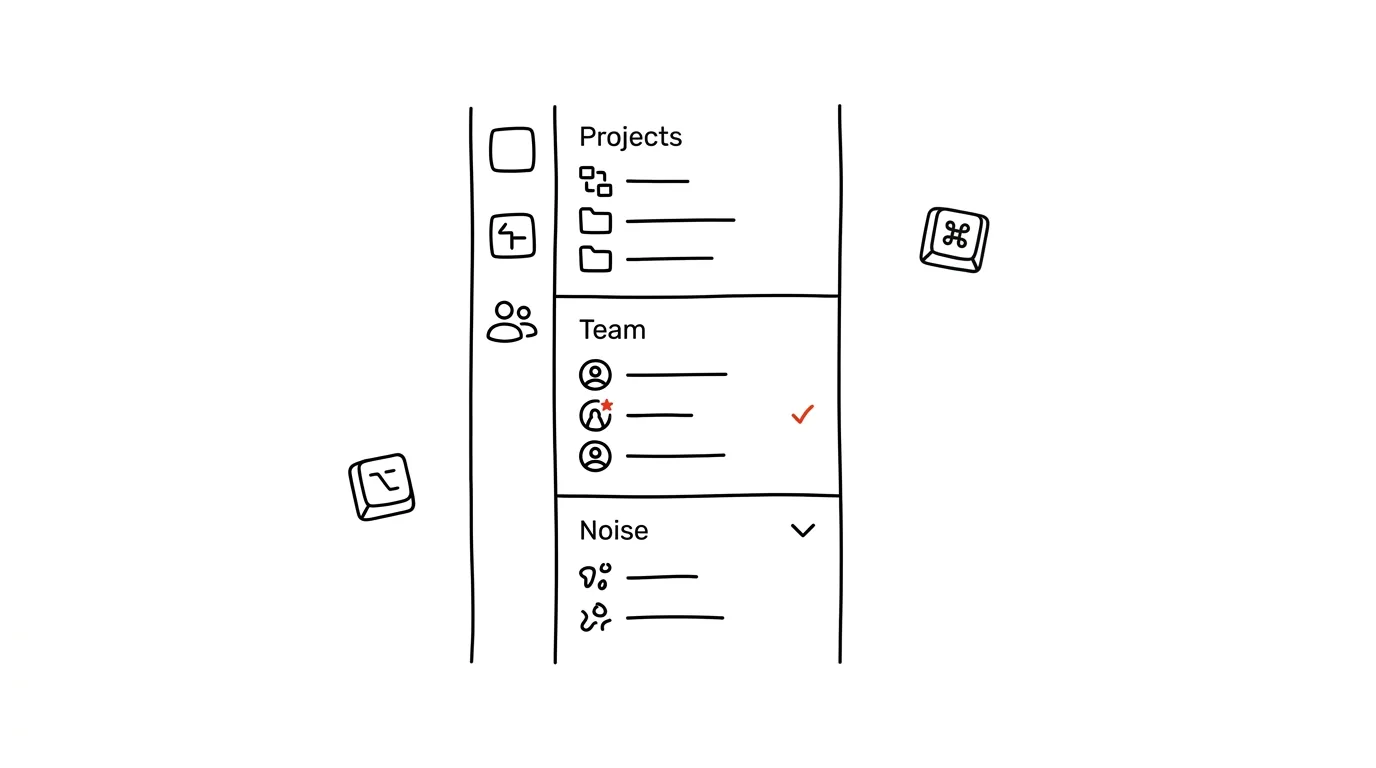
Slack's left sidebar is either a bulletin board or a junk drawer — either you can see what's important at a glance, or you're scrolling around and around through dozens of channels with no idea which one you actually need to open right now. Sections turn the sidebar into a real bulletin board: what matters goes on top, what's just noise gets collapsed and stops distracting you. For a manager running several projects at once, the difference shows up most at the start and end of the day, exactly when quick orientation matters most.
A typical scenario
Manager Tomáš runs three projects at once and belongs to more than thirty channels — from active project channels to general company ones to one-off channels he hasn't returned to in months. Every morning it takes him a full minute just to find the three channels he actually needs to keep an eye on.
With sections, he splits the sidebar into “Active projects,” “Team,” and “Occasional” — the first section always on top and expanded, the last one collapsed. In the morning he sees exactly what he needs, without wading past thirty items. One-off channels he only returns to occasionally stop pulling his attention, without him having to leave them altogether.
How to do it
- Right-click a section header in the left sidebar and choose Create new section — this feature is available on paid Slack plans.
- Name sections after how you actually work, say “Active projects,” “Team,” and “Occasional,” and drag channels into them — important and active ones on top, ones you check only rarely toward the bottom.
- Collapse sections you don't need constantly in view by clicking their name — unread messages in them still get highlighted in bold or with a number, so you won't miss anything.
- You can reorder sections and the channels within them anytime by dragging, as project priorities shift.
- Create as many sections as you actually need to distinguish — more than four or five sections usually hurts clarity rather than helping it.
The best tools
- Slack's built-in sections (paid plans) — the most complete solution, works directly in the sidebar with no extra tools.
- Starred channels — on the free plan without sections, this is at least a way to pin your most important channels to the top.
- Muting channels — for channels you don't need to follow at all, mute them separately, independent of the section system.
- A regular review of channel memberships — periodically going through which channels you're actually in and leaving the ones that no longer serve a purpose; sections alone won't fix channel overload.
What you get out of it
- Clarity: you see at a glance what's active and what's just waiting for later.
- Time: morning orientation in the sidebar takes seconds, not a minute.
- A calmer interface: a sidebar full of collapsed sections feels far less overwhelming than one long, endless channel list.
- Better handling of priorities: the visual split by importance reflects how your day is actually structured.
- Easier handoff: a colleague looking at your sidebar, or asking where to find something, orients faster in named sections than in an unsorted list.
Pro tip
Mute channels you don't need to follow at all separately (right-click → Mute) — they stay available in case you ever need them, but stop lighting up with new messages and won't distract you even if you accidentally leave them in an expanded section.
Want to go deeper? The handbook has a whole chapter on it — Professional email communication.
Similar tips
Win+H: dictate instead of typing
Win+H
Voice typing in Windows works in your language and starts wherever the cursor is blinking. Dictate a first draft of an email in a third of the time.
Win+Home: minimize everything except the window you're working in
Win+Home
Ten windows open and you only need one. Win+Home minimizes all the others — press it again and they all come right back.
Win+I: straight into Settings
Win+I
Open Windows Settings with a shortcut — and the search box inside gets you to a specific option faster than clicking through menus.
Was this helpful?
Liked this tip?
I send one like it every week by email. Two minutes to read, hours saved.
The Top 30 tips e-book, free — it lands in your inbox right away.
Then 1 tip a week · no spam · unsubscribe in one click
Prefer a system to single tips? The free email course — seven days, seven emails, one skill a day.