Tips & tricks · Shortcuts · Windows · ~2 min a day · 2 min read
Win+Home: minimize everything except the window you're working in
Last reviewed:
Win+Home
In this article
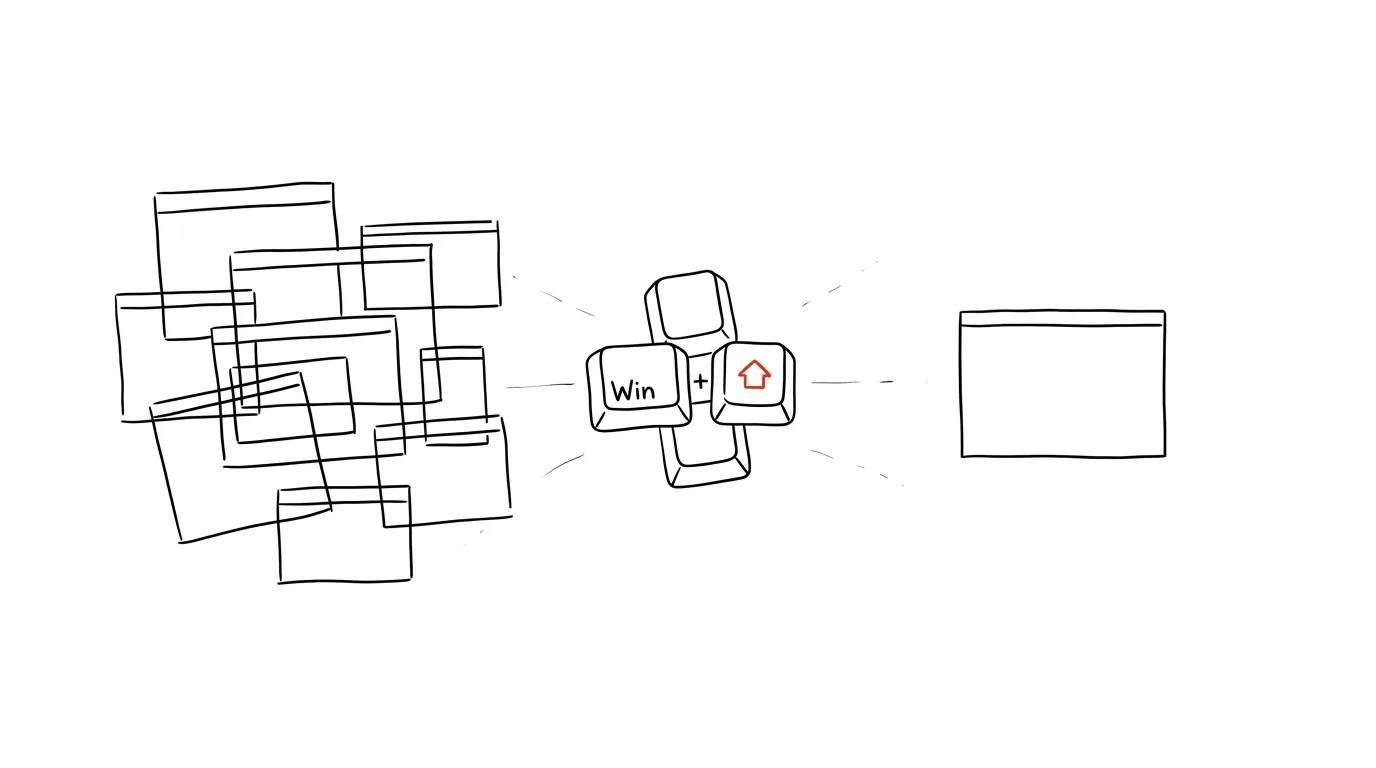
You're writing an important document and chaos flickers around it: mail, chat, three browser windows, a spreadsheet. The well-known Win+D shortcut clears the whole desktop — but it also hides the one window you're actually working in. This is exactly what Win+Home is for: it minimizes every window except the active one. All that's left is your work, and quiet.
How to do it
- Click into the window you want to keep and press Win + Home — every other window minimizes to the taskbar in a single instant.
- Press Win + Home again and the minimized windows return exactly where they were — so it's a temporary tidy-up, not a destruction of your layout.
- You can achieve the same trick with the mouse: grab a window by its title bar and quickly shake it side to side — the other windows drop to the taskbar; shake again and they come back.
- In Windows 11, shaking is off by default: turn it on in Settings → System → Multitasking under the title bar window shake option. In Windows 10 it works out of the box.
A typical scenario
You have to finish a message for leadership before the end of the hour. But Teams, Outlook, and six browser tabs are all lit up on screen — and every blink in your peripheral vision pulls your eyes away from the sentence you're writing. Win+Home: only the document remains. You write. When you need to look something up, the same shortcut brings the windows back — all in their places, nothing to reopen or rearrange.
The student version: while writing a term paper, only the editor stays on screen while sources wait minimized — zero distraction in sight, everything ready on the taskbar. And because the second press restores windows to exactly their original layout, you also skip the usual tax of tidying up: the five minutes of rearranging windows back to the state where you were working comfortably.
What you get out of it
- Focus without closing anything: distracting windows disappear from view but don't disappear entirely — you return to them with one press once you're done.
- Speed over manual clicking: minimizing eight windows one at a time means eight precise clicks on a small button; here it's one shortcut.
- A complement to Win+D, not a replacement: Win+D clears straight to the desktop — useful, say, when you need to find something on the desktop; Win+Home instead clears around your unfinished work and leaves that one important thing right in front of you.
Pro tip
If windows distract you on a regular basis — every morning while writing, every Friday during a report — a more systematic solution is worth considering: virtual desktops permanently separate work and communication windows, so Win+Home then only needs to handle the occasional emergency.
Want to go deeper? The handbook has a whole chapter on it — The app categories that matter.
Similar tips
Jump to any folder with Cmd+Shift+G
Cmd+Shift+G
You don't have to click through the folder structure. Cmd+Shift+G in Finder opens a field where you just type the path.
Quick Finder jumps: Desktop, Applications, Downloads
Cmd+Option+L
Finder has shortcuts for the folders you use most — Cmd+Shift+D for Desktop, Cmd+Option+L for Downloads, and more.
Copy a file's path: Cmd+Option+C in Finder
Cmd+Option+C
Need the exact path to a file for the terminal, a script, or an email to IT? Finder can copy it with one shortcut — it's just well hidden.
Was this helpful?
Liked this tip?
I send one like it every week by email. Two minutes to read, hours saved.
The Top 30 tips e-book, free — it lands in your inbox right away.
Then 1 tip a week · no spam · unsubscribe in one click
Prefer a system to single tips? The free email course — seven days, seven emails, one skill a day.