Tips & tricks · Shortcuts · Mac · ~3 min a day · 3 min read
Jump to any folder with Cmd+Shift+G
Last reviewed:
Cmd+Shift+G
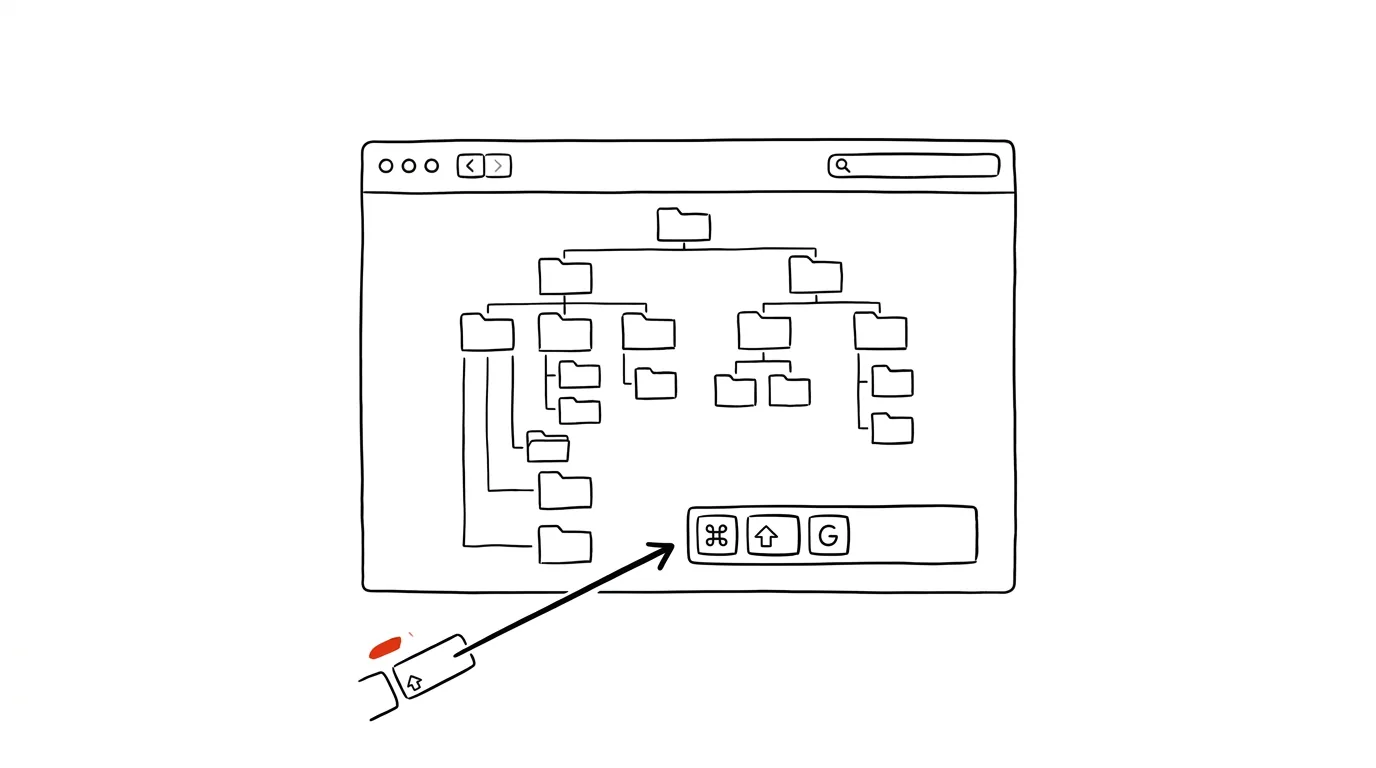
Know the path to a folder? Then just type it — no need to click through Desktop, Documents, and three subfolders. Clicking through several levels at once is needlessly slow, especially if you already know the exact path by heart. Finder has a hidden path-entry field that activates with a single shortcut and acts like a fast teleport to anywhere in the file system. It's especially useful for hidden folders that Finder normally doesn't show at all.
A typical scenario
You need to get to the "~/Library/Application Support" folder to edit some app's configuration file. Without the shortcut, that means: open your home folder, hold Option in the Go menu so the hidden Library folder shows up, click through more subfolders — and hope you didn't take a wrong turn anywhere.
With Cmd+Shift+G, you type the whole path in one go and you're there instantly, even for a folder Finder normally hides. It's just as handy when a colleague sends you the exact path to a file on a shared drive — instead of hunting through the folder tree, you just paste it in and you're there.
How to do it
- In Finder, press Cmd + Shift + G — a small window with a text field opens.
- Start typing the path, like "~/Documents" or "/Library" — Finder suggests matching folders as you go, and Tab confirms the suggestion.
- Press Enter and the window closes, taking you straight to the destination folder, even if it's normally hidden in the system.
- It also works for file paths — enter a path to a file and Finder just selects it within its folder.
- The shortcut also works in the save and open dialogs of most apps — handy when saving a file deep inside a project structure and you don't want to click through it.
- If you don't know the exact path, just type the beginning and let Finder suggest options — it works similarly to command completion in Terminal.
The best tools
- The built-in Cmd+Shift+G shortcut — the fastest route, works anywhere a macOS file dialog is open.
- Terminal (the cd command) — a natural alternative for anyone who works in the command line just as often.
- Alfred or Raycast — third-party launchers that can open a folder by name without needing to know the full path.
- Finder's sidebar with pinned favorite folders — for places you visit regularly, pinning them once is faster.
- The recent folders history — the Go menu also has a list of recently visited locations, handy when you don't remember the exact path but know you were there recently.
What you get out of it
- Time: with a more complex project structure, you can easily save a full minute on every jump that would otherwise mean clicking through folders.
- Access to hidden places: the user library and other system folders suddenly become as accessible as Documents.
- Precision: a typed path can't lead you astray the way clicking can, where it's easy to end up one folder off.
- Less frustration with developer tools: config files, caches, and logs tend to hide exactly in the places that are hardest to click your way to — this shortcut makes them just as easy to reach as Documents.
Pro tip
The tilde "" stands for your home folder, so "/Downloads" works from anywhere in Finder regardless of where you currently are. Combine it with Tab completion — type just the first few letters of a folder name and let Finder fill in the rest.
Want to go deeper? The handbook has a whole chapter on it — The app categories that matter.
Similar tips
Ctrl+J: your list of downloaded files
Ctrl+J
Where's that downloaded file? Ctrl+J opens your downloads with a “Show in folder” button.
Zoom the page: Ctrl+plus, minus, and zero
Ctrl++
Tiny text on the web isn't something you have to live with. Ctrl and your scroll wheel (or +/−) zoom the page in, Ctrl+0 resets it.
Ctrl+Shift+V: paste without formatting works everywhere
Ctrl+Shift+V
In Docs, Gmail, and most web apps, it pastes plain text without foreign fonts and colors.
Was this helpful?
Liked this tip?
I send one like it every week by email. Two minutes to read, hours saved.
The Top 30 tips e-book, free — it lands in your inbox right away.
Then 1 tip a week · no spam · unsubscribe in one click
Prefer a system to single tips? The free email course — seven days, seven emails, one skill a day.