Tips & tricks · Shortcuts · Everywhere · ~3 min a day · 3 min read
Ctrl+Shift+V: paste without formatting works everywhere
Last reviewed:
Ctrl+Shift+V
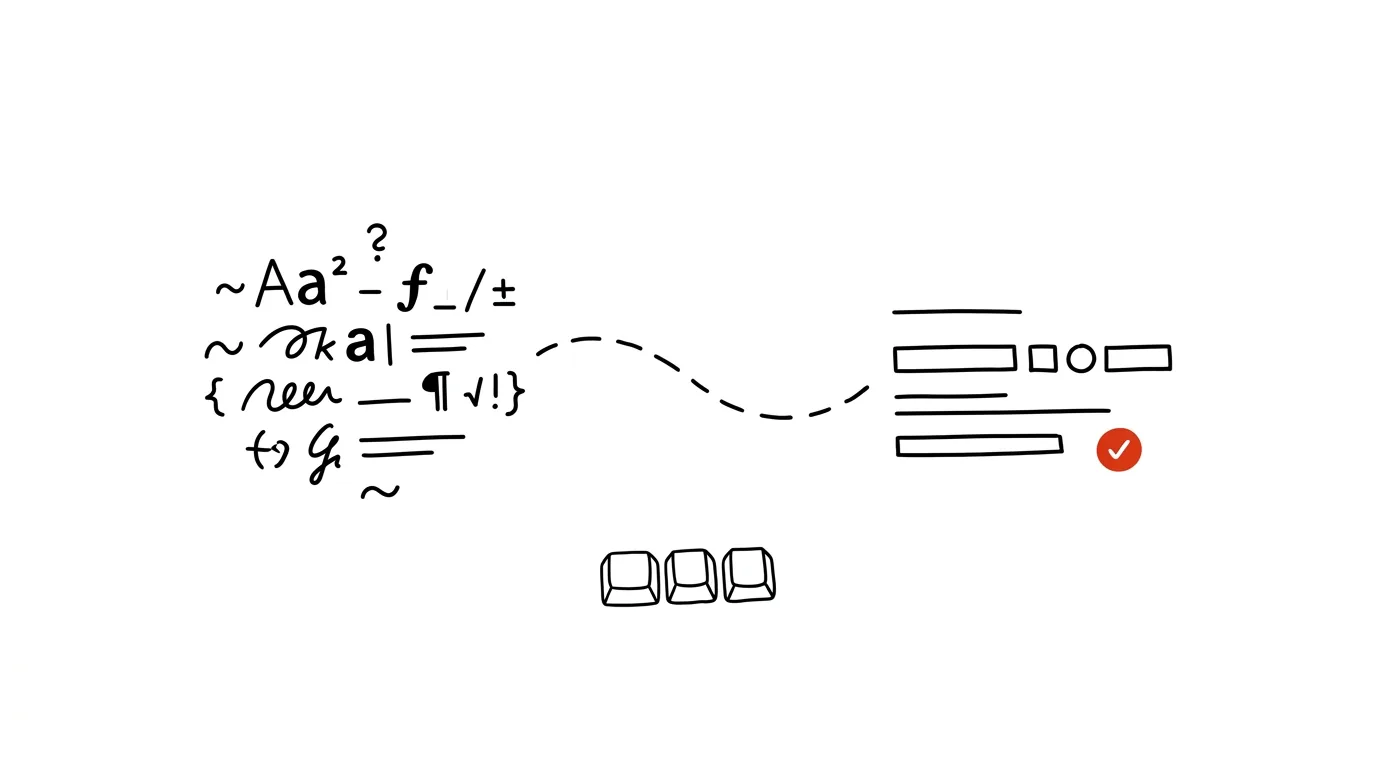
The most useful variant of the classic Ctrl + V, and half of everyone doesn't know it exists. Pasting text from another source usually drags its formatting along with it — a different font, a different size, colored highlighting, or links — and the resulting document ends up looking like a patchwork of several different styles. Ctrl+Shift+V solves that problem with a single keypress, without you having to strip formatting manually through a menu afterward.
A typical scenario
You're copying a paragraph from a web page or a PDF into an email or a document in progress. A regular paste brings along the link's blue underlined text, a different font size from the site, or a gray background from the table you took the text from — and suddenly the document looks inconsistent. You then have to fix it manually — select the text, clear the formatting, match the font and color to the surrounding text. With Ctrl + Shift + V, only the plain text gets pasted, and it immediately adopts the formatting of the document you're pasting into — no cleanup needed.
How to do it
- Copy text from anywhere — a web page, a PDF, another document, or an email — with the regular Ctrl + C.
- Instead of the usual Ctrl + V, use Ctrl + Shift + V (on Mac, Cmd + Shift + V).
- The text pastes in clean, stripped of the source's formatting, and automatically takes on the style (font, size, color) of the document you're pasting it into.
- The shortcut works across most apps and web tools — Google Docs, Gmail, Word, and plenty of other web-based text editors — so it's worth memorizing once and using everywhere.
- If the shortcut doesn't work in some particular app, pasting into a plain text field (like Notepad) and copying it back out usually does the same job.
- In Word, the same function is also available through Paste → Paste Special → Unformatted Text, if the shortcut doesn't come to mind or you'd rather click than press keys.
The best tools
- The built-in Ctrl+Shift+V shortcut — works in most text editors and web apps with zero setup, and it's the first thing to reach for.
- Notepad or another plain-text editor — a fallback where you can paste text and copy it back out if the shortcut happens to fail in a particular app.
- PowerToys Advanced Paste — a free add-on for Windows that, besides plain text, can also paste content as formatted markdown or JSON as needed.
- Paste Special in Word and Excel — a menu option under Paste where you can choose the exact form of the pasted content, including plain text with no formatting.
What you get out of it
- Time: you skip manually cleaning up formatting after pasting text from another source.
- A consistent document look: the text doesn't end up looking like a patchwork of fonts and sizes, even if it comes from several different sources.
- Lower risk of errors: hidden formatting sometimes carries invisible characters or links along with it, which pasting without formatting strips out.
Pro tip
Make the shortcut your default habit for pasting anything from the web — it's faster to just get used to using Ctrl + Shift + V instead of a regular paste than to decide every single time whether the formatting matters or not. On the occasions when you actually want to keep the formatting (say, a table with color highlighting), just reach for the regular Ctrl + V — the two work together, one for each situation.
Want to go deeper? The handbook has a whole chapter on it — The app categories that matter.
Similar tips
Two Lists Side by Side: AI Finds What's Missing
Attendance against sign-ups, payments against orders: paste two lists and AI lists what's in one and missing from the other — even through typos.
In-depth guide · 18 min
AI translates with tone, not just words
A guide with prompts: steering translation with your own samples, translation versus localization, back-translation checks, and glossary workflows.
In-depth guide · 17 min
Prepping for a negotiation in twenty minutes: research, arguments, BATNA, and rehearsal
A guide with prompts: research the other side in twenty minutes, build arguments and a walk-away point, rehearse the hardest part, and get a one-pager.
Was this helpful?
Liked this tip?
I send one like it every week by email. Two minutes to read, hours saved.
The Top 30 tips e-book, free — it lands in your inbox right away.
Then 1 tip a week · no spam · unsubscribe in one click
Prefer a system to single tips? The free email course — seven days, seven emails, one skill a day.