Tips & tricks · Shortcuts · Mac · ~2 min a day · 3 min read
Quick Finder jumps: Desktop, Applications, Downloads
Last reviewed:
Cmd+Option+L
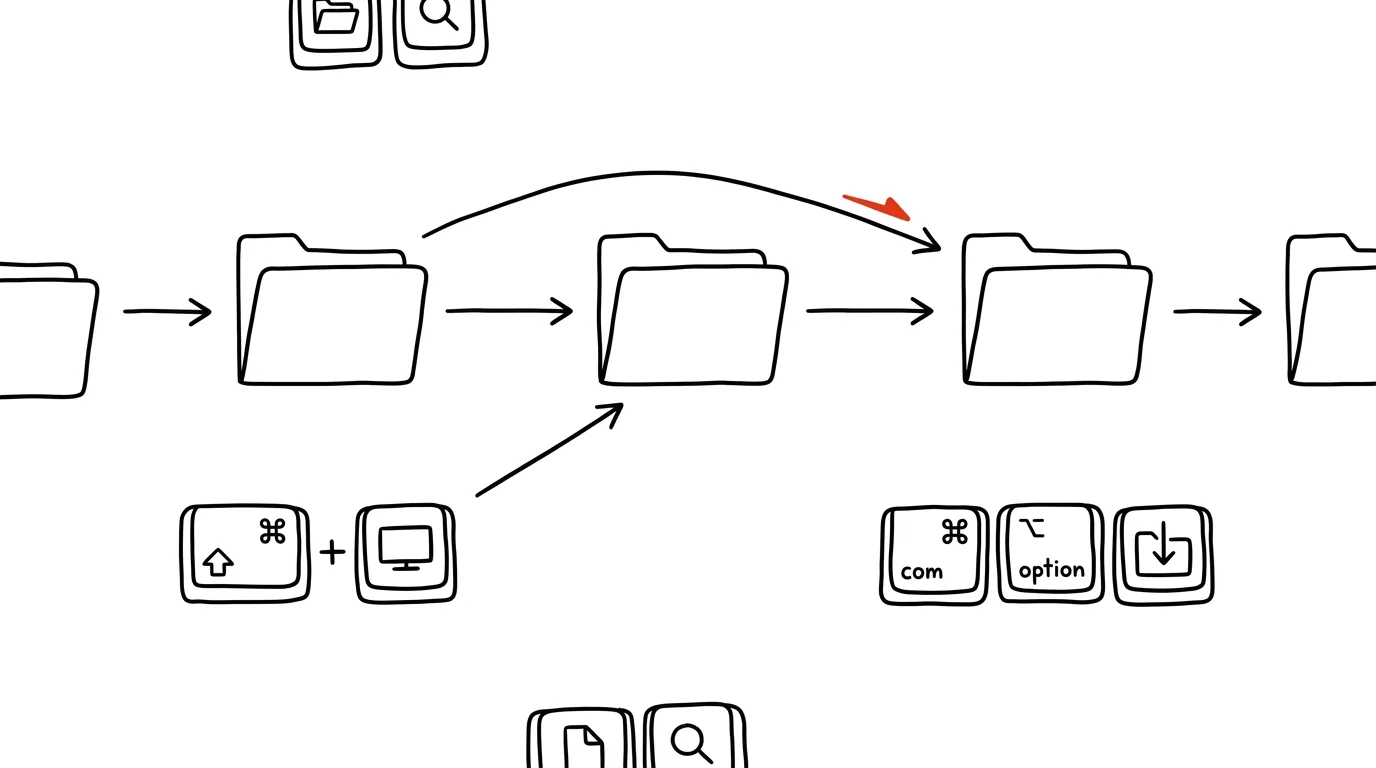
The folders you visit several times a day — Downloads, Desktop, Documents — have their own keyboard shortcuts in Finder. They're some of the oldest and most stable shortcuts in macOS, working the same whether your Mac is a decade old or brand new this year. You don't need to click through the sidebar or hunt for an icon on the desktop. Two or three keystrokes take you there instantly, no matter which Finder window you have open.
A typical scenario
You're downloading materials for a presentation — five files in a row from different sites. After each download you need to check the file saved correctly, rename it, or move it. Without shortcuts, that means finding the sidebar in Finder every time and looking for the Downloads entry, if it's even there.
With Cmd+Option+L, you're in the Downloads folder with a single keystroke, no matter where the current Finder window happens to be pointed. It works the same in reverse — when you move a file out of Downloads into Documents, both shortcuts take you there and back without a single mouse click.
How to do it
- Cmd + Option + L takes you to the Downloads folder — the most used of the whole set, since everything from your browser ends up here.
- Cmd + Shift + D opens the Desktop — faster than minimizing every window.
- Cmd + Shift + A opens the Applications folder — handy when you're looking for a program that isn't in your Dock.
- Cmd + Shift + H opens your home folder — the root you can get anywhere from.
- Cmd + Shift + O opens Documents.
- The shortcuts work in any Finder window and in the open/save dialogs of other apps too — say, when looking for a file to attach to an email.
- You don't need any Finder window open beforehand — just be on the Desktop or have Finder active in the foreground, and the shortcut opens a new window straight in the target folder.
The best tools
- Finder's built-in shortcuts — the fastest option, nothing to install, work everywhere in the system.
- Finder's sidebar with your own favorites — for folders without a dedicated shortcut, just drag them in once.
- The Dock with pinned folders — you can drag a folder icon into the Dock and keep it within a mouse click's reach.
- Cmd+Shift+G for any other path — for when you need a folder that doesn't have its own shortcut.
- Custom keyboard shortcuts for your favorite folders — in System Settings, under Keyboard, you can assign a custom shortcut to other Finder commands too, if the default five aren't enough.
What you get out of it
- Time: a few seconds per jump times dozens of jumps a day adds up to real minutes saved on clicking.
- Consistency: the shortcut works the same in every app, so you learn it once and use it everywhere.
- Independence from sidebar layout: even if someone (a colleague on a shared computer, say) rearranges it, the shortcuts still work.
- Faster onboarding for new colleagues: shortcuts are easy to pass along and work the same on every Mac regardless of how anyone has their own Finder set up.
Pro tip
Four of the five shortcuts share the same logic — Cmd+Shift+letter matching the first letter of the destination (D for Desktop, H for Home, O for dOcuments) — only Downloads is tied to Option+L for historical reasons. Once you remember that pattern, you can easily guess the shortcuts you never wrote down yourself.
Want to go deeper? The handbook has a whole chapter on it — The app categories that matter.
Similar tips
Numbers without switching keyboards: slide your finger off the 123 key
On iPhone, slide your finger off the 123 key onto a digit and the keyboard snaps back to letters by itself. Gboard has a key hold or a permanent number row.
Double space: a period, a space, and a capital letter at once
Tap the space bar twice at the end of a sentence — your phone inserts a period and a space, then capitalizes the next sentence. iPhone and Android.
Hold an app icon: quick actions without opening it
A long press on an icon opens a shortcut menu: new email, selfie, private tab, navigate home. One tap instead of hunting inside the app.
Was this helpful?
Liked this tip?
I send one like it every week by email. Two minutes to read, hours saved.
The Top 30 tips e-book, free — it lands in your inbox right away.
Then 1 tip a week · no spam · unsubscribe in one click
Prefer a system to single tips? The free email course — seven days, seven emails, one skill a day.