Tips & tricks · Shortcuts · Mobile · ~2 min a day · 3 min read
Numbers without switching keyboards: slide your finger off the 123 key
Last reviewed:
In this article
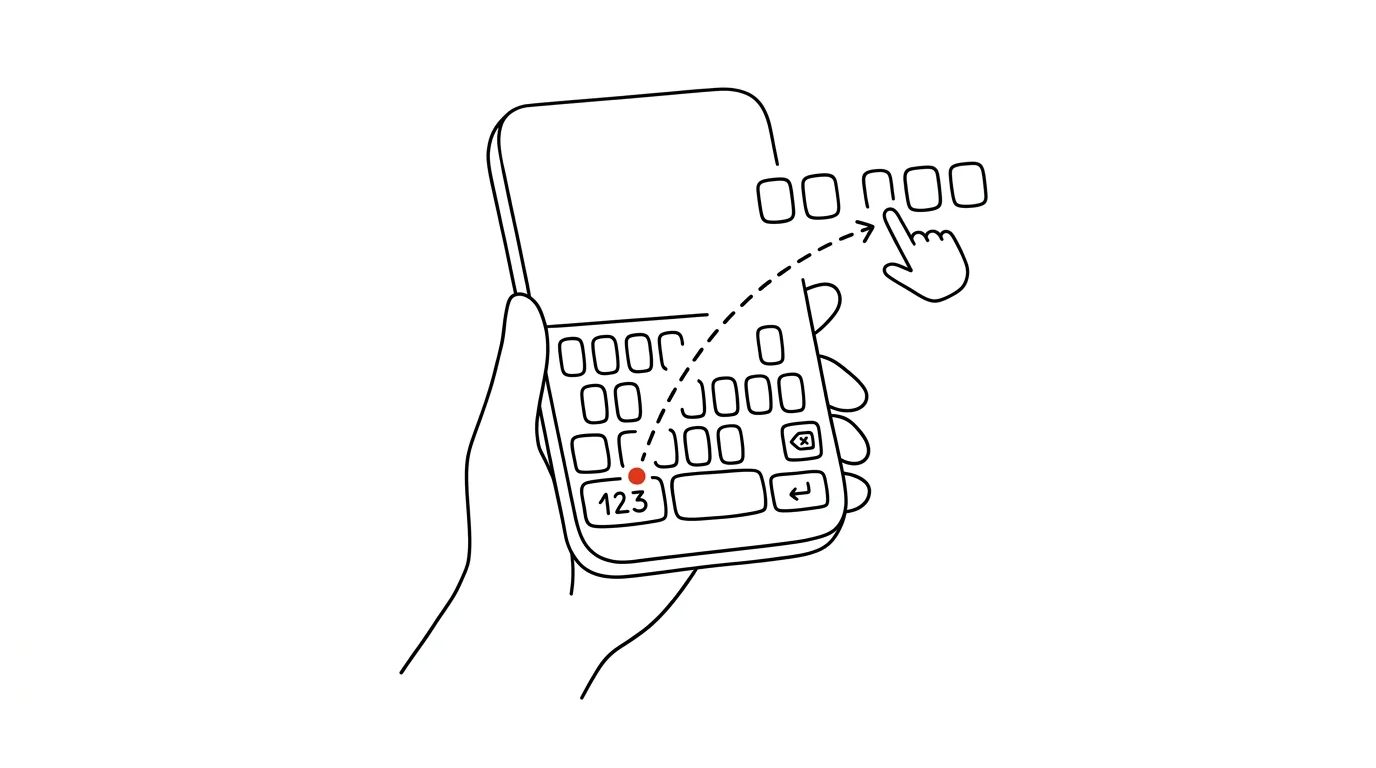
Typing "let's meet at 2:30" on your phone means hopping between the letter and number layers of the keyboard four separate times. Switch, type a digit, switch back, keep typing — and do it again for the next number. Yet both systems have a way to insert a digit or symbol with a single gesture, without ever visibly switching keyboards.
How to do it
iPhone:
- Instead of tapping the 123 key, press it down and, without lifting your finger, drag it onto the digit or symbol you need.
- As soon as you lift your finger, the character types itself — and the keyboard snaps back to letters on its own. No tapping ABC.
- The drag works for anything on the number layer — digits, hyphen, colon, quotation marks. The same trick applies to Shift: slide off it onto a letter and it types one capital, with no separate toggle.
Android (Gboard):
- Hold down a letter key in the top row — Q through P each have a small digit, 1 through 0, in the corner. After a brief hold, the digit types itself.
- Even more convenient: turn on a permanent number row in Gboard settings → Preferences → Number row. The keyboard gets one row taller, but the digits stay in view at all times.
- Holding also works on punctuation — hold the period key and a palette of common symbols pops up.
A typical scenario
You're arranging a meeting and typing out a message: "Thursday 8/21 at 9:15am, 123 Main St." That's six digits and a colon — with normal typing you'd switch keyboard layers about ten times, and your typing rhythm breaks every time. With the drag off the 123 key (or a number row on Gboard), you type the whole message in one flow, because each digit is one gesture instead of three taps.
You'll appreciate the same trick for verification codes you can't copy, street numbers, zip codes, or amounts — exactly the small numbers that keep tripping up your messages.
What you get out of it
Digits and symbols are the most expensive characters on a mobile keyboard — each one costs two extra switches. This trick brings that down to a single gesture, which adds up to dozens of saved taps a day in ordinary conversation. But the real win isn't in seconds: your typing stops stuttering, so messages with numbers, times, and addresses flow just as smoothly as plain text.
Once the gesture is in your fingers, pair it with a period from a double space — together, the two shortcuts remove most of the reasons you'd ever switch layers on a mobile keyboard.
Pro tip
Gboard's number row eats up a chunk of screen space, so it mainly pays off for people who type numbers constantly — accountants, dispatchers, anyone working with spreadsheets on a phone. If you only type numbers occasionally, keep the keyboard short and rely on holding keys down: the speed is nearly the same, and you keep more screen space for text.
Want to go deeper? The handbook has a whole chapter on it — The app categories that matter.
Similar tips
In-depth guide · 16 min
Reply templates from your own sent mail: analysis, extraction, upkeep
A complete guide with prompts: have a year of sent mail analyzed, find the recurring types, and pull templates in your own words — time savings measured.
Hold Space and talk: a walkie-talkie for Zoom and Teams
Space
Stay muted for the whole meeting. When you want to say something, hold the key, talk, release — and the microphone mutes itself again.
Share a window, not the whole screen
Sharing your full desktop shows colleagues your notifications and half-typed messages too. Sharing one window shows only what you meant to show.
Was this helpful?
Liked this tip?
I send one like it every week by email. Two minutes to read, hours saved.
The Top 30 tips e-book, free — it lands in your inbox right away.
Then 1 tip a week · no spam · unsubscribe in one click
Prefer a system to single tips? The free email course — seven days, seven emails, one skill a day.