Tips & tricks · Communication · Everywhere · nerves and discretion · 2 min read
Share a window, not the whole screen
Last reviewed:
In this article
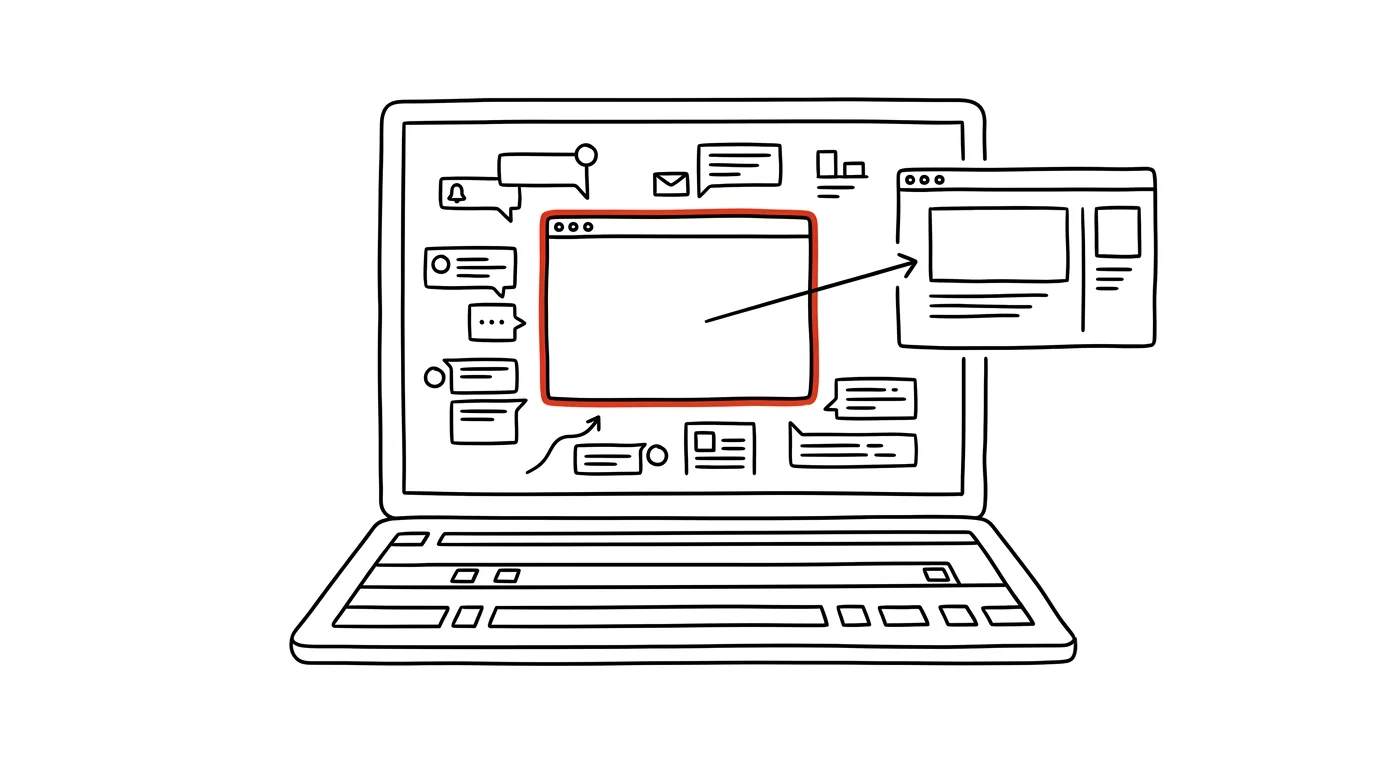
You're screen-sharing a presentation — and a notification pops up over it: a message from your partner, an email with a subject line nobody was supposed to see, an interview reminder. A classic that's happened to almost everyone. Yet Zoom, Meet, and Teams all offer three sharing options, and most people reflexively pick the riskiest one: the whole screen. Choosing window (or browser tab) instead shows participants only one specific app — everything else, notifications and your switching to other things included, stays yours alone.
How to do it
- Before sharing, open the document or presentation you actually want to show.
- Click share, and in the dialog don't pick the whole screen: in Zoom, choose a specific app from the windows tab; in Teams, select Window; in Meet, Window or Tab.
- From that point, participants see only the window you selected. Open notes or chat alongside it, and nothing changes on the shared image.
- If you're playing a video or anything with sound, use Chrome tab sharing in Meet (tab audio carries over automatically), and in Zoom or Teams check share computer sound — otherwise participants get a silent movie.
- Share the full screen only when you genuinely need to switch between several apps — and even then, turn on do-not-disturb first.
A typical scenario
A consultant is presenting a price quote to a client. She shares only the window with the presentation; in another window, meanwhile, she has an internal spreadsheet with margins open, plus a chat with a colleague where they're figuring out how low they can go on price. The client sees only the presentation — even while the consultant is looking elsewhere. With the whole screen shared, this way of working would be unthinkable.
What you get out of it
The risk of a sensitive detail leaking during a presentation drops to practically zero — you're not relying on discipline (“close everything before the call”), you're protected structurally. And meetings flow better: you can take notes, look up material, or check chat at the same time, without the audience tracking your every move.
One trap worth knowing about: don't minimize the shared window — minimizing it freezes the share and participants stare at a frozen frame. You can cover the window with others just fine, that doesn't affect the share; just leave it open.
Pro tip
Presenting from PowerPoint? Combine this with presenter view — you share the window with the slideshow, and only you see your notes. And if you do occasionally share your whole screen, keep an empty browser profile ready for it and do-not-disturb turned on — do-not-disturb can turn itself on automatically while presenting.
Want to go deeper? The handbook has a whole chapter on it — Professional email communication.
Similar tips
Pinned tabs: mail and calendar always in the same spot
A pinned tab shrinks to an icon, stays on the left, and can't be closed by accident. The foundation for a stable browser setup.
Free trial? Cancel it right away — it runs the full course anyway
For subscriptions through the App Store or Google Play, you can cancel the trial a minute after activating it: it still runs to the end, and nothing gets charged. Elsewhere, a reminder does the job.
Browser profiles: work and personal, kept apart
Two profiles means two sets of bookmarks, logins, history, and extensions. No more signing out and mixing work with personal.
Was this helpful?
Liked this tip?
I send one like it every week by email. Two minutes to read, hours saved.
The Top 30 tips e-book, free — it lands in your inbox right away.
Then 1 tip a week · no spam · unsubscribe in one click
Prefer a system to single tips? The free email course — seven days, seven emails, one skill a day.