Tips & tricks · Apps · Browser · ~5 min a day · 3 min read
Pinned tabs: mail and calendar always in the same spot
Last reviewed:
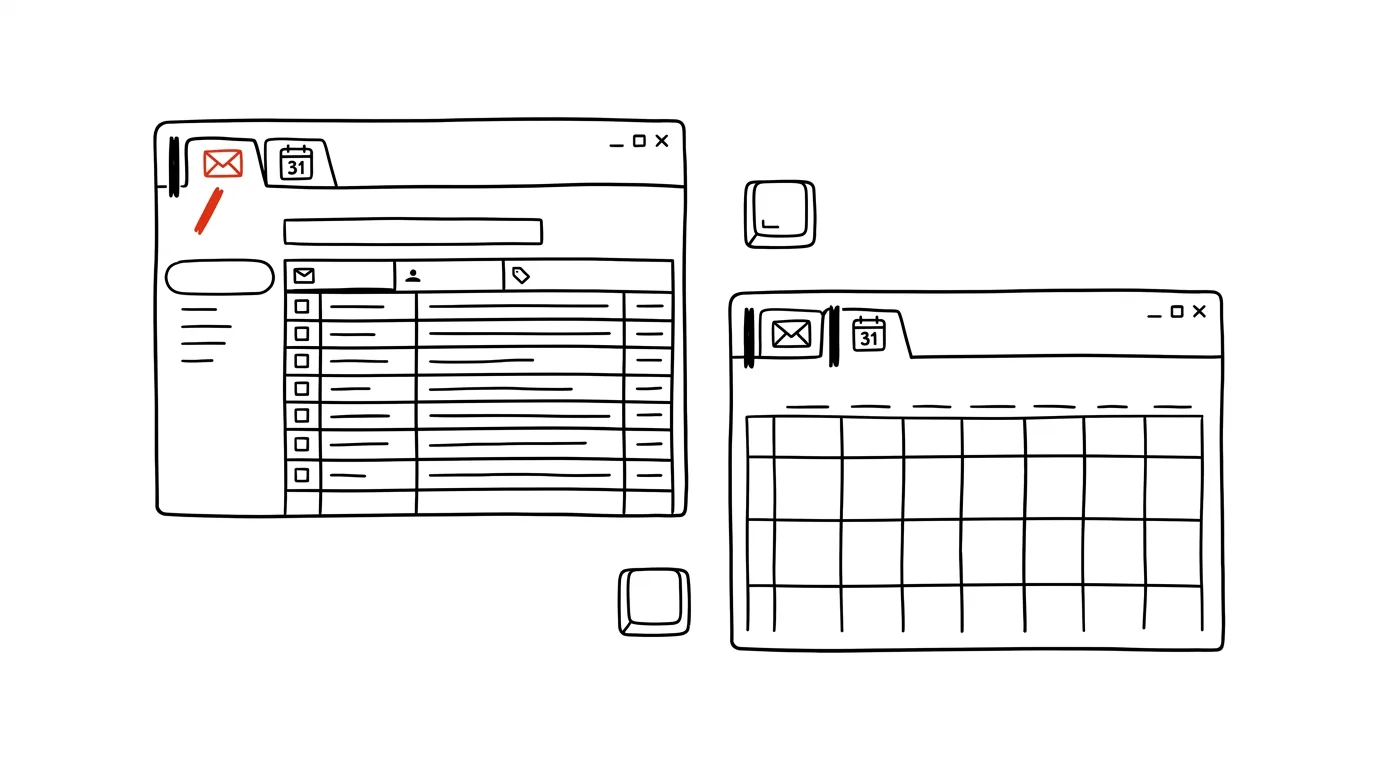
When an everyday tool has a fixed place, you stop having to look for it. It's true in a browser the same way it's true on a physical desk — tabs you use all day (email, calendar, company chat) just need pinning once, and from then on they're always where you expect them, no matter how many other tabs you open in the meantime.
A typical scenario
You've got email open in one tab and calendar in another, and over the course of the day you open ten more — documents, websites, reports. Without pinning, email and calendar gradually get pushed all the way to the left, out of view, or you accidentally close them along with everything else when you bulk-close tabs at the end of the day. With pinning, both stay in place as small icons on the left — visible, tidy, and protected from accidental closing, no matter what else you open.
How to do it
- Right-click the tab you want to keep permanently on hand and choose Pin from the menu.
- The tab shrinks down to a small icon (usually the page's favicon) and moves to the front of your tab row, all the way to the left.
- Pinned tabs stay separate from regularly opened ones — a new tab always opens after them, so they never get mixed in.
- You can't close them with the usual Ctrl + W shortcut or the X button, which normally doesn't even show on pinned tabs — you have to unpin them the same way, via right-click.
- Pinned tabs survive a browser restart — the next time you launch it, they automatically reopen in place, so email and calendar are ready for you in the morning without any extra effort.
The best tools
- Built-in tab pinning in Chrome, Edge, and Firefox — free, works identically across all major browsers.
- Tab groups — pair with pinning to add color-coded grouping of related tabs, useful when you're working on multiple projects at once.
- Browser profiles — combined with pinned tabs, let you have a completely different set of pinned tools for work versus a personal account.
What you get out of it
- Time: roughly 5 minutes a day saved on hunting for and reopening tabs you closed by accident or can't find among the others.
- Peace of mind: no more losing a half-finished email or an important spreadsheet to a bulk tab close.
- Clarity: a fixed set of icons on the left draws a clear line between "tools I keep open all the time" and "whatever I'm looking at right now."
- A faster start to the day: once you turn on your computer, your key tools are ready without opening them one by one.
Pro tip
Pinned tabs also work well for tools that would otherwise take over the whole screen and clutter your view — like company chat or an online calendar. Shrunk to an icon, they stay out of the way, but one click brings them back to full size anytime.
Want to go deeper? The handbook has a whole chapter on it — The app categories that matter.
Similar tips
Windows Search: extend the index to your working folders
Win+S
When Windows can't “find” your files, it's probably not indexing the right folders. One search setting fixes it all.
AutoCorrect as a shortcut dictionary: long names from three letters
Teach Word that “dph” means “value added tax.” AutoCorrect can expand your own custom shortcuts across every Office app.
Comparing two versions of a document: see the changes in color
Word and Google Docs can both compare two versions of a file and highlight every difference. No more reading contracts line by line.
Was this helpful?
Liked this tip?
I send one like it every week by email. Two minutes to read, hours saved.
The Top 30 tips e-book, free — it lands in your inbox right away.
Then 1 tip a week · no spam · unsubscribe in one click
Prefer a system to single tips? The free email course — seven days, seven emails, one skill a day.