Tips & tricks · Apps · Everywhere · ~5 min a day · 3 min read
AutoCorrect as a shortcut dictionary: long names from three letters
Last reviewed:
In this article
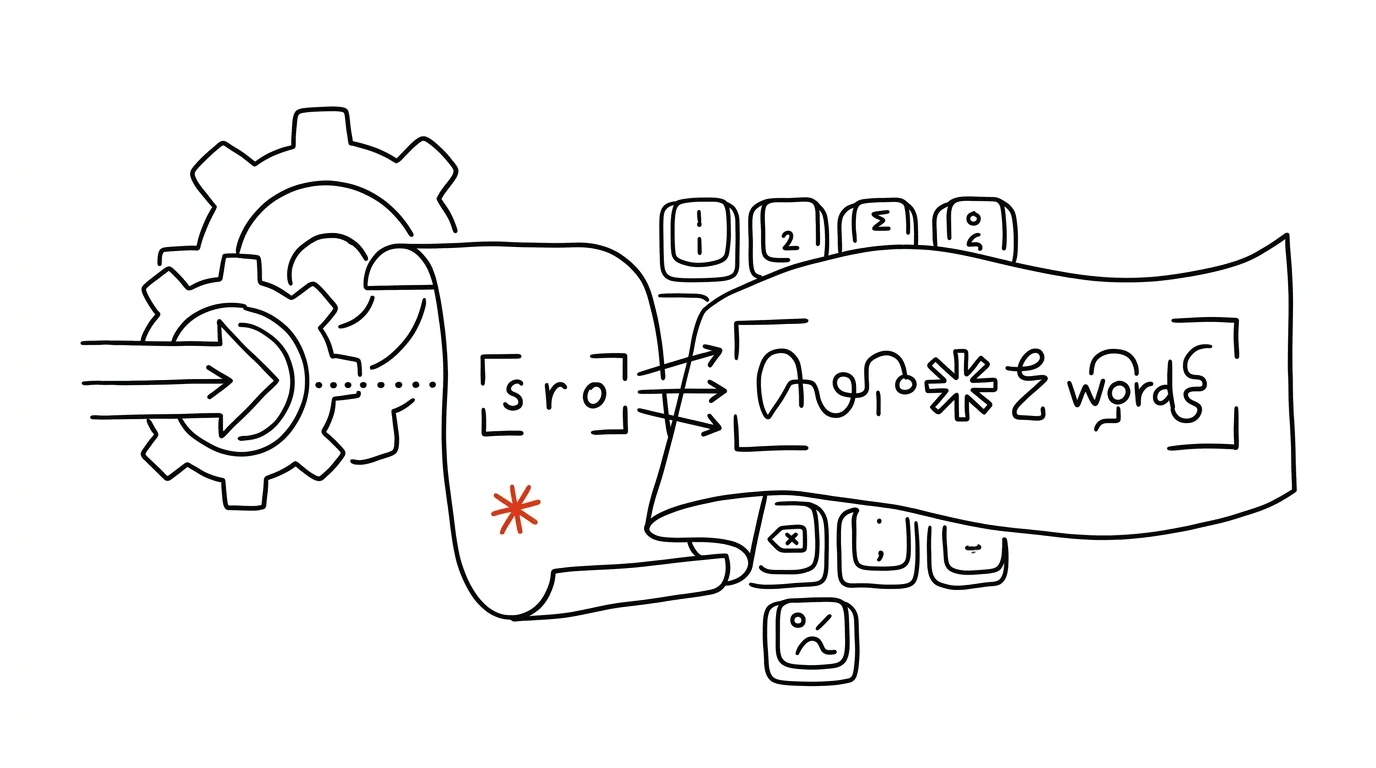
Everyone knows AutoCorrect as the feature that turns “teh” into “the.” Few people know you can add your own pairs to that same dictionary — and turn it into a shortcut dictionary. Type three letters, and Word replaces them with a company's full name, a name with titles, or a sentence you type twenty times a day. And because the correction dictionary is shared across every Office app, the same shortcut works in Word, Excel, PowerPoint, and Outlook alike.
How to do it
- In Word, open File → Options → Proofing → AutoCorrect Options.
- On the AutoCorrect tab, you'll find the “Replace text as you type” table. Type your shortcut into the left field (e.g., “vutb”), the full text into the right field (“Brno University of Technology”), and click Add.
- Pick a shortcut that isn't an existing word — otherwise it'll expand in places you don't want it to. Combinations that don't occur in normal text work best: “xfa,” “ssro,” “addr1.”
- From then on, just type the shortcut followed by a space or punctuation — the text replaces itself automatically. It works across Word, Excel, PowerPoint, and Outlook on the same computer.
- On the rare occasion you don't want the replacement, press Ctrl + Z right after it expands — the original shortcut comes back.
- A replacement can carry formatting too: select a finished, formatted piece of text in Word (say, a signature block with a bolded name), and only then open the AutoCorrect dialog — the right-hand field will already be pre-filled, and a Formatted text toggle will appear. The shortcut will then insert the text along with its look.
- Delete a pair you no longer need at any time in the same dialog: find it in the list, select it, and click Delete.
A typical scenario
An accountant writes documents daily full of phrases like “value added tax,” full client names like “Novák & Sons, Construction Company, LLC,” and her own office address. She types each of them many times a day, with the risk of typos in names that matter most in official documents.
After ten minutes of setup, she types “dph1,” “nov1,” and “addr1” — and documents fill up with correct, consistently identical names. A typo in a client's name simply can't happen, because she never types it by hand.
What you get out of it
A phrase you type ten times a day takes one second instead of five — that's minutes a day of pure typing time. What matters more is consistency: institution names, titled names, and legal wording come out identically every single time and without typos, which saves complaints and awkward corrections on contracts and official documents.
Pro tip
This trick only works inside Office apps. If you want shortcuts to expand absolutely everywhere in the system, macOS has built-in text replacement; on Windows, PowerToys serves a similar role. The Office version does have one advantage, though — your pairs travel with your Microsoft account between computers.
Want to go deeper? The handbook has a whole chapter on it — The app categories that matter.
Similar tips
In-depth guide · 18 min
AI in the Classroom: Teaching Students Who Have ChatGPT in Their Pocket
A complete guide with prompts: assignments AI can't do for a student, simple class rules, defending your own text instead of a witch hunt, and AI in class.
In-depth guide · 17 min
Custom instructions: set up AI once, it applies forever
A complete guide to standing instructions: what belongs in them, how they differ from a Project, testing them — and ready sets for common professions.
In-depth guide · 21 min
AI search engines with citations: research with verifiable sources
A complete guide with prompts: when to use AI search instead of Google, how to ask so the answer rests on sources — and where the tool reliably fails.
Was this helpful?
Liked this tip?
I send one like it every week by email. Two minutes to read, hours saved.
The Top 30 tips e-book, free — it lands in your inbox right away.
Then 1 tip a week · no spam · unsubscribe in one click
Prefer a system to single tips? The free email course — seven days, seven emails, one skill a day.