Tips & tricks · Apps · Windows · ~5 min a day · 3 min read
Windows Search: extend the index to your working folders
Last reviewed:
Win+S
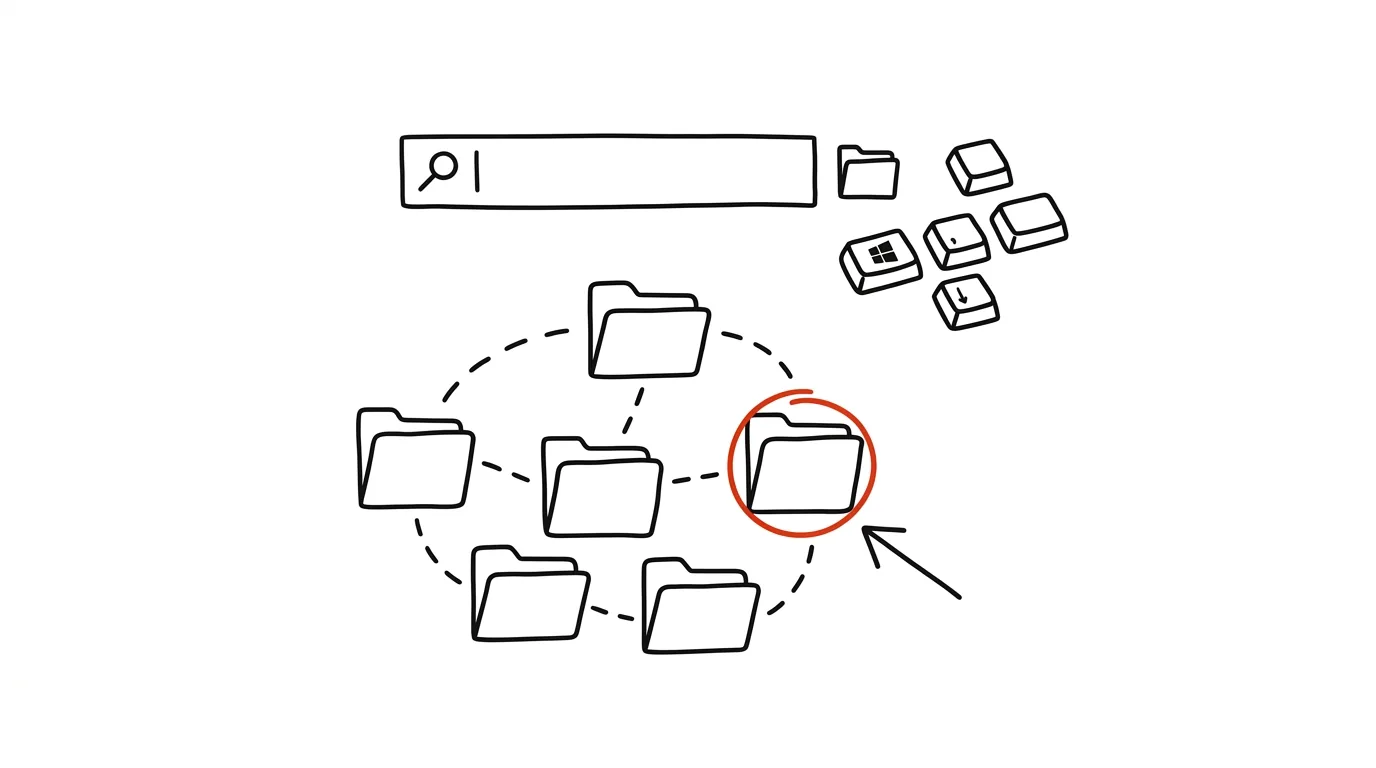
Search is only as good as its index. By default, Windows indexes only a limited set of folders — mainly libraries like Documents and Desktop — and if you save your working files somewhere else, say on a network drive, a different folder, or another partition, search simply won't find them, even though they're demonstrably there.
A typical scenario
You're looking for an invoice from last month, you know exactly what the file is called, you press Win + S, type the name — and Windows reports it found nothing like that. Yet the file is on the computer, just sitting in a folder the system doesn't index, maybe on drive D or in a project subfolder outside the default libraries. What follows is manual digging through File Explorer, which takes much longer than it should.
Once you add your working folder to the index, search starts covering it just as thoroughly as the default libraries — and next time, the file shows up after the first few letters of its name, exactly the way search should work.
How to do it
- Open Settings → Privacy & security → Windows Search.
- In the indexing section, choose between Classic and Enhanced mode. Enhanced indexing searches virtually the entire drive (aside from system and temporary files) and is the simplest choice if you want to be sure everything gets found.
- If you prefer Classic mode to keep the load on your computer lower, open Customize excluded folders or a similar option and manually add the specific working folders you want included in the index (e.g., a network project folder, drive D, and so on).
- After adding folders, wait a while for Windows to finish reindexing — for a large number of files, this can take anywhere from a few minutes to tens of minutes in the background.
- Then search with Win + S — it now covers files, apps, and settings from all indexed locations.
The best tools
- Windows' built-in Search — free, just extend the index with your own folders and it covers files, apps, and settings all at once.
- Everything (voidtools) — a free tool that indexes an entire drive almost instantly and searches by filename lightning-fast, popular among power users.
- PowerToys Run — a free, fast launcher from Microsoft, an alternative to built-in search with its own plugins.
- In-app search (OneDrive, SharePoint) — if you store files primarily in the cloud, rely on search within that service instead, since a local index may not always fully cover cloud files.
What you get out of it
- Time: roughly 3–5 minutes a day saved on manually browsing folders in File Explorer when built-in search comes up empty.
- Reliability: confidence that if search doesn't find a file, it really isn't on the computer — instead of wondering whether a poor index is to blame.
- Faster work with documents: search by filename and content works across your entire working drive, not just the default libraries.
- Fewer extra windows: no need to open File Explorer and click through a folder tree just to search.
Pro tip
If your computer slows down briefly after turning on enhanced indexing, that's a one-time background reindex — once it finishes, performance returns to normal, and search then runs noticeably faster than before.
Want to go deeper? The handbook has a whole chapter on it — The app categories that matter.
Similar tips
The Two-Screen Meeting Rule: One for People, One for Notes
Put the meeting window on the monitor with the camera, notes and materials on the other. You look people in the eye, never share anything private, and minutes write themselves.
In-depth guide · 18 min
Give your content a voice: audio versions of articles and newsletters
A guide with prompts: turning finished text into listenable audio — preparing the text for the ear, choosing a voice, and hard voice-cloning rules.
Email three times a day in blocks, not sixty times in drips
Constantly checking your inbox shreds your focus into pieces. Three fixed blocks a day are enough for 95% of jobs.
Was this helpful?
Liked this tip?
I send one like it every week by email. Two minutes to read, hours saved.
The Top 30 tips e-book, free — it lands in your inbox right away.
Then 1 tip a week · no spam · unsubscribe in one click
Prefer a system to single tips? The free email course — seven days, seven emails, one skill a day.