Tips & tricks · Workflow · Everywhere · ~10 min a day · 3 min read
The Two-Screen Meeting Rule: One for People, One for Notes
Last reviewed:
In this article
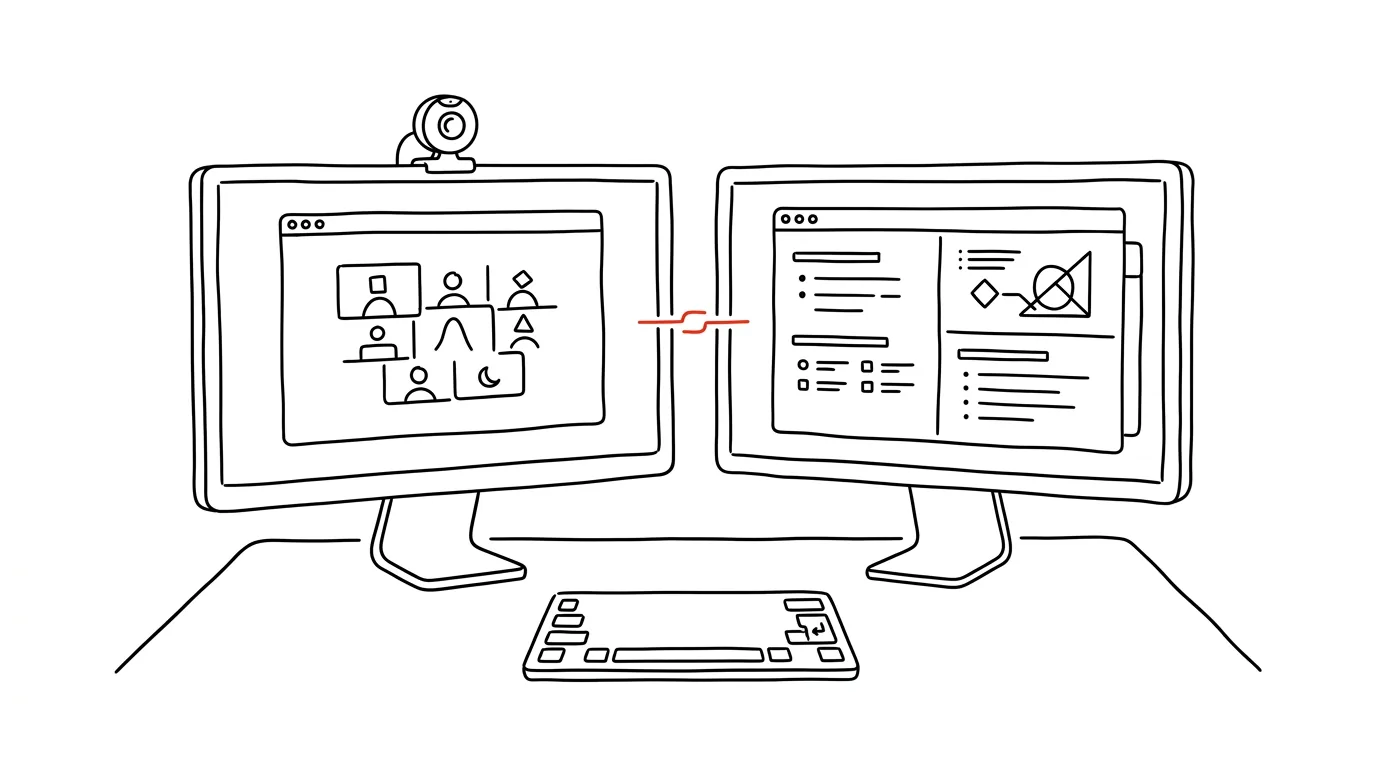
Anyone working with two monitors usually uses them haphazardly in meetings: the call window lands wherever it happens to fall, notes get hunted for, and during screen-sharing you pray nothing private floats into view. Yet one standing rule fixes it: the screen with the camera belongs to people, the other to work. The meeting window always goes on the monitor the camera is on (or in) — notes, materials, and chat go on the other one. A small habit that changes both how you come across in meetings and what you take away from them.
How to do it
- Right after joining, move the meeting window to the screen with the camera — fastest with Win + Shift + arrow key (see the tip move a window to the other monitor). When you're looking at your colleagues' faces, you're also looking almost straight into the camera, and everyone else gets the sense of eye contact.
- On the second screen, open a document for notes and materials related to the agenda. Taking notes then doesn't look like "looking away and doing something else" — your attention keeps returning to people, not the taskbar.
- Declare the notes screen private: never share from it. If you need to share a document, drag it onto the "public" screen and share that specific window, not the whole desktop — see share a window, not the whole screen.
- Keep the layout consistent. After a few meetings it becomes automatic: your hand puts the call on the left and notes on the right without thinking, no window-shuffling in the first few minutes.
Don't have a second monitor? The same rule works at a smaller scale: meeting window and notes side by side on half the screen each, with the call on the side closer to the camera's center.
A typical scenario
Manager Peter used to keep his notes in a window in front of the call — colleagues could see him looking somewhere down and clicking away, and he himself spent half the meeting switching windows. Now he has the call on the monitor with the camera and the minutes on the other screen: he watches participants "eye to eye," takes notes by feel to the side, and when sharing a proposal with a client he doesn't risk his calendar with a sensitive meeting or a private chat popping into view.
What you get out of it
You come across as present — people on the call register that you're looking at them, which is an unexpectedly powerful detail in negotiations and team leadership alike. Minutes take shape as you go, not reconstructed from memory in the evening. And the risk of accidentally sharing something private drops to nearly zero, because it's guarded by how you've arranged your desk, not by your attention.
Pro tip
Before meetings where you'll be sharing, turn on do-not-disturb mode on your computer — that way no notifications pop up on the "public" screen. And nudge the call window on the camera screen so the speaker sits as close to the lens as possible: the smaller the angle, the more convincing the eye contact.
Want to go deeper? The handbook has a whole chapter on it — Core systems: inbox, priorities, reviews.
Similar tips
A screenshot of exactly the part of the screen you want
Cmd+Shift+4
Cmd+Shift+4 turns your cursor into a crosshair. Select an area and the shot lands on the desktop — or straight in the clipboard.
Sidecar: turn an iPad into a second monitor for your Mac, no cable
You might already own a second monitor — your iPad. Sidecar turns it into a wireless Mac display in two clicks, even on the road.
Smart folders: a search that updates itself
Save a search as a smart folder — say, “PDFs from the last week.” The contents keep themselves up to date by the rules you set.
Was this helpful?
Liked this tip?
I send one like it every week by email. Two minutes to read, hours saved.
The Top 30 tips e-book, free — it lands in your inbox right away.
Then 1 tip a week · no spam · unsubscribe in one click
Prefer a system to single tips? The free email course — seven days, seven emails, one skill a day.