Tips & tricks · Shortcuts · Mac · ~3 min a day · 3 min read
A screenshot of exactly the part of the screen you want
Last reviewed:
Cmd+Shift+4
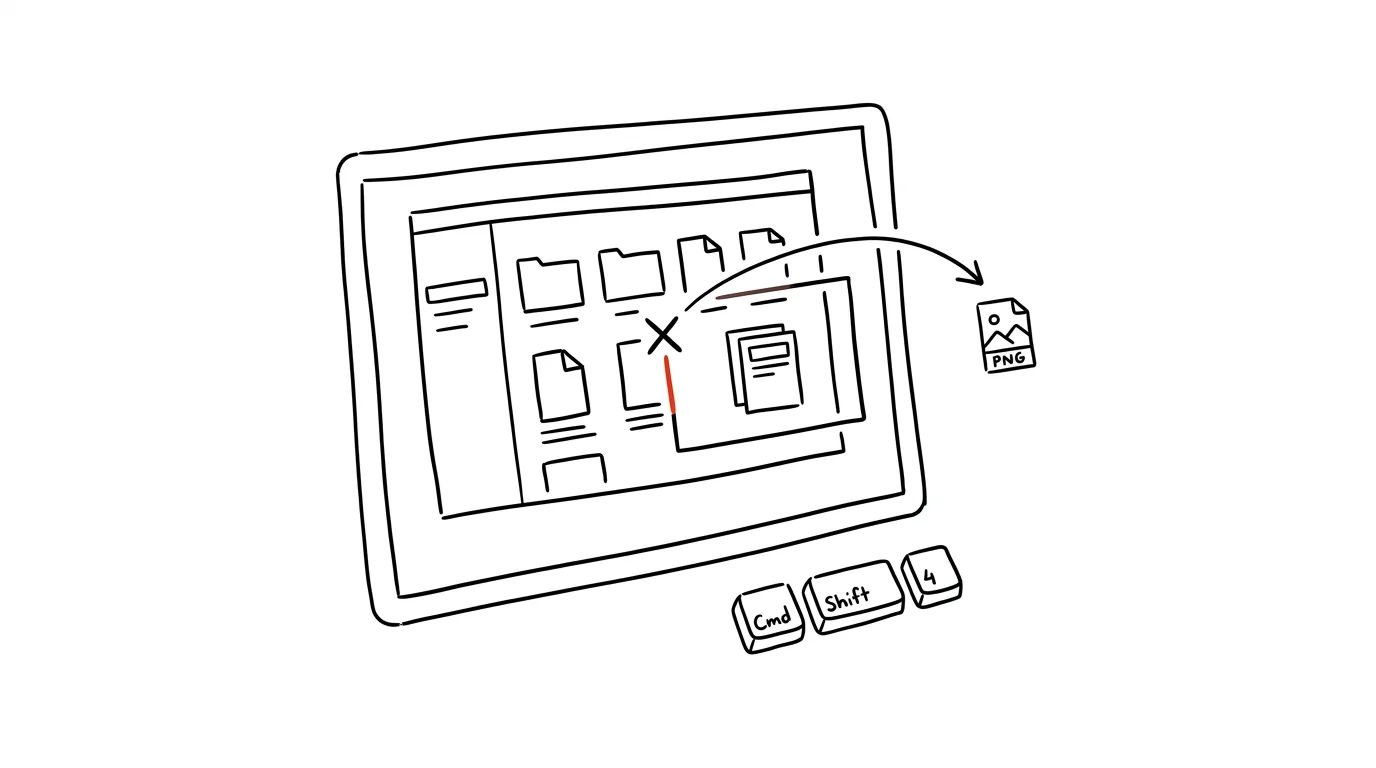
Capturing the whole screen and then cropping it is an unnecessary extra loop. Most of the time, all you actually need is a small snippet — an error message, a row in a spreadsheet, a detail on a chart — not the entire screen with every open window and desktop icon around it.
A typical scenario
A coworker writes in chat: "send me a screenshot of that error." The usual routine is to capture the whole screen, open the image in a viewer, crop it to size, save it, and only then attach it to the message — four extra steps for one simple thing.
With area selection, it's a single mouse movement. You mark exactly the window with the error message, the shot comes out already at the right size, and you can send it within seconds, without cropping anything or opening another app.
How to do it
- Press Cmd + Shift + 4 — the cursor turns into a crosshair with coordinates.
- Drag with the mouse to mark the area you want to capture. The screenshot saves automatically to the desktop as a PNG file once you release the button.
- Want to capture an entire window without manually selecting its edges? After pressing the shortcut, press Space as well — the crosshair turns into a camera icon; hover it over the window and click to capture it, complete with a nice shadow around it.
- While dragging out an area, you can hold Space to move the whole selection around before releasing it — handy when you almost nailed it but need to nudge the selection by a few pixels.
- Rename or move screenshots from the desktop afterward — macOS names them by the date and time they were taken, so with a larger number of them, it's easy to lose track.
- After taking a shot, a small thumbnail appears in the corner of the screen for a few seconds — click it to open the screenshot in a preview, where you can crop it right away or add a caption or an arrow.
The best tools
- Built-in area selection (Cmd + Shift + 4) — free, the fastest route to a single screenshot with no installation.
- The screenshot panel (Cmd + Shift + 5) — for when you also want a timer setting on hand, or need to switch between multiple capture types.
- CleanShot X — a paid alternative for frequent screenshotting, with annotations, blurring of sensitive data, and quick upload to a shared link.
- Skitch by Evernote — a free tool for quick captions and arrows right on a screenshot, handy for explaining steps to coworkers.
What you get out of it
- Time: no more cropping in a separate app — for a few shots a day, that's real minutes saved, and for people documenting bugs or writing tutorials, even more.
- Precision: the screenshot contains only what you meant to show, without distracting surroundings the recipient would otherwise have to filter out themselves.
- Faster communication: you can send a screenshot to chat or email practically instantly, with no delay to find or edit the file.
- Fewer files on disk: the straight-to-clipboard variant (see Pro tip) also skips leaving an unneeded file on the desktop that you'd otherwise have to delete later.
Pro tip
Add Ctrl to the combination (that's Cmd + Shift + Ctrl + 4) and the screenshot saves straight to the clipboard instead of the desktop — then just paste it with Cmd + V directly into chat or a document, with no extra file left behind to delete later.
Want to go deeper? The handbook has a whole chapter on it — The app categories that matter.
Similar tips
Merge multiple PDFs into one — without paying for Acrobat
A contract, an attachment, and a scanned addendum, all in one file: Preview handles it on a Mac, free PDF24 on Windows — just don't upload sensitive documents anywhere.
Pull just a few pages out of a PDF — by printing to PDF
Need to send three pages out of a fifty-page PDF? Print the range “12-14” to PDF and the new file is born. No installing anything.
A floating video window over everything else
Picture-in-picture keeps a video (a call, a tutorial) in the corner of your screen while you work elsewhere.
Was this helpful?
Liked this tip?
I send one like it every week by email. Two minutes to read, hours saved.
The Top 30 tips e-book, free — it lands in your inbox right away.
Then 1 tip a week · no spam · unsubscribe in one click
Prefer a system to single tips? The free email course — seven days, seven emails, one skill a day.