Tips & tricks · Apps · Everywhere · ~5 min per document · 2 min read
Pull just a few pages out of a PDF — by printing to PDF
Last reviewed:
In this article
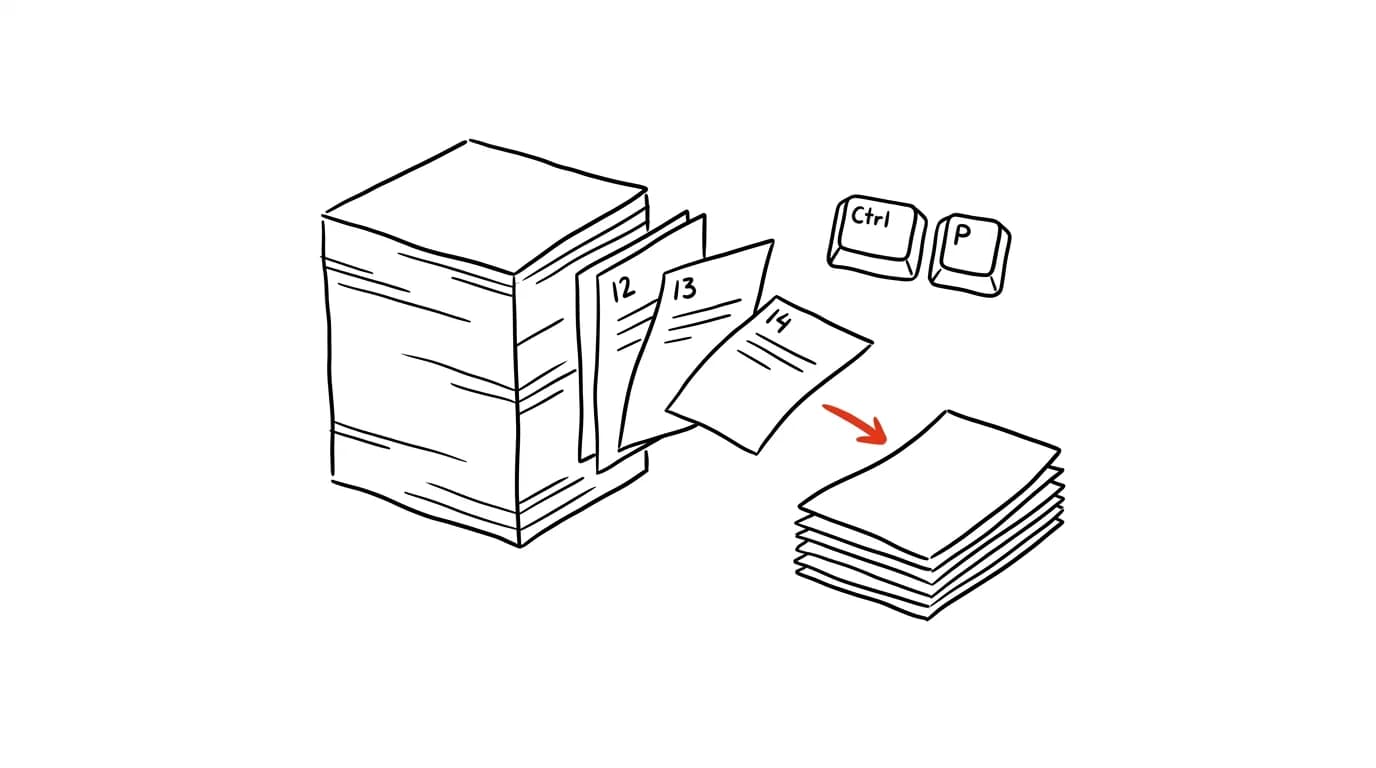
You need to send just a few pages from a long PDF — one chapter of a contract, two pages of a price list, an attachment without the rest of the document. Splitting a PDF sounds like a job for a special tool, but a capability every computer already has is enough: the virtual print-to-PDF driver. In the print dialog, you specify a page range and “print” to a new file instead of paper — out comes a PDF containing exactly the pages you picked.
How to do it
- Open the PDF anywhere that supports printing — in your browser, Acrobat Reader, Preview — and press Ctrl + P (on a Mac, Cmd + P).
- Choose Microsoft Print to PDF or “Save as PDF” as the printer (on a Mac, the PDF → Save as PDF button at the bottom left).
- In the page field, enter what should stay in the new file: a range like
12-14, a list like1,5,30, or a combination like1,12-14. - Confirm, name the new file — and you have a PDF with only the pages you selected. The original document stays untouched. The same trick deletes unwanted pages: “print” everything except them.
One limitation: printing produces a “flat” copy — clickable links and fillable form fields don't carry over. That's fine for sending excerpts of ordinary documents; split forms with a tool like PDF24 instead.
On a Mac there's an even slicker route that skips printing entirely: open the PDF in Preview, turn on the thumbnail sidebar, select the pages you want (hold Cmd for non-consecutive ones), and drag them out to the desktop — they become a new PDF file with all their properties intact.
A typical scenario
An accountant has a forty-page PDF of a framework agreement from a vendor and needs to send a colleague just the two pages with the pricing schedule — the rest contains terms that have no business leaving the company. Ctrl+P, pages 36-37, print to PDF, send. Thirty seconds, no installs, no uploading the contract to a web service — and the colleague doesn't have to page through forty sheets to find two.
What you get out of it
The ability to split or trim a PDF anytime, anywhere — even on a work computer where you can't install anything, and even with a sensitive document you don't want uploaded to the internet. It's one of those skills that takes a minute to learn and then pays off for years — and the recipient gets exactly what they need, not thirty pages of padding around it.
Pro tip
It works the other way too: printing to PDF from anything makes a PDF out of any document, and you can join several files back together with the tip on merging PDFs for free. Print-to-PDF is the Swiss Army knife of working with documents.
Want to go deeper? The handbook has a whole chapter on it — The app categories that matter.
Similar tips
Cmd+Tab: switch apps like a pro
Cmd+Tab
The app switcher can do more than it looks — quit apps, hide them, or switch between windows without ever letting go of the keys.
Hide the Dock and reclaim a slice of your screen
Cmd+Option+D
Cmd+Option+D hides the Dock. On a laptop that gets you a noticeable strip of extra screen — the Dock slides out only when you want it.
Drag a folder into a Save dialog — and you're there
You don't have to click your way through a Save dialog: drag a folder or file from Finder into it and the dialog jumps straight to that spot.
Was this helpful?
Liked this tip?
I send one like it every week by email. Two minutes to read, hours saved.
The Top 30 tips e-book, free — it lands in your inbox right away.
Then 1 tip a week · no spam · unsubscribe in one click
Prefer a system to single tips? The free email course — seven days, seven emails, one skill a day.