Tips & tricks · Shortcuts · Mac · ~4 min a day · 3 min read
Cmd+Tab: switch apps like a pro
Last reviewed:
Cmd+Tab
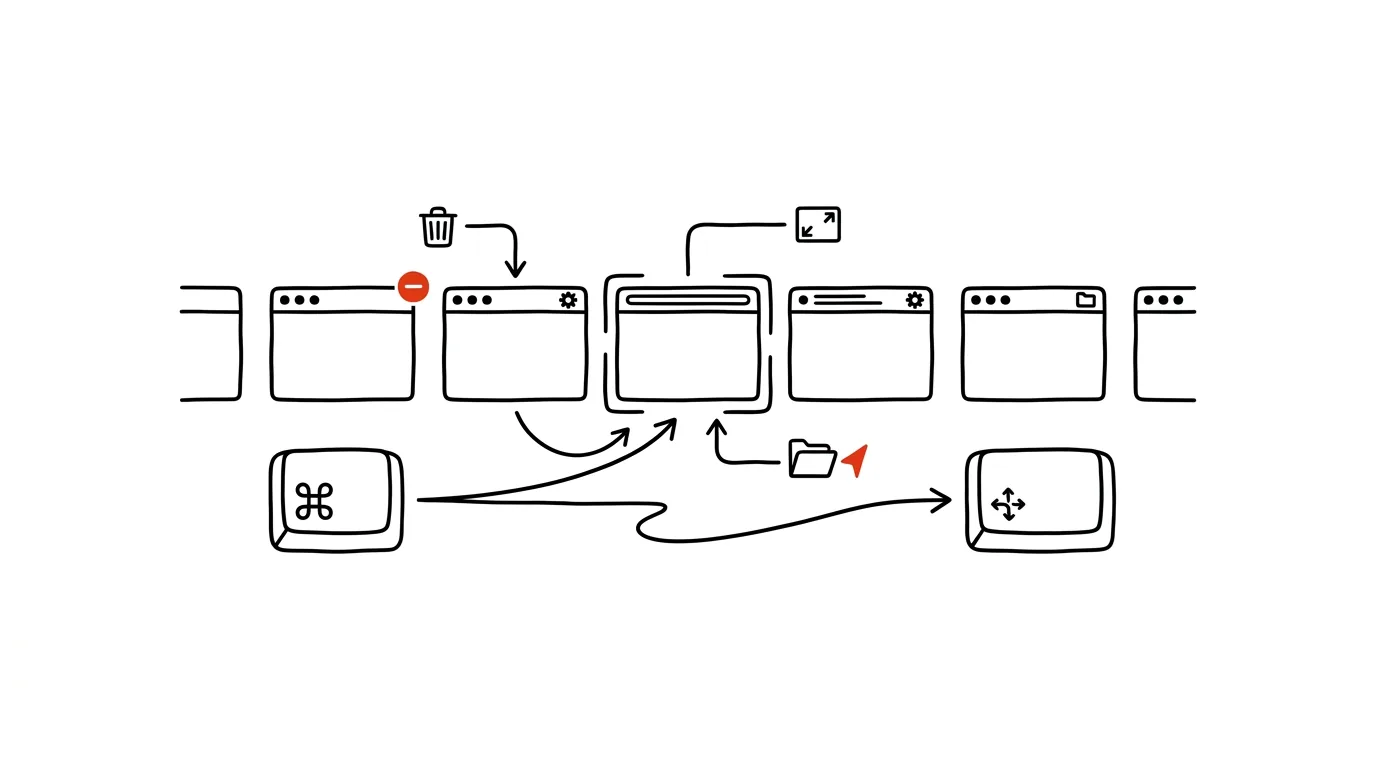
You know the basics — holding Cmd and tapping Tab to cycle through open apps is something everyone learns fast. But the app switcher hides a few extra tricks that turn it into a small control center: you can quit apps, hide them, or move between windows of the same app, all without ever letting go of the Cmd key.
A typical scenario
You sit down at your computer in the morning and find ten apps still open from the night before — a browser, an editor, a chat app, music, a calculator. Closing them one by one by clicking the X means ten clicks and mousing back and forth between windows. Instead, hold Cmd and tap Tab over to the apps you don't need, and press Q to close them one after another — your hand stays on the keyboard the whole time and the mouse never gets touched.
How to do it
- Hold Cmd and repeatedly tap Tab — you move forward through the app icons at the top of the screen; hold Shift at the same time to move backward.
- While still holding Cmd, press Q — this quits the selected app right there, without letting go of Cmd or closing the switcher first. A great way to quickly clear out everything you don't need from the previous day, first thing in the morning.
- Press H instead of Q — the app stays running but disappears from view, handy when you just want it out of the way temporarily rather than closed.
- Once you're stopped on an app's icon, press the down arrow — previews of all its open windows appear, and you can keep navigating between them with the arrow keys.
- The switcher works with a trackpad too: a three-finger swipe left/right between full-screen apps is a close relative, even though it's technically a different feature.
The best tools
- Cmd + Tab (built into macOS) — free, works instantly, nothing to configure.
- Witch — extends the switcher to move between individual windows, not just apps, and adds its own shortcuts.
- AltTab — a popular free alternative that adds window previews right into the classic Cmd+Tab window, similar to Alt+Tab on Windows.
- Rectangle / Magnet — not directly about switching, but a great companion when you need to snap a window to half the screen right after switching to it.
What you get out of it
- Time: clearing out open apps via the keyboard takes a fraction of the time clicking the X with the mouse would — for anyone with dozens of windows open daily, that's a few minutes saved every morning.
- Smoother work: your hands stay on the keyboard, so switching doesn't interrupt typing or your train of thought.
- Clarity: the distinction between closing (Q) and hiding (H) lets you tidy your screen without losing work in progress in an app you just don't need to see right now.
- Less on-screen chaos: faster cleanup means fewer open windows to get lost in when looking for the one you actually need.
Pro tip
Cmd + ` (the key just below Esc) switches between windows of the same app — say, between two browser windows or two documents in an editor. It's a natural companion to Cmd+Tab: one shortcut handles switching between apps, the other handles switching between windows within the one you're currently in.
Want to go deeper? The handbook has a whole chapter on it — The app categories that matter.
Similar tips
A distraction blocker: stronger than your willpower
Apps like Cold Turkey or Freedom block chosen websites for a set period. Decide once, and it holds for the whole morning.
Screenshot the Whole Page — Even the Part You Have to Scroll To
Ctrl+Shift+S
Edge and Firefox capture an entire web page from header to footer with a single command. No extensions, no stitching pieces together.
A checklist for anything you do a second time
Client onboarding, publishing an article, the monthly close — a repeated process without a checklist means forgetting something, every time.
Was this helpful?
Liked this tip?
I send one like it every week by email. Two minutes to read, hours saved.
The Top 30 tips e-book, free — it lands in your inbox right away.
Then 1 tip a week · no spam · unsubscribe in one click
Prefer a system to single tips? The free email course — seven days, seven emails, one skill a day.