Tips & tricks · Apps · Browser · ~5 min a week · 2 min read
Screenshot the Whole Page — Even the Part You Have to Scroll To
Last reviewed:
Ctrl+Shift+S
In this article
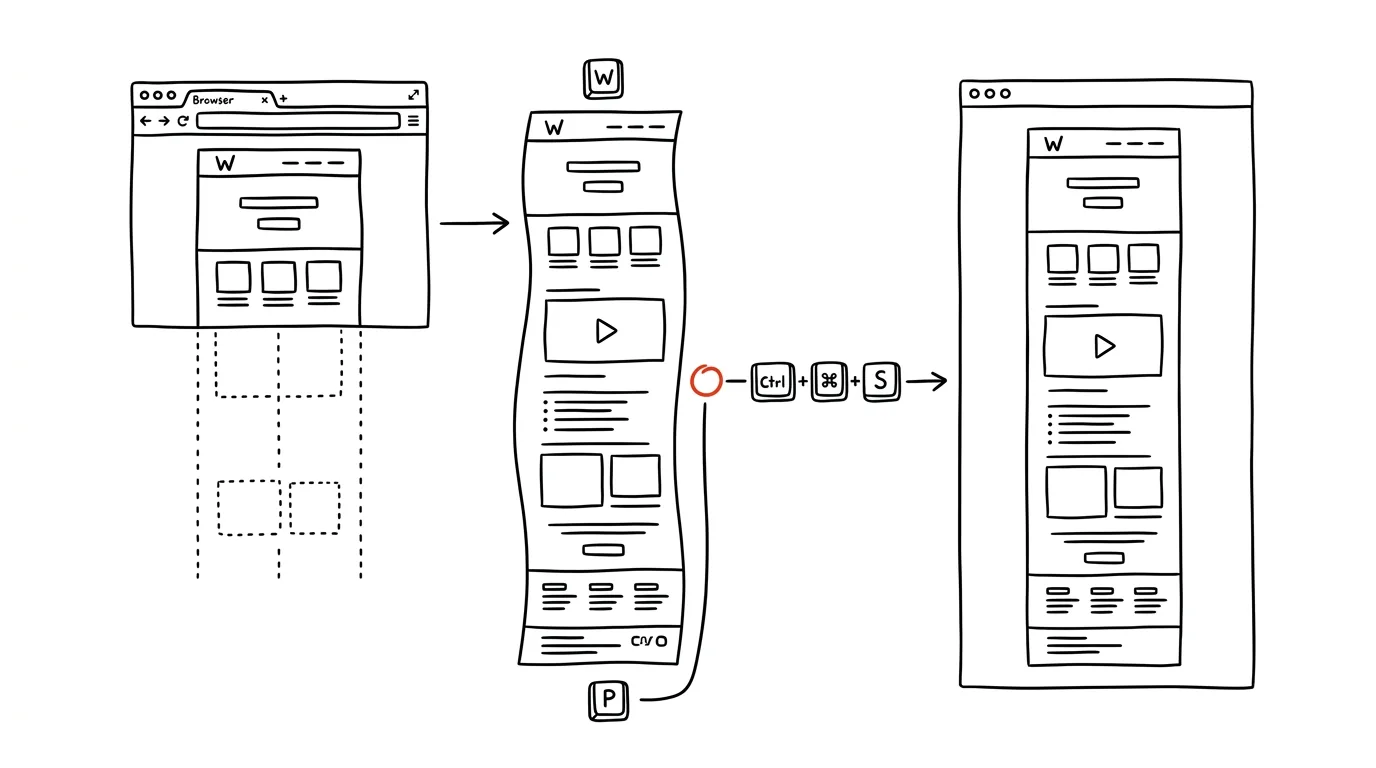
You need to capture an entire web page — not just the part that fits on your monitor. A classic Print Screen only grabs the visible screen, so people take four screenshots in a row and paste them together in Paint, or install a sketchy extension. Yet Edge and Firefox have full-page screenshots built in, and Chrome can do it through a hidden command — all free, no installation required.
How to do it
- Edge: press Ctrl + Shift + S and choose Capture full page. Edge scrolls the page itself and offers the result for immediate annotation, copying, or saving.
- Firefox: right-click the page, choose Take Screenshot, then the Save full page button (the shortcut Ctrl+Shift+S works too). You can copy the capture to the clipboard or download it as a PNG.
- Chrome: press F12 (developer tools will open — don't panic), then Ctrl + Shift + P and start typing "screenshot." Choose Capture full size screenshot — Chrome saves a full-page PNG to your downloads. Close the tools again with F12 when you're done.
- The result is one long image at full resolution — suitable for documentation, complaint correspondence, or an archive.
- For very long pages (infinite feeds, year-long statements), expect the file to run into the tens of megabytes — it's worth shrinking it before emailing, or sending a link instead.
A typical scenario
A marketer is turning in a report to a client about a published article. Instead of three pasted-together crops, she sends one capture of the whole page — header, text, and footer, exactly as the page looked that day. The client sees the full context, and nobody has to piece anything together.
A second typical scene: a complaint. An online store confirmed your order at a certain price and with certain terms. A full-page screenshot of the confirmation page is evidence that captures everything, including the fine print at the bottom — not just a crop someone can claim is missing context. Six months from now, when the page looks completely different, you'll be glad you have a full copy of it.
What you get out of it
Capturing a whole page is a five-second job instead of five minutes of stitching crops together. The captures are complete, in one file, and full quality — which matters every time a screenshot serves as backup or evidence.
Pro tip
In Firefox, instead of the whole page, you can capture a specific element: after starting the capture, just hover over a paragraph, table, or image — Firefox frames it automatically and captures exactly to its edges. No shaky click-and-drag, no letters cropped in half.
Want to go deeper? The handbook has a whole chapter on it — The app categories that matter.
Similar tips
Speed up key repeat: the cursor flies, so does deleting
Holding an arrow key or Backspace repeats at a speed you can configure. Two sliders almost nobody ever touches — and typing instantly feels snappier.
In-depth guide · 16 min
Reply templates from your own sent mail: analysis, extraction, upkeep
A complete guide with prompts: have a year of sent mail analyzed, find the recurring types, and pull templates in your own words — time savings measured.
Hold Space and talk: a walkie-talkie for Zoom and Teams
Space
Stay muted for the whole meeting. When you want to say something, hold the key, talk, release — and the microphone mutes itself again.
Was this helpful?
Liked this tip?
I send one like it every week by email. Two minutes to read, hours saved.
The Top 30 tips e-book, free — it lands in your inbox right away.
Then 1 tip a week · no spam · unsubscribe in one click
Prefer a system to single tips? The free email course — seven days, seven emails, one skill a day.