Tips & tricks · Communication · Everywhere · ~3 min a day · 2 min read
Hold Space and talk: a walkie-talkie for Zoom and Teams
Last reviewed:
SpaceCtrl+Space
In this article
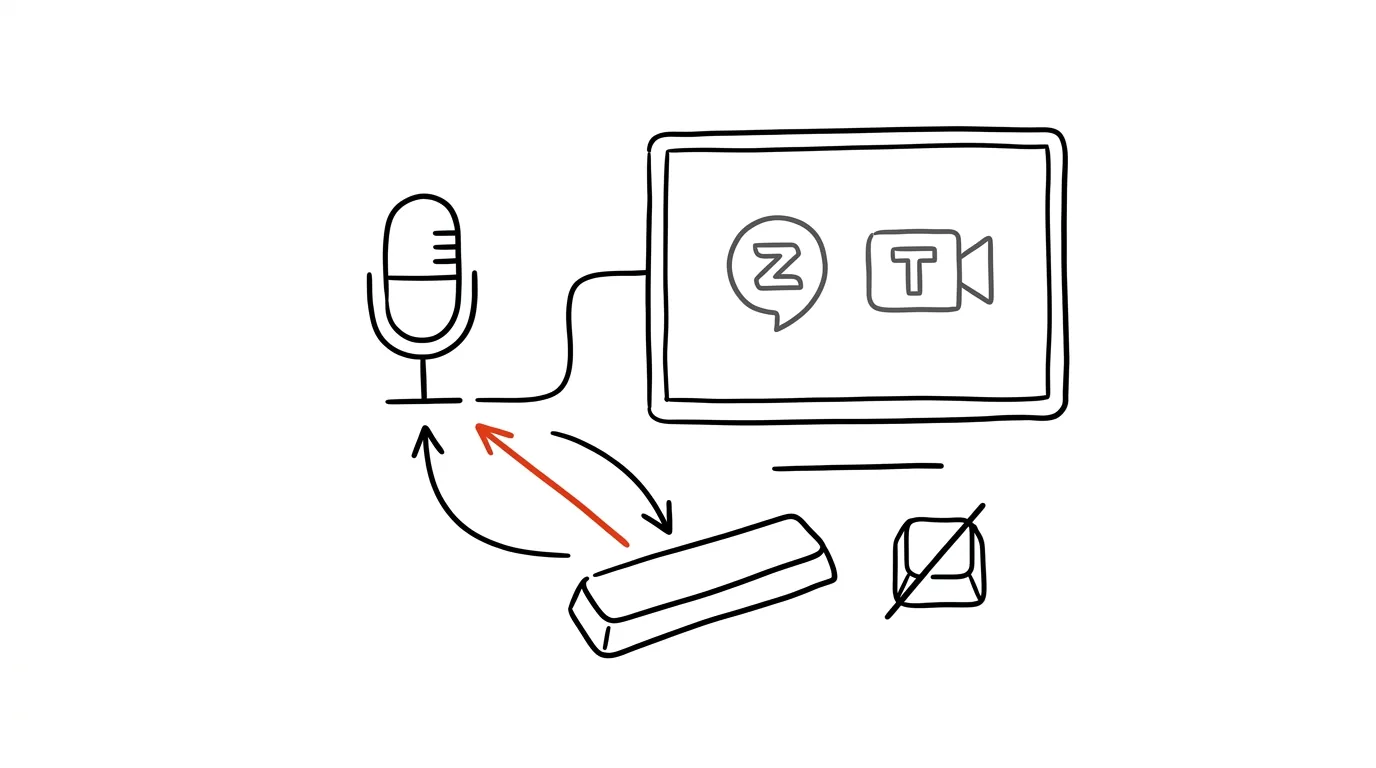
In big meetings, one iron rule applies: whoever isn't speaking should be muted. But then your moment comes — you click the microphone icon, talk, and have to click it again once you're done answering. Half of people forget that second click, and end up broadcasting their typing into the call. Zoom and Teams both have a more elegant mode that works like a walkie-talkie: hold a key, talk, release — and you're muted again. Muted becomes the default state you automatically return to, not a task that's easy to forget.
How to do it
Zoom:
- In audio settings, check the Press and hold SPACE key to temporarily unmute option — it's usually already on.
- When muted in a meeting, hold Space, say your piece, and release. The Zoom window has to be active.
Teams:
- Open Settings → Privacy and turn on the keyboard shortcut for unmute.
- In a meeting, hold Ctrl + Space (on a Mac, Option + Space) for as long as you're talking. Here too, the Teams window needs focus.
Google Meet has a similar push-to-talk option in the call settings; where it's missing, the mute toggle Ctrl + D and camera toggle Ctrl + E at least help.
A typical scenario
A meeting with thirty people, you're half-listening and taking notes. A question comes up about your numbers. Instead of panicking — “where's my mouse, where's that window, where's the icon” — you just hold Space and answer; release the key and keep typing right after, without your typing clattering into everyone's ears. No “you're muted!”, and no microphone accidentally left on the opposite way when your kid starts a cartoon next to you.
What you get out of it
Both classic video-call embarrassments disappear at once: talking silently into a muted mic, and accidentally broadcasting background noise. You also lower the bar for chiming in — when holding a key is all it takes, you'll toss in a short reaction even in places you wouldn't have bothered hunting for the icon.
Related: muting and the camera in Teams from the keyboard and global microphone mute in Windows.
Pro tip
One catch: the key only works while the meeting window is active. If you're taking notes elsewhere during the call, click into the meeting window first (or switch to it with Alt+Tab) before holding the key to answer. After a few meetings it becomes a reflex — and it's worth it: push-to-talk is the most reliable safeguard against a microphone left in the opposite state from the one you think it's in.
Want to go deeper? The handbook has a whole chapter on it — Professional email communication.
Similar tips
Control dialogs from the keyboard: Enter, Esc, and Space
Esc
Enter confirms the blue button, Esc means Cancel — and Space checks a box. Handle dialogs without ever touching the mouse.
Copy text right out of images and photos
macOS can select text in a photo or screenshot just like regular text. Grab a phone number off a photo of a business card in two clicks.
Organize your menu bar: Cmd+drag moves icons
Cmd
The icons in your Mac's menu bar aren't nailed down — hold Cmd and drag them elsewhere, or drag one downward to remove it entirely.
Was this helpful?
Liked this tip?
I send one like it every week by email. Two minutes to read, hours saved.
The Top 30 tips e-book, free — it lands in your inbox right away.
Then 1 tip a week · no spam · unsubscribe in one click
Prefer a system to single tips? The free email course — seven days, seven emails, one skill a day.