Tips & tricks · AI · Mac · ~5 min a week · 3 min read
Copy text right out of images and photos
Last reviewed:
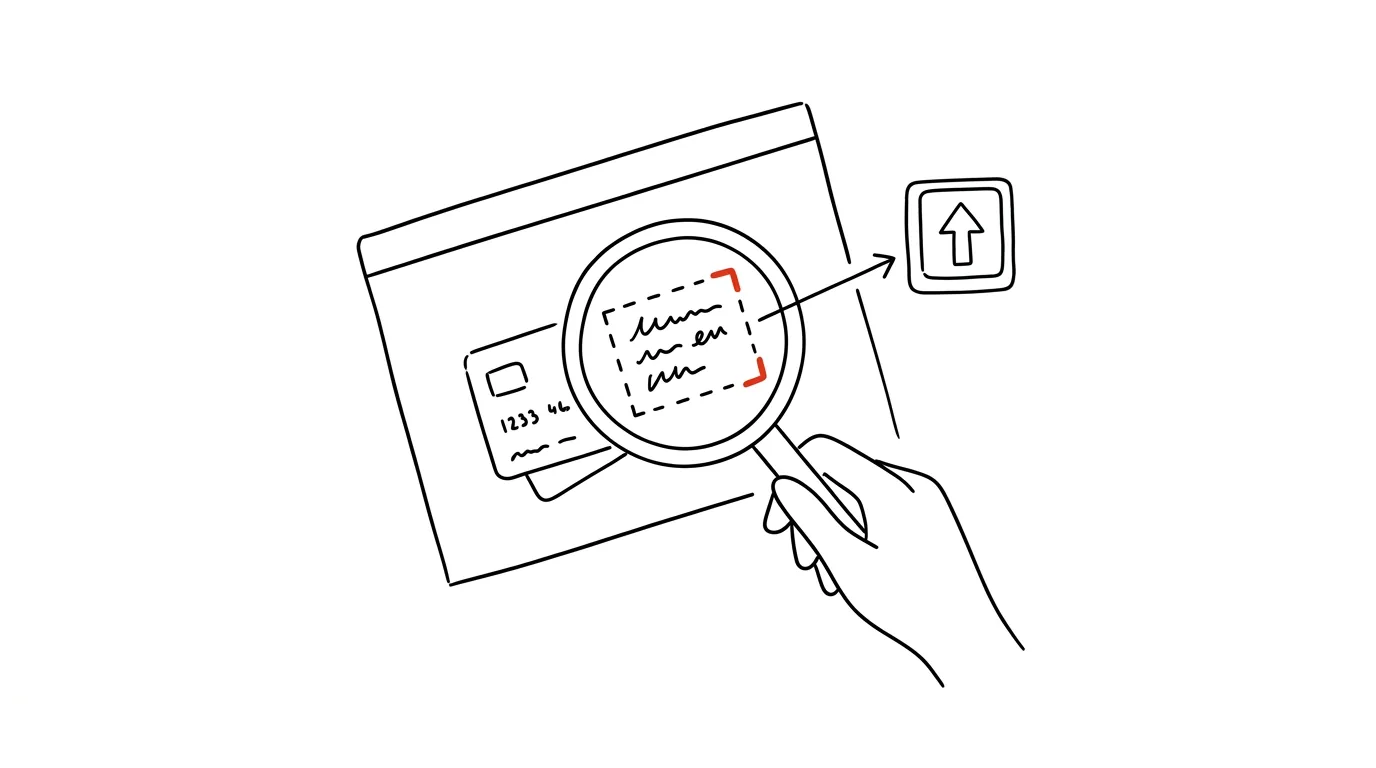
Typing out a phone number from a photo of a business card, or an address from a screenshot, character by character, is no longer necessary. It's one of those small features you never notice until the first time you use it — and after that you come back to it constantly. macOS can recognize text right on an image and let you select and copy it exactly as if you were selecting it in a regular document. It works on photos, screenshots, and scanned documents, and it happens right on the device, with nothing uploaded anywhere.
A typical scenario
A coworker sends you a photo of a business card and asks you to call the supplier. Without text recognition, you'd have to retype the phone number by hand, character by character, risking a typo that lands you on the wrong number.
With text recognition on images, you just hover the cursor over the number, select it like regular text, and copy it — accurate, with not a single character mistyped. It works just as well on a screenshot with a code, an order number, or a long email address that you'd otherwise be retyping character by character and triple-checking.
How to do it
- Open the image in Preview, in Photos, or just look at it in Quick Look (select the file in Finder and press Space).
- Hover your mouse cursor over text in the image — the cursor switches from an arrow to a text cursor, signaling that macOS has recognized text in the image.
- Select the passage you want by dragging, exactly as in a regular text document.
- Press Cmd + C and paste the text wherever you need it — into notes, into contacts, into an email.
- Recognition runs entirely on the device, and the image is never sent anywhere — for sensitive documents (contracts, IDs) that's safer than any online text-recognition service.
- It also works in Safari on images right on web pages, and for phone numbers or addresses the text is even shown as a clickable link.
- Recognition handles multiple languages in a single image and automatically adapts to whatever text it's actually seeing, so it works just as well on an English invoice as on a screenshot in another language.
The best tools
- Built-in text recognition (Live Text) in Preview, Photos, Quick Look, and Safari — free, on-device, works offline.
- Search by text in Photos — the built-in search can find a photo by text that appears in it, without any manual selecting.
- The scanner in the Notes app (camera icon → Scan Documents) — for multi-page documents, where you can then pull out the text directly.
- Third-party text-recognition apps (like Google Lens) — useful if you also need an instant translation of the recognized text into another language.
- The built-in translator in Safari and Photos — recognized text can be translated on the spot, without having to copy it into a separate translation app.
What you get out of it
- Time: retyping a short piece of text by hand can easily take a minute; recognizing it takes seconds.
- Accuracy: no typos in phone numbers, tax IDs, or codes, because the text is copied, not retyped.
- Privacy: recognition happens entirely on the device, so you don't have to upload sensitive documents to any outside server.
Pro tip
It even works in Quick Look previews — just select the file in Finder, press Space, and select the text right there, without ever opening the image in a separate app. Phone numbers and addresses are also clickable right away, so sometimes you don't even need to copy them — just click.
Want to go deeper? The handbook has a whole chapter on it — AI and automation.
Similar tips
In-depth guide · 16 min
Reply templates from your own sent mail: analysis, extraction, upkeep
A complete guide with prompts: have a year of sent mail analyzed, find the recurring types, and pull templates in your own words — time savings measured.
In-depth guide · 21 min
SEO with AI: from keyword research to content that ranks
A complete guide with prompts: from seed phrases through clusters and search intent to a content brief, writing without SEO spam, and the era of AI search.
In-depth guide · 22 min
A contract before you sign: let AI find the catches
A complete guide with prompts for five contract types: anonymization, clause-citing risk analysis, and questions for the other party. Know what you sign.
Was this helpful?
Liked this tip?
I send one like it every week by email. Two minutes to read, hours saved.
The Top 30 tips e-book, free — it lands in your inbox right away.
Then 1 tip a week · no spam · unsubscribe in one click
Prefer a system to single tips? The free email course — seven days, seven emails, one skill a day.