Tips & tricks · Shortcuts · Windows · ~3 min a day · 2 min read
Move a window to the other monitor without touching the mouse
Last reviewed:
Win+Shift+→
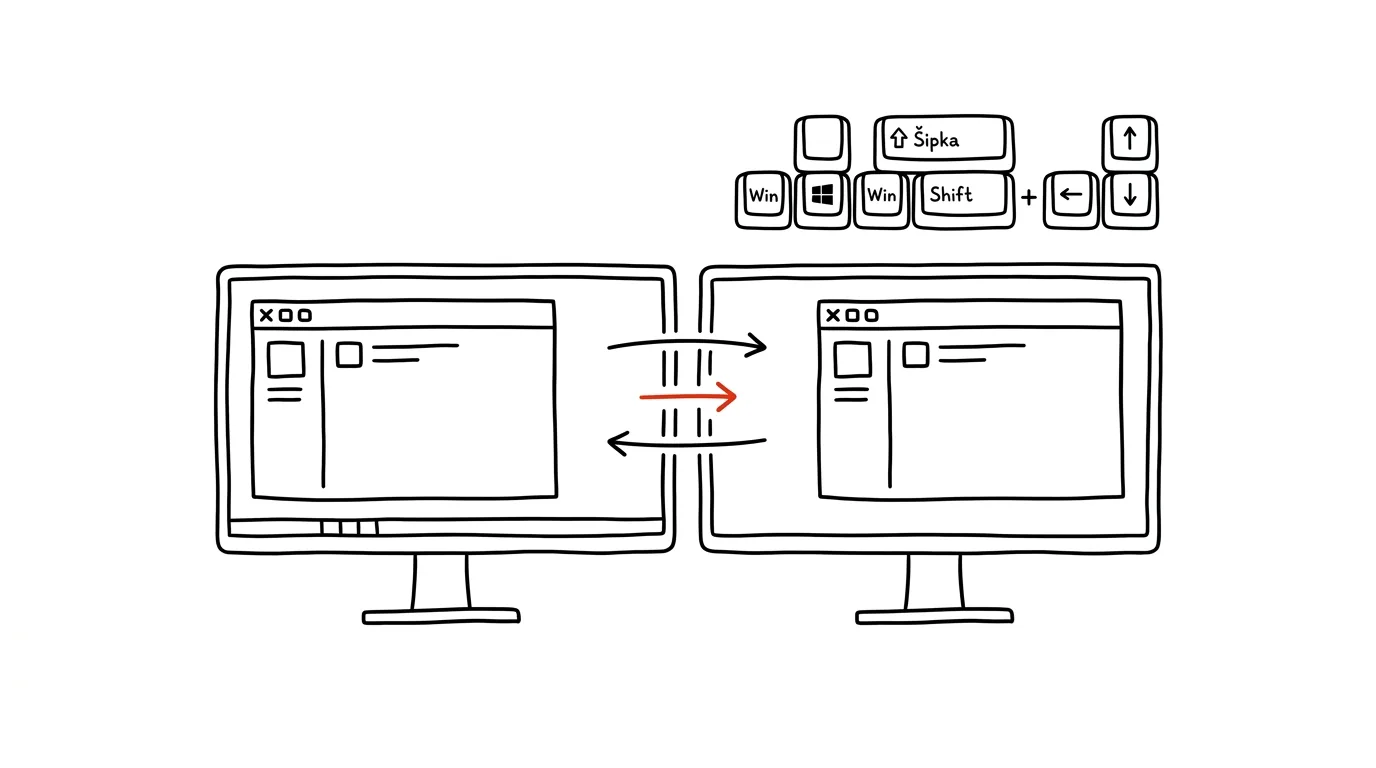
Dragging windows between monitors with the mouse is slow and imprecise. Grab a window by its title bar, drag it across the screen boundary, and hope it lands exactly where you want — that's a lot of motion for such a simple action.
A typical scenario
You work with two monitors: a spreadsheet on one, email on the other. Open a new app, and it always shows up on the "wrong" monitor — say a reference PDF pops up on the monitor where you're currently writing. You have to grab it with the mouse, drag it across the boundary between screens, and often its size gets scrambled along the way, or it briefly gets stuck straddling both displays.
With Win + Shift + → (or ←), all you need is for the window to be active, then press two keys — it jumps instantly to the neighboring monitor with the same size and position it had before. No dragging, no hunting for the exact boundary with the mouse.
How to do it
- Click the window you want to move so it's active (its title bar is highlighted).
- Press Win + Shift + → to move the window to the monitor on the right, or Win + Shift + ← for the monitor on the left.
- The window moves instantly and keeps the size and relative position it had on the original monitor.
- If you have more than two monitors, pressing the same shortcut repeatedly keeps "walking" the window further in that direction.
The best tools
- The built-in Win + Shift + arrow shortcut — works on any Windows computer with multiple monitors, nothing to install.
- PowerToys FancyZones — a free add-on from Microsoft for arranging windows into custom zones across multiple monitors.
- Snap Layouts (Win + Z) — a built-in Windows 11 feature for quickly arranging windows on one monitor or several.
- DisplayFusion — a tool for demanding multi-monitor users, adding custom shortcuts, layout profiles, and wallpaper management across displays.
What you get out of it
- Time: roughly 2–3 minutes a day saved on precisely dragging windows between monitors with the mouse — a small action, but it repeats dozens of times a day.
- Precision: the window always lands exactly where it should, with no risk of it staying stuck halfway between displays.
- Smoother work: your hands stay on the keyboard — no need to reach for the mouse just to move a window.
- Less frustration: no more annoying resizing after a mouse drag.
Pro tip
The shortcut also combines with other window moves — after moving a window to the second monitor, you can immediately press Win + ← or Win + → to snap it to half the screen on the new monitor as well, all without touching the mouse once.
Want to go deeper? The handbook has a whole chapter on it — The app categories that matter.
Similar tips
Hot corners: reveal the desktop or lock your screen with one flick
Assign actions to the corners of your screen — flicking into a corner shows the desktop, starts the screensaver, or locks the screen.
Take calls on your Mac — even when the iPhone's in another room
Your Mac can receive and dial calls from your iPhone. The phone can stay on the charger in the hallway while you talk through your computer's headset.
Turn on your iPhone's hotspot from your Mac — the phone stays in your bag
Your Mac sees your iPhone's hotspot right in the Wi-Fi menu, even when it's off on the phone. One click and you're online — no touching your phone.
Was this helpful?
Liked this tip?
I send one like it every week by email. Two minutes to read, hours saved.
The Top 30 tips e-book, free — it lands in your inbox right away.
Then 1 tip a week · no spam · unsubscribe in one click
Prefer a system to single tips? The free email course — seven days, seven emails, one skill a day.