Tips & tricks · Shortcuts · Windows · security · 3 min read
Win + L: lock your computer every time you step away
Last reviewed:
Win+L
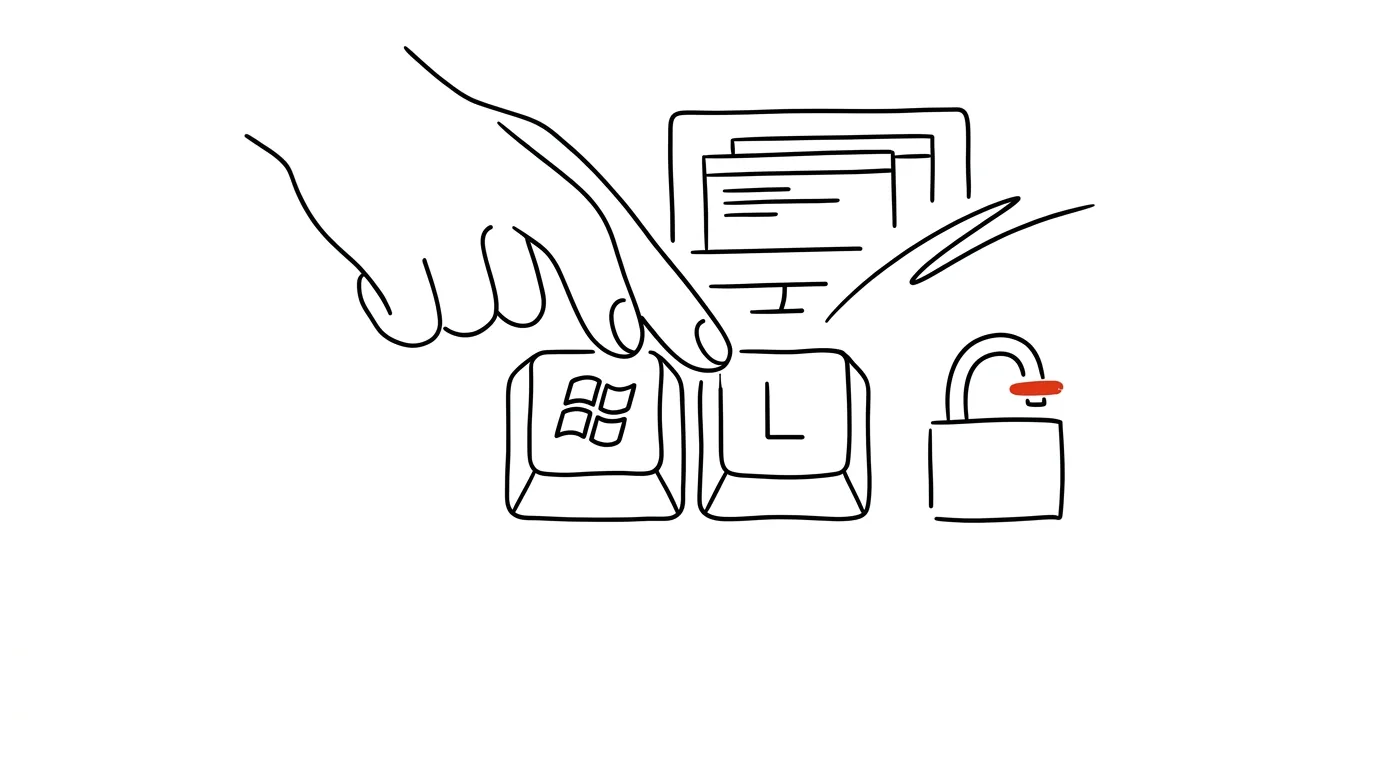
Leaving an unlocked computer is like leaving your office door wide open. Emails, documents, logged-in accounts, an open company system — all of it is accessible to anyone passing by, whether it's a curious coworker, cleaning staff, or, worse, someone who has no business being there at all. The fastest defense against that is a single keypress.
A typical scenario
Hana, an accountant, steps away from her desk for five minutes to get coffee and leaves the computer unlocked because “it's just for a moment.” She happens to have the payroll system open, with sensitive salary data for the entire team. A coworker walking by doesn't even have to try — the data is right there on screen until she gets back.
If she'd pressed Win + L before getting up from her chair, the screen would have gone dark and locked in under a second. When she gets back, she unlocks it with a PIN or a fingerprint — same speed as stepping away, just with the certainty that nobody saw anything in the meantime. The same reflex is handy at home too, where there's no coworker but maybe a kid who could accidentally wipe out unsaved work with a single keystroke.
How to do it
- Before you get up from your computer, press Win + L — the screen locks instantly (L as in lock).
- When you're back, unlock with a PIN, fingerprint, or face recognition if you have Windows Hello set up — with it, unlocking takes under a second and is faster than typing a password.
- A locked computer keeps running in the background — running apps, downloads, or computations continue; only the screen and system access are blocked.
- If you don't have Windows Hello set up yet, you'll find it under Settings → Accounts → Sign-in options — worth the one-time investment of a few minutes, since it saves time on every unlock afterward.
- The shortcut works identically regardless of which app was active — nothing needs to be saved or closed first.
- On a company laptop, locking is often also enforced automatically after a period of inactivity, but relying on that timeout alone means leaving the screen unlocked longer than necessary — your own shortcut is always faster.
The best tools
- Windows' built-in shortcut (Win + L) — instant locking, works on any Windows computer with nothing to configure.
- Windows Hello (PIN, fingerprint, face recognition) — speeds up unlocking enough that locking stops being annoying and becomes a real habit.
- Automatic lock on inactivity (Settings → Sign-in screen → timeout) — a backup safeguard for moments you forget to lock.
- Dynamic Lock (Settings → Accounts → Sign-in options) — the computer locks itself automatically when a Bluetooth-paired phone moves out of range.
What you get out of it
- Data security: sensitive information — salaries, contracts, logged-in company systems — stays protected even during a brief absence from your desk.
- Peace of mind in an open office: you don't have to worry about whether you left something private or work-sensitive visible on screen.
- Compliance with company policy: many companies require screen locking as part of their security policy — this shortcut satisfies that without effort.
- Speed without compromise: unlike shutting down or signing out, it doesn't slow you down — locking and unlocking both take seconds.
Pro tip
Turn it into a reflex tied to standing up from your chair: stand up = Win + L. Try overdoing it deliberately for the first week — lock even for ten seconds away from your desk — after a week you'll do it automatically, without even thinking about it.
Want to go deeper? The handbook has a whole chapter on it — The app categories that matter.
Similar tips
Pinning in Teams: important chats stay on top, key messages above the conversation
Right-click pins a chat to the top of the list, and a key message above the whole conversation — visible to everyone. No more hunting for a link from last week.
Set your Teams status with a duration, not just a toggle
“Do not disturb until 12:00” tells coworkers more than a permanent red dot — and it turns itself off.
Teams in meetings: mute and camera from the keyboard
Ctrl+Shift+M
Ctrl+Shift+M toggles your mic, Ctrl+Shift+O toggles your camera. When it's suddenly your turn to talk, you're not hunting for a button.
Was this helpful?
Liked this tip?
I send one like it every week by email. Two minutes to read, hours saved.
The Top 30 tips e-book, free — it lands in your inbox right away.
Then 1 tip a week · no spam · unsubscribe in one click
Prefer a system to single tips? The free email course — seven days, seven emails, one skill a day.