Tips & tricks · Workflow · Windows · ~5 min a week · 2 min read
Nearby Share: the AirDrop Windows has had all along
Last reviewed:
In this article
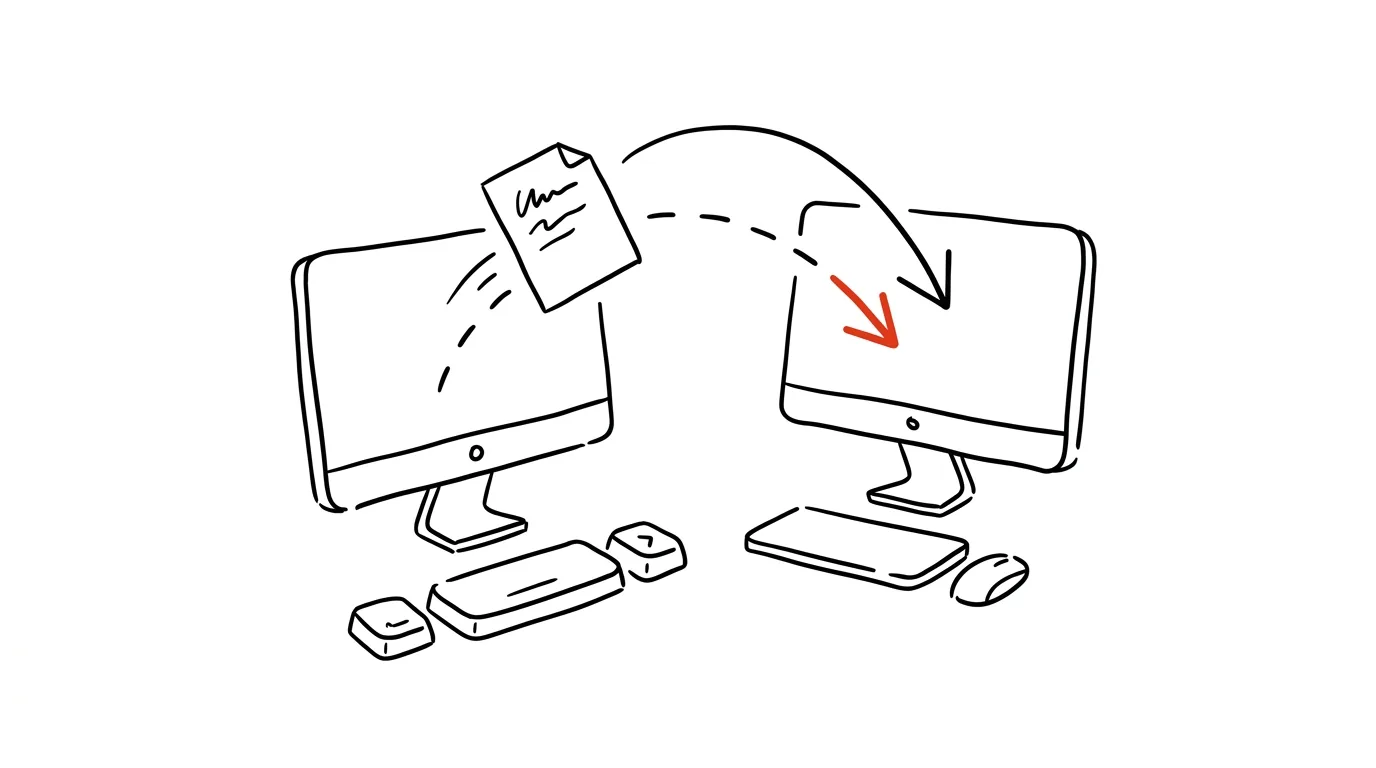
You need to get a file onto the computer of someone sitting a meter away from you — so you email it to yourself across half the internet, or go hunting for a flash drive. Mac owners have AirDrop for this; less well known is that Windows has the same thing. It's called Nearby Share, and it sends files and links directly between nearby computers over Bluetooth and Wi-Fi — no cable, no attachments, no cloud storage.
How to do it
- On both computers, turn on Settings → System → Nearby sharing and choose a visibility level: My devices only (sharing between your own computers signed into the same Microsoft account), or Everyone nearby.
- Make sure Bluetooth and Wi-Fi are both on — they're what negotiate and carry out the transfer. It's fastest when both computers are on the same Wi-Fi network.
- Right-click a file and choose Share. After a moment, the sharing window shows the names of computers in range — click the right one.
- The recipient gets a notification with an accept button; the file saves into their Downloads folder (the destination can be changed in sharing settings).
- Just like files, you can share a link from the Edge browser too — handy when you want to “toss” an open page to a coworker.
A typical scenario
At a meeting, a colleague needs your presentation along with its videos — 300 MB. Email won't take it, the company file storage is asking to sign in again right now, and the flash drive is “somewhere in a drawer.” Nearby Share: right-click the file, Share, click his laptop, he accepts. The file travels directly between the two computers and lands in place moments later — while the meeting carries on uninterrupted.
Second scene: you have a work laptop and a home computer. Instead of emailing files to yourself, you set both to “My devices only” and shuttle files between them in two clicks, as if it were one machine.
What you get out of it
- No more emailing yourself: the file travels a meter through the air, not across the internet and someone else's servers.
- Large files with no attachment limits: a video or a batch of photos gets through where email long ago gave up.
- Speed in the room: handing off a file during a meeting stops being a five-minute logistical exercise.
- Fewer copies on other people's servers: whatever's handed off directly doesn't have to sit in inboxes and shared drives — for internal materials, that's cleaner from a data-hygiene standpoint too.
Pro tip
Nearby Share works between Windows computers. For a computer-to-phone pair, reach for the Phone Link app, which transfers photos and messages too — and if you mix Windows and Mac at home, classic cloud storage serves as neutral ground.
Want to go deeper? The handbook has a whole chapter on it — Core systems: inbox, priorities, reviews.
Similar tips
Ctrl+D in PowerPoint: a duplicate that remembers the spacing
Ctrl+D
Duplicate an object, move it into place — and the next Ctrl+D copies with the same offset built in. A row of evenly spaced elements in seconds.
The B key while presenting: black out the screen, get attention
B
Pressing B during a slideshow blacks out the screen — the audience turns to you. W does the same with white.
Slim down a presentation: compress images right inside PowerPoint
Presentation is 80 MB and won't go through email? Built-in image compression shrinks it to a fraction of the size — two clicks, no visible loss.
Was this helpful?
Liked this tip?
I send one like it every week by email. Two minutes to read, hours saved.
The Top 30 tips e-book, free — it lands in your inbox right away.
Then 1 tip a week · no spam · unsubscribe in one click
Prefer a system to single tips? The free email course — seven days, seven emails, one skill a day.