Tips & tricks · Apps · Windows · ~10 min a week · 2 min read
Phone Link: photos and texts from your phone, right on your computer
Last reviewed:
In this article
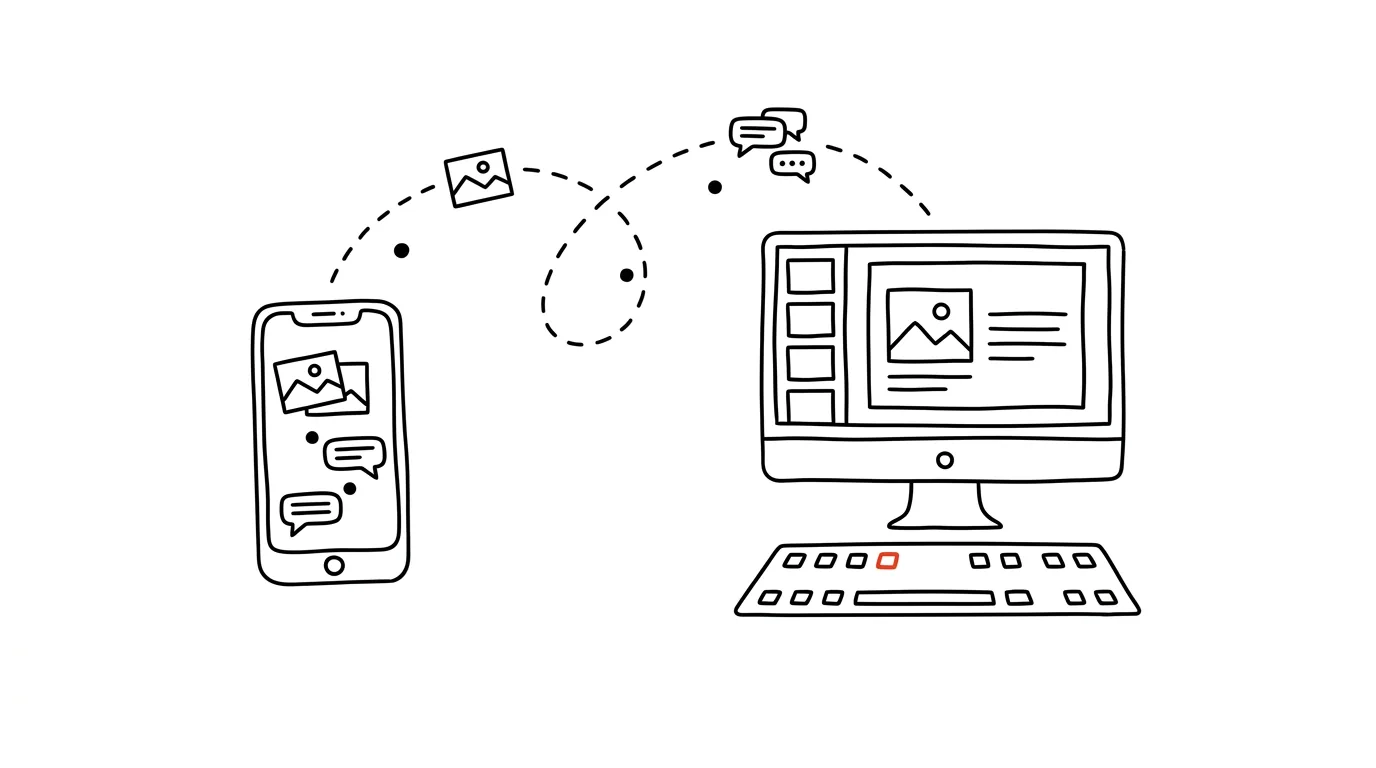
You photograph a whiteboard after a meeting, a paper document, or a product — and then go through a whole ordeal getting the photo onto your computer: emailing it to yourself, through a “saved messages” chat, or with a cable. Yet Windows has a built-in solution: the Phone Link app. After a one-time pairing, you can see photos from your phone right on your computer just seconds after taking them — plus messages, notifications, and on many phones even calls placed from the computer.
How to do it
- On your computer, open the Phone Link app (it's built into Windows — find it via the Start menu).
- On an Android phone, install the Link to Windows app and scan the pairing QR code from your computer's screen. Both devices need an internet connection.
- After pairing, grant the requested permissions on your phone — photos, messages, notifications. You can decline any of them; the link still works in a reduced form.
- In the computer app you'll then find tabs: Photos (recent shots from your phone — drag a photo straight into a document or email with the mouse), Messages (type texts with your computer keyboard), and Notifications.
- iPhone support is more limited — it handles messages, calls, and notifications over Bluetooth, but without access to photos. iPhone owners are better served by a cloud photo gallery.
A typical scenario
You're putting together a report and need a photo of an installation your technician took with your phone an hour ago. The old way: unlock the phone, find the photo, email it to yourself, switch to mail, download it, insert it. The new way: open Photos in Phone Link and drag the shot straight into the document. The phone can stay in your bag the whole time.
A parenting scene: you're deep in focused writing at work, your child's after-school activity ends, and they text asking who's picking them up today. You reply from your computer keyboard mid-sentence, no reaching for the phone, no losing your focus.
What you get out of it
- Photos without detours: getting a photo from phone to document shrinks from five steps to a drag with the mouse.
- Less reaching for your phone: texts and notifications get handled from the computer — and the phone doesn't pull you into the mindless scrolling that often follows.
- One workflow: everything happens on the one screen you're sitting at anyway.
Pro tip
In the app's settings, filter which notifications from your phone are allowed to show up on your computer — keep messages and calls, turn off social media and games. Otherwise you'll import every distraction that comes with the phone too. Combined with Do Not Disturb, the ideal setup is: the phone sits in your bag, what matters reaches you on screen, and everything else waits.
Want to go deeper? The handbook has a whole chapter on it — The app categories that matter.
Similar tips
In-depth guide · 18 min
Notion vs. Obsidian vs. Built-In Notes Apps: What to Pick
A fair comparison of three camps across eight criteria — from capture speed to price. With a comparison table, a pick for your situation, and an exit plan.
Obsidian: the daily note as a safety net for your day
One place where you dump notes, ideas, and links all day long. Sort it out in the evening — or don't; search will still find it.
Obsidian: [[links]] weave your notes into a network
Double square brackets create a link to another note — and backlinks show you where it's referenced from.
Was this helpful?
Liked this tip?
I send one like it every week by email. Two minutes to read, hours saved.
The Top 30 tips e-book, free — it lands in your inbox right away.
Then 1 tip a week · no spam · unsubscribe in one click
Prefer a system to single tips? The free email course — seven days, seven emails, one skill a day.