Tips & tricks · Apps · Everywhere · ~a second brain that lasts · 18 min read · in-depth guide, doing it ~1 h
Notion vs. Obsidian vs. Built-In Notes Apps: What to Pick
Last reviewed:
In this article
The question “which notes app should I pick” is the most common dead end in this whole topic. People wrestle with it for weeks, read twenty reviews, set up a Notion workspace, abandon it a month later for Obsidian, and land back in their phone's Notes app a month after that — the whole time missing that the problem was never the app. They wrote everything down, sorted none of it, and never defined what they actually needed the notes for.
The app doesn't decide whether your notes will be useful to you. It only decides how much your system gets in your own way. Anyone with a system — who knows what they're writing down, where it belongs, and when they'll come back to it — will be productive in any of the three apps below. Anyone without a system won't be saved by even the smartest database. The differences between tools are real, but they only show up in year two of using them: when you're hunting for an older note, when you switch to a competitor, when you hook up AI, when you move to a new phone.
This piece compares three camps: Notion (the database approach), Obsidian (local files and linking), and built-in apps — Apple Notes and OneNote — as a fourth profile under the banner of zero friction. You won't learn which one is “best,” because no such thing exists. You'll learn which quality each one sacrificed in order to excel at something else, and how to tell whether that trade-off suits you specifically.
How we compared
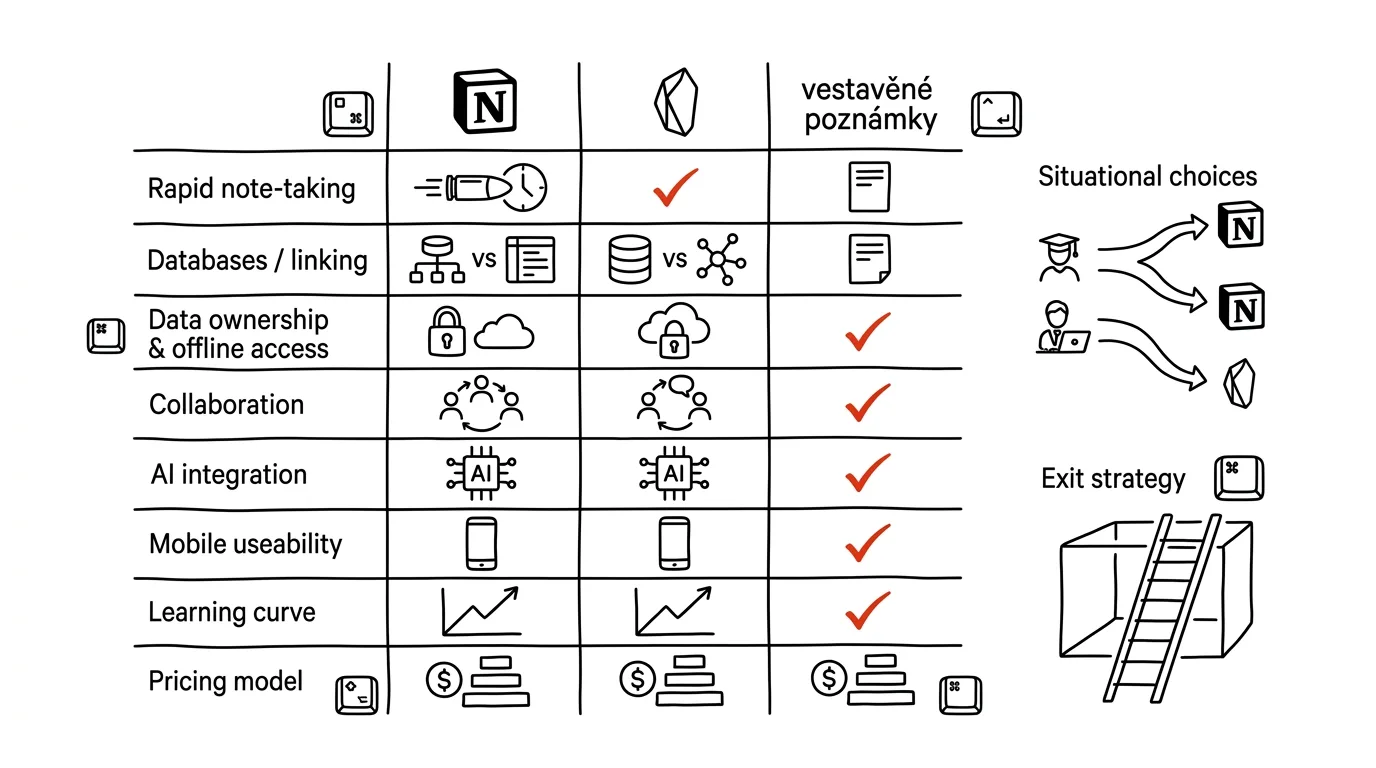
The eight criteria below aren't an alphabetical feature list. They're the places where these apps genuinely differ, and where a wrong pick actually hurts. The order roughly follows how often it bothers people in practice.
- Capture speed. How many seconds pass between an idea and saved text. Measured from an unlocked phone to the first word typed, not from an already-open app. This criterion decides whether you'll take notes at all — a tool that takes five seconds to load simply won't get used while you're crossing the street.
- Structure: databases versus linking. Two different worlds. The database approach says “every note is a row with properties, and views filter them.” The linking approach says “notes are nodes, and meaning emerges from the links between them.” Neither is more correct — each suits a different way of thinking.
- Data ownership and offline access. Where the files physically live, whether you can reach them without internet access and without that particular vendor, and what happens if the service raises its price, changes its terms, or shuts down. A related sub-criterion is format: plain text and Markdown outlive everything; a proprietary format only outlives its creator.
- Collaboration. The difference between “I share a link with a colleague and we write into it at the same time” and “I send you an export.” This is where the gap between camps is widest and hardest to bridge.
- AI features and connector hookups. Two different things. Built-in AI (writing, summarizing, transcribing) is convenience inside the app. Hooking in from outside — via connectors and MCP — means you can query your archive from whatever chat you're already working in, and combine it with mail, a calendar, or documents. The second thing is worth more in the long run than the first.
- Mobile. Not “does a mobile app exist,” but whether what you actually do on it is usable: quick capture, searching an older archive, photographing a whiteboard, dictation.
- Learning curve. How long until you're productive, and how many hours the tool eats up on its own upkeep. The hidden tax: the more moldable a system is, the greater the temptation to keep tweaking it instead of working.
- Pricing structure. No numbers, because prices change. What matters to us is the shape: what's free, what's billed per person, what's an add-on, and above all, what stops working the moment you stop paying.
A note on fairness: every one of these tools has a camp of enthusiasts who'll tell you it can do anything. Technically they're almost right — plugins and templates make up a lot of ground. But the practical question isn't “can it be done?” — it's “can it be done without turning this into a hobby?”
Notion: the database camp
At its core, Notion is a database tool that dresses up as documents. Every page can be a record in a database, every record has properties — date, status, tag, a relation to another record — and you build any number of views on top of those properties. So you can see the same content as a table, as a kanban board, and as a calendar, all at once, without copying anything.
The strength is structure you can change on the fly. Adding a property to two hundred records is a single click. Relations between databases let you link clients to projects and projects to meeting notes. Record templates make sure every new entry starts from the same skeleton — covered in detail in the tip on templates in Notion databases. Collaboration is on by default here: shared team workspaces, page-level permissions, comments, version history.
AI in Notion is built in, and by 2026 it runs pretty deep. Beyond writing and summarizing, it can fill in database columns, search across the entire workspace, and, as of version 3.3 (February 2026), work as custom agents — named automations with plain-language instructions, triggers, and their own permissions, which a team shares the way they'd share a colleague. From outside, Notion is reachable via MCP and via connectors in Claude, so you can query your workspace from a chat and mix the answers with mail or your calendar.
What Notion sacrificed: speed and independence. Writing down a new thought inside a well-built workspace means opening the right database, creating a record, and filling in the required properties — about half a minute of extra work compared to just typing. On mobile it's even more noticeable. Offline mode exists, but it's an emergency brake, not full operation: you can only edit pages you had open before disconnecting, the cache is only valid for hours to a few days, AI features are gone, and you can't create a new database. And the data lives in the cloud — you can get it out via export to Markdown, HTML, or CSV, but ordinary day-to-day use without a connection, and without Notion, doesn't work.
Notion suits people who think in tables and lists, work as part of a team, and don't mind depending on one service in exchange for never having to think about infrastructure.
Obsidian: local files and linking
Obsidian is neither a database nor a cloud service. It's an editor over a folder of Markdown files that live on your own disk. That's the entire architecture, and almost everything else follows from it. Open that folder in Finder or File Explorer and you'll see exactly what's in the app: .md files of plain text. You can back them up with anything, read them anywhere, and if Obsidian vanished tomorrow, your notes would remain fully readable.
The second pillar is linking instead of filing. A note is created by a link in double square brackets — you type [[Pricing 2026]] in the middle of a sentence, and the note is linked even though it doesn't exist yet. Backlinks then show, on every note, where it's referenced from — a form of structure that emerges continuously on its own, without ever deciding “which folder does this belong in.” The mechanics are covered in detail in the tip on double square brackets. Anyone who gets used to it ends up with a network where you can trace connections you'd forgotten you made.
Obsidian's database side has grown up: the core Bases plugin builds table, list, and card views on top of note properties, while the data stays plain text in files. It's not a full replacement for Notion, but it's enough for most lists. The plugin ecosystem is enormous — over a thousand community extensions — including several MCP servers that expose your vault directly to Claude, with options for running purely locally and in read-only mode. An alternative route is to let AI work directly over that folder, since both Claude Code and Claude Cowork can operate on a directory of files on disk.
What Obsidian sacrificed: collaboration and low maintenance. Syncing between your own devices is a paid add-on (or you piece it together yourself through cloud storage, with all the conflicts that come with that). Read-only sharing is another paid add-on, and it produces a read-only website, not a space a team can write into simultaneously. Obsidian doesn't handle two people genuinely writing into the same note at once — and that's disqualifying for a team wiki. The learning curve is the steepest of the three camps, and above all: Obsidian tempts you into endless tinkering. You'll know it's happening when you're browsing plugins instead of writing.
Obsidian suits people who write a lot, over long stretches, mainly for themselves, who want their data under their own control, and don't mind paying for that in hours of setup.
Built-in apps: zero friction
Apple Notes and OneNote make this comparison because they win on the criterion that decides things most often: you write the thing down before you forget it. The app is preinstalled, already signed in, opens straight from the lock screen or a widget, works offline by default, and syncs without anyone having to look after it. If you measure how many notes actually get created, built-in apps often beat an elaborate system nobody feels like opening.
They can also do more than you'd expect. Apple Notes handles document scanning via the camera, handwriting with text conversion, audio recording, and, on supported devices, transcript summaries and text edits through Apple Intelligence. A shared note works for two people with zero setup. OneNote bets on a free-form canvas — you write anywhere, draw over text, mix handwritten and typed notes — and keeps structure in a notebook / section / page hierarchy. Both Copilot in OneNote and Copilot Notebooks in Microsoft 365 can summarize over those notes, sort a section's contents, and turn the material into a document or a presentation.
What they sacrificed: structure, linking, and portability. There are no relationships between notes; the only structure is a folder or section plus full-text search. Past a thousand notes, that starts to grind. As of iOS 26 and macOS 26, Apple Notes can import and export Markdown, which is a big step up from before, but there's no bulk export, so leaving with several hundred notes is painful. OneNote only lets its proprietary format out in limited form, and its free-form canvas translates poorly into any other tool by nature — whatever's sitting in the top-left corner of the screen has no equivalent in linear text. Both are also tied to their ecosystem: you can barely use Apple Notes outside Apple devices, and OneNote is best wherever Microsoft 365 is already running.
Built-in apps suit people who want to have notes, not manage them — and everyone else as a quick-capture add-on that gets moved elsewhere once a week.
Comparison table
| Criterion | Notion | Obsidian | Built-in (Notes, OneNote) |
|---|---|---|---|
| Capture speed | average, worse on mobile | good on desktop, average on mobile | best, capture straight from the lock screen |
| Structure | databases, properties, views, relations | links and backlinks, plus views via Bases | folders or sections and full-text search |
| Data ownership | vendor cloud, export to Markdown, HTML, and CSV | Markdown files on your own disk | ecosystem cloud, limited export |
| Offline | limited cache, AI features unavailable | full operation, no cloud needed | full operation, background sync |
| Collaboration | strong: shared workspaces, permissions, comments | weak: read-only sharing, no simultaneous writing | basic: a shared note or notebook |
| AI and connectors | built-in AI, agents, MCP, and a Claude connector | via MCP plugins or working directly over the folder | Apple Intelligence, Copilot, hard to reach from outside |
| Mobile | full-featured but slower | usable, syncing is on you | its strongest suit |
| Learning curve | moderate, risk of endlessly restructuring | steep, strong temptation to tinker instead of write | none |
| Pricing structure | free for individuals, per-person for teams, AI billed separately | app is free, sync and sharing are paid add-ons | bundled with the device or subscription you already have |
The table is a shortcut, not a verdict. But the “collaboration” row often decides things on its own: if more than one person has to write into the notes at the same time, Obsidian is out regardless of everything else.
Choose based on your situation
Skip the feature list and find the sentence that describes you.
You're building a team wiki or internal knowledge base. Notion, essentially without debate. You need page-level permissions, comments, version history, shared workspaces, and the ability for a new colleague to find a procedure without asking. The other two camps can't do this, and working around it with shared drives falls apart within six months.
You want to own your data and be sure you can still read your notes in ten years. Obsidian. A folder of Markdown files on your own disk is the only option that doesn't depend on whether the vendor still exists, whether they raised the price, or whether they changed their terms. You pay for that in the form of handling your own syncing and backups.
You write mostly on your phone, most often standing up. Built-in apps. Widget, lock screen, dictation, a photo of the whiteboard — all in two taps and offline. Once you've accumulated so many notes you can't find your way around them, move them into a bigger system once a week, but leave the capture step wherever it's fastest.
You want to query your notes with AI. Notion, if you want a no-setup path — a Claude connector and built-in AI handle it right away. Obsidian, if you don't mind adding an MCP plugin or letting AI run over your folder; the upside is you have full control over what AI can see. Whichever you choose, read up on what has to be in order on the notes side for the answers to actually make sense — covered in the tip on the second brain that talks back.
You're managing projects, tasks, and clients, and notes are just one layer of that. Notion. The moment you need to see the same record as a list, a calendar, and a kanban board, and link it to a client, you're in database territory, and anything outside it will be improvisation.
You're studying or writing a thesis. Split it. Capture in lecture with a built-in app (photo of the whiteboard, dictation), processing and linking in Obsidian, where source notes stay together and won't disappear when a subscription ends. How to turn that into actual learning, not just collecting, is covered in the tip on notes that study for you.
You work at a company that runs on Microsoft 365 or is entirely on Apple. Start with what you already have. OneNote or Apple Notes cost nothing extra, are already approved by IT, and your sensitive data doesn't travel to another vendor. Only move elsewhere once you hit a specific ceiling — usually the inability to filter with any structure.
You've already tried three systems and none of them stuck. Don't pick a fourth. Take the one where you have the most notes, ban yourself from touching any settings for a month, and set yourself a single rule: every Friday, spend twenty minutes going through what accumulated that week. The problem almost certainly wasn't the app.
Migration and exit strategy
Choosing a tool is only bearable once you know how you'd leave it. Think this through before you pour three years of work into it.
Markdown is your insurance policy. Plain text with a handful of extra characters can be read by every editor, every future tool, and every AI. If you take away one thing from this whole comparison, make it this: anything meant to survive ten years should also exist as a .md file somewhere on your own disk. Obsidian has this as its native format; Notion can export to it; Apple Notes can do it too as of iOS 26 and macOS 26 (one note at a time, which is a hassle but possible). OneNote is the toughest nut here.
Set up a recurring export, not a one-time one. An export done at the moment you're leaving is too late — by then you're already pressed for time and can't check what got lost. Twice a year, download the entire workspace, unzip it, and open five files at random. It takes fifteen minutes, and it catches unpleasant surprises early: that images went into a separate folder with meaningless filenames, that database properties ended up as CSV columns disconnected from the text, or that links between pages broke.
Plan for what migration never carries over. Structure survives more or less always, formatting mostly, but relations between database records, views, filters, embedded elements, comments, and version history practically never make the trip. This is the real cost of switching, and it's usually higher than people expect. So before migrating, write down which of those things you actually use — you'll often find you haven't opened three carefully built views in the past year.
Migrate in layers, not all at once. First move over the reference notes you actually consult — procedures, decisions, contacts. Those are a minority of the volume and the majority of the value. Leave the archive in the old place as history, and just throw away the unfinished stuff. Anyone who tries to move everything usually gives up after a week and ends up with two half-finished systems — which is worse than one imperfect one.
One last check. The move is only done once you haven't opened the old tool in a month. Until then, it's parallel operation, not migration.
The most common mistakes
- Choosing a tool instead of a system. By far the most common mistake, and the reason even the best software doesn't work for people. Before opening any reviews, answer: what specifically do I write down, what do I come back to, and how often. If you can't answer that, no app will solve it for you.
- Building a system for notes you'll never write. Ten databases, fifteen tags, and three levels of templates for someone who writes four notes a week. Structure should only be born out of pain — add a tag once something turns out to be unfindable, not before. Not the other way around.
- Confusing capture with processing. A quick jotted note and a fully thought-out one are two different activities, and they don't have to happen in the same app. The best combination is usually “capture wherever it's two taps away, process once a week wherever I have a system.”
- Ignoring an exit strategy until it's too late. Three years of content in a proprietary format is a commitment you never consciously chose. Half an hour spent on an export today pays for itself the moment the service changes its terms, or you change your mind.
- Hooking AI up to a messy archive and expecting a miracle. When the current price list, its three-year-old draft, and a note saying “redo the price list” all sit in the same workspace, AI treats them as equally trustworthy. Hooking AI in only makes sense over content where it's clear what the current truth is — and sensitive material doesn't belong in there at all.
- Migrating every time something new comes out. Every move costs several days, and some content gets damaged along the way. You've earned a tool change only once you can name a specific thing your current system can't do, and it keeps happening to you.
- Keeping two systems “until I decide.” Two parallel archives mean you're searching both and trusting neither. A decision that takes six months isn't a decision — it's procrastination.
Pro tip
Before you start choosing, take stock of what you'd actually want to get back from your notes. Open whatever you write into now, and get advice on the structure — using a prompt like this one.
I'll describe how I currently work with notes, and I want you
to propose a system, not recommend an app.

What I write down: [e.g. meeting notes, ideas, client notes, excerpts from articles]
Where it lives now: [app, roughly how many notes, for how long]
When I come back to it: [a specific time I looked for something and couldn't find it]
Who besides me needs access to it: [no one / colleagues / the whole team]
What annoys me most about it right now: [describe in your own words]

Propose:
1. Three to five types of notes that genuinely arise in my day-to-day,
   and for each, one sentence on what it must contain to be useful later.
2. Where capture should happen and where processing should happen,
   whether they should be different places.
3. One weekly routine round, twenty minutes long.
4. Only at the end: which category of tool fits this — database,
   linking, or built-in — and why. For each, note what I'd be sacrificing.

Don't recommend specific products until after you've described the system.
Treat the answer as a starting point, not a verdict — AI doesn't know your habits, and it's happy to propose more elaborate systems than you have the patience for. What's most interesting is exactly where you disagree with the proposal: that's precisely where you know something about your own workflow you hadn't put into words yet.
And one final rule that holds no matter what you choose: only change tools once you can name a specific thing the current one can't do. Boredom and envy of someone else's setup aren't reasons to migrate. The system that lasts five years is almost never the smartest one — it's the one you still feel like writing into.
Want to go deeper? The handbook has a whole chapter on it — The app categories that matter.
Similar tips
Task Manager in one shortcut
Ctrl+Shift+Esc
Ctrl+Shift+Esc opens Task Manager directly — no detour through Ctrl+Alt+Delete. Kill a frozen app in a few seconds.
Incognito window: a clean browser for testing and logins
Ctrl+Shift+N
Incognito mode is useful well beyond privacy — a second account, testing a site without cache, lending your computer to a coworker.
Closed a tab by mistake? Ctrl+Shift+T brings it back
Ctrl+Shift+T
Reopens the last closed tab — and pressing it again brings back the ones before it. Works for whole closed windows too.
Common questions
Which notes app is the best?
None — each sacrificed one quality to excel at another. Anyone with a system (who knows what they're writing down, where it belongs, and when they'll come back to it) will be productive in any of them; anyone without one won't be saved by the smartest database. The differences show up in year two: when searching, switching vendors, or hooking up AI.
When should I choose Notion, and when Obsidian?
Notion when you're building a team wiki, managing projects and clients, or want AI with no setup — you pay for it in capture speed and cloud dependence. Obsidian when you write mostly for yourself, want to own your data as Markdown files on disk, and don't mind paying in hours of setup. If multiple people must write into the notes simultaneously, Obsidian drops out regardless of everything else.
Are the built-in Notes on my phone enough?
Often yes — they win on the criterion that decides most often: you write the thing down before you forget it. They handle scanning, handwriting, dictation, and a shared note with no setup. They sacrificed structure and portability, so things grind past a thousand notes — they're ideal as a capture point you empty into a bigger system once a week.
How do I connect my notes to AI?
Notion offers the no-setup path — a Claude connector and built-in AI. With Obsidian you add an MCP plugin or run AI directly over the folder of files, with full control over what the AI sees. Caution: connecting only makes sense over a tidy archive — when the current price list sits next to its three-year-old draft, AI treats both as equally trustworthy.
What if no system has ever stuck for me?
Don't pick a fourth one. Take the one holding most of your notes, ban any settings changes for a month, and adopt a single rule: every Friday, twenty minutes reviewing what accumulated that week. The problem almost certainly wasn't the app — change tools only once you can name a specific thing the current one can't do.
How do I prepare for eventually leaving a tool?
Markdown is the insurance: anything meant to survive ten years should also exist as a .md file on your disk. Set up a regular export twice a year with a spot check — and expect that relations between records, views, comments, and version history never transfer. Migrate in layers: reference notes first, leave the archive where it is, and throw the unfinished stuff away.
Was this helpful?
Liked this tip?
I send one like it every week by email. Two minutes to read, hours saved.
The Top 30 tips e-book, free — it lands in your inbox right away.
Then 1 tip a week · no spam · unsubscribe in one click
Prefer a system to single tips? The free email course — seven days, seven emails, one skill a day.