Tips & tricks · Shortcuts · Windows · ~10 min a month · 3 min read
Task Manager in one shortcut
Last reviewed:
Ctrl+Shift+Esc
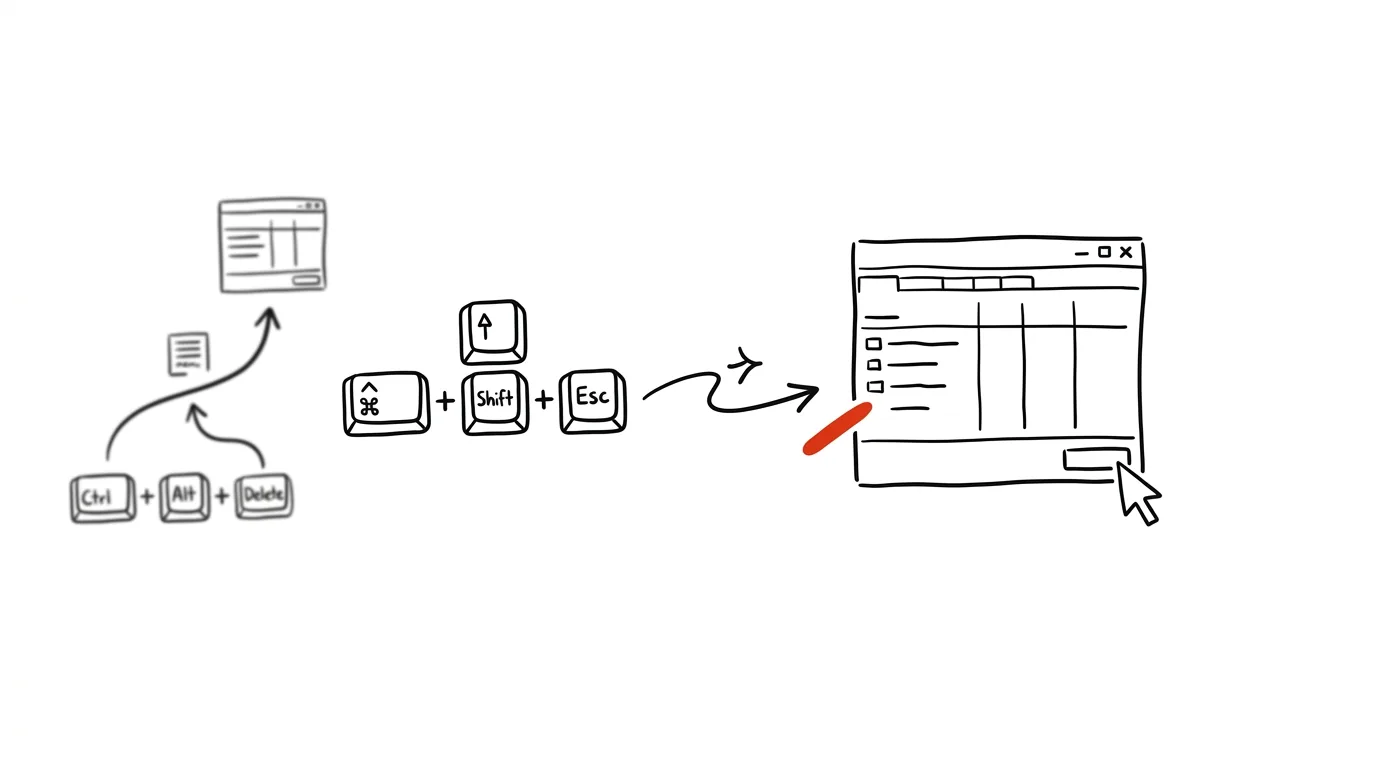
When something freezes, you don't want to go hunting for Task Manager. Most people reach for Ctrl + Alt + Delete, wait a moment for the blue screen with the menu, and only then click on Task Manager — all while the system is sluggish and nerves are frayed. There's a shorter path that skips that entire intermediate menu and takes you straight to the process causing trouble.
A typical scenario
You're working in an app that suddenly stops responding — the window won't move, the cursor turns into an hourglass, and clicking gets you nowhere. Going through Ctrl + Alt + Delete opens a full-screen menu with lock, switch-user, and other options you have to click through before you even reach Task Manager. With Ctrl + Shift + Esc, Task Manager opens instantly, with no detour — you get to the frozen process a few seconds sooner and can end it without wading through a menu full of lock and switch-user options.
How to do it
- Press Ctrl + Shift + Esc — Task Manager opens directly, no intermediate screen.
- In the process list, find the frozen app (usually labeled “Not responding”) and click to select it.
- In the bottom-right corner (or the top bar, depending on your Windows version), choose End task — the app closes immediately, even if it refuses to close on its own, without needing to restart the whole computer.
- If you're not sure which process the frozen app corresponds to, sort the list by CPU or memory usage by clicking the column header — the problem process is usually near the top.
- On a Mac, the equivalent is Cmd + Option + Esc, which opens the Force Quit menu — the principle is the same, even though the menu looks different.
The best tools
- The built-in Task Manager (Ctrl+Shift+Esc) — part of Windows, nothing to install, covers the vast majority of situations from a frozen app to checking overall system load.
- Process Explorer (Sysinternals) — a free tool from Microsoft with a more detailed view of processes, threads, and dependencies, useful for recurring issues.
- Resource Monitor (available right from Task Manager, on the Performance tab) — a more detailed view of disk, network, and memory load when you need to find the cause of a slowdown.
- Force Quit on macOS (Cmd+Option+Esc) — the equivalent built-in feature for Mac users, solving the same problem just as fast.
What you get out of it
- Time: a few seconds faster access to a critical tool at the moment it matters most.
- Peace of mind: less fumbling and panicked clicking when the computer stops responding.
- Fewer hard restarts: quickly closing the one problem app is often enough, so you don't have to restart the whole system and lose work in progress in other programs.
Pro tip
The Startup tab in Task Manager shows what launches automatically with the system, along with an estimated impact on boot time for each item. Turning off unnecessary apps (chat clients, update tools you don't need right away) speeds up your computer's startup without uninstalling anything. It's worth revisiting that same tab every few months, since new apps quietly add themselves to startup after installation without you noticing.
Want to go deeper? The handbook has a whole chapter on it — The app categories that matter.
Similar tips
Version history: who changed what, and when
Ctrl+Alt+Shift+H
Google Sheets and Docs save every single change. Ctrl+Alt+Shift+H opens a timeline — and you can revert to any point.
IMPORTRANGE: connect two Google Sheets live
One function pulls data from another spreadsheet into yours — and keeps it current. No more manually copying numbers between files.
Checkboxes in Google Sheets: a checklist in under a minute
Insert → Checkbox turns a range of cells into an interactive list — and you can attach formatting and formulas to it.
Was this helpful?
Liked this tip?
I send one like it every week by email. Two minutes to read, hours saved.
The Top 30 tips e-book, free — it lands in your inbox right away.
Then 1 tip a week · no spam · unsubscribe in one click
Prefer a system to single tips? The free email course — seven days, seven emails, one skill a day.