Tips & tricks · Shortcuts · Browser · ~5 min a week · 3 min read
Incognito window: a clean browser for testing and logins
Last reviewed:
Ctrl+Shift+N
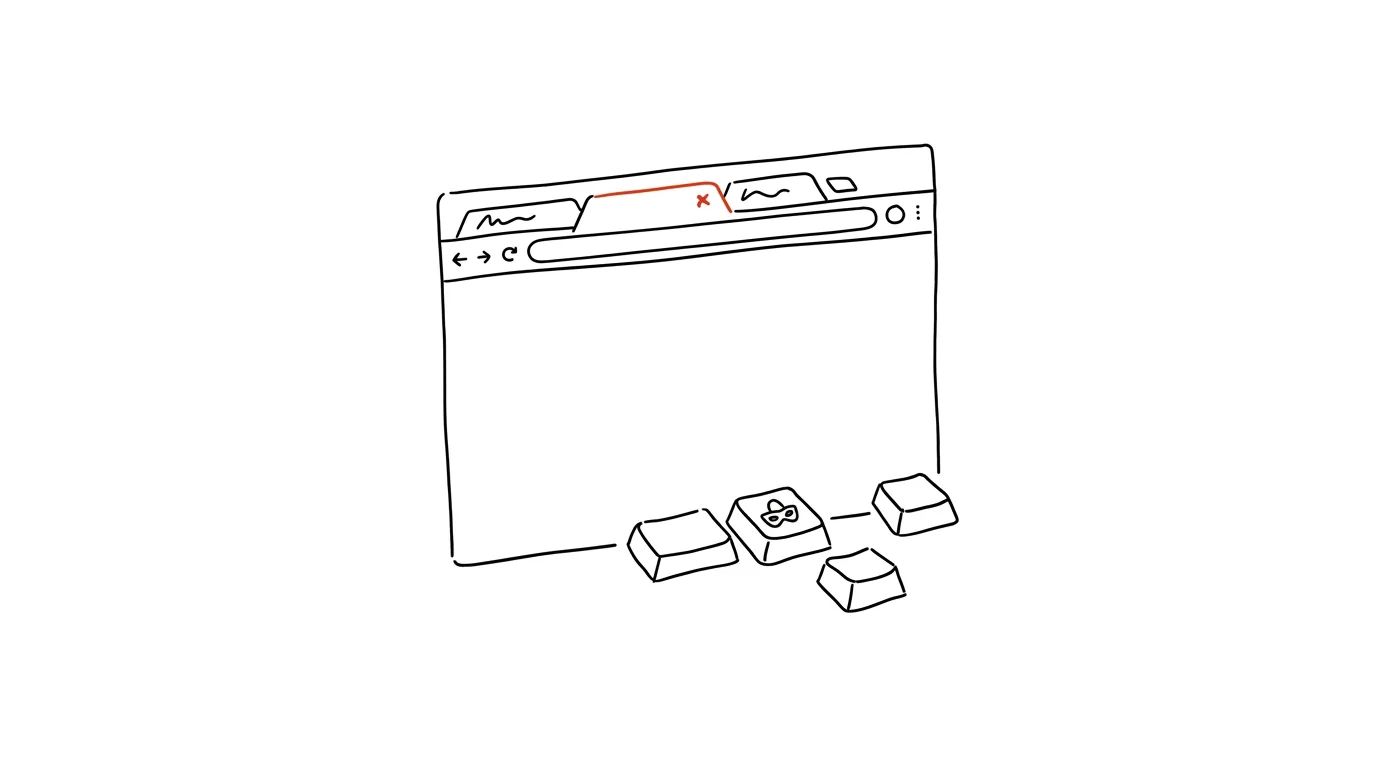
An incognito window is mostly a “clean desk” — no logins, no cache, no history tied to your main account. Most people only know it as the mode for “private browsing,” but its real power lies elsewhere: the moment you need a browser that behaves as if no one has ever used it before.
A typical scenario
You're testing a web app you're building and need to check how it behaves for a brand-new user with no saved cookies, no login, and no leftover state from previous setting changes. Or, more simply: you're logged into your work Gmail and need to quickly check a personal account without logging out of the work one. Without an incognito window, that means either logging out and back in, or manually clearing the cache through settings. With Ctrl + Shift + N, you get a second, completely independent window within a second, running a second identity side by side with the first.
How to do it
- Press Ctrl + Shift + N (in Firefox it's Ctrl + Shift + P). A new window opens with an icon or label marking it as incognito/private mode.
- Log into a second account in this window — the app or site will see it as a completely separate user, without affecting the login in your regular window at all.
- An incognito window doesn't load saved cookies or cache from your regular browsing, which makes it ideal for testing how a page looks to a brand-new visitor — free of previous visits, saved preferences, or logins.
- Closing the window wipes everything: logins, cookies, temporary files, and the browsing history from that session. None of it gets saved to your main browser.
- You can open multiple incognito windows at once side by side, each with its own, fully independent identity — useful when you need to test an app under two different accounts simultaneously.
The best tools
- The built-in incognito/private mode (Ctrl+Shift+N or Ctrl+Shift+P) — free, instantly available in every major browser, and enough for everyday use and testing.
- Browser profiles (available in both Chrome and Edge via the profile icon top-left) — unlike an incognito window, they keep you logged in permanently, useful for long-term separation between work and personal accounts.
- Browser developer tools (F12 key, Network tab) — complement an incognito window for web testing by letting you simulate a slow connection or a different device.
- Separate browser windows launched with a distinct profile — for more advanced testing when you need to stay logged in long-term, not just for the length of a single incognito session.
What you get out of it
- Time: you skip repeated logging in and out between accounts, especially if you switch between them often.
- More accurate testing: developers and site admins see the page the way a new visitor would, without their own history skewing the picture.
- Safer computer lending: you can hand a coworker an incognito window for a quick search without giving them access to your saved passwords or history.
Pro tip
An incognito window doesn't protect against tracking at the network or employer level — it only hides history and logins locally, in your own browser. Real privacy on the network requires a different tool; an incognito window only solves the “clean desk” problem on your own machine. That distinction is worth keeping in mind especially on a corporate network or public wifi, where tracking happens beyond the reach of your browser settings.
Want to go deeper? The handbook has a whole chapter on it — The app categories that matter.
Similar tips
F2 renames a function across the whole project — no searching, no replacing
F2
Renaming a symbol with F2 changes a function or variable everywhere it's used, across files. Smarter than find and replace.
Multi-cursor editing: edit ten lines at once
Ctrl+D
Ctrl+D in VS Code selects the next occurrence of a word — and you type in all of them at once. Small refactors without find and replace.
Win + 1 through 9: apps at a single keypress
Win+1
Open apps pinned to the taskbar by their position number. No more hunting with the mouse.
Was this helpful?
Liked this tip?
I send one like it every week by email. Two minutes to read, hours saved.
The Top 30 tips e-book, free — it lands in your inbox right away.
Then 1 tip a week · no spam · unsubscribe in one click
Prefer a system to single tips? The free email course — seven days, seven emails, one skill a day.