Tips & tricks · Shortcuts · Everywhere · ~10 min a day · 3 min read
Multi-cursor editing: edit ten lines at once
Last reviewed:
Ctrl+D
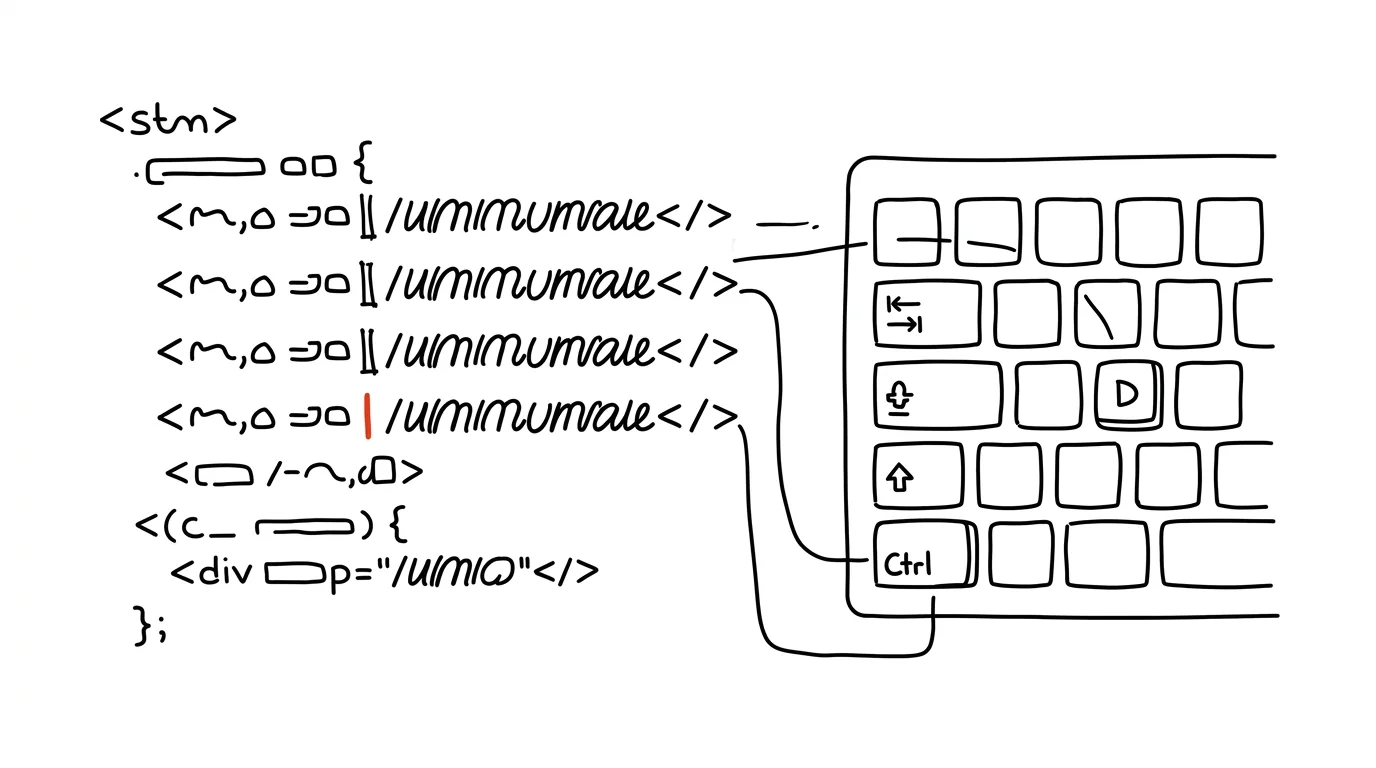
The same edit on eight lines means, in practice, typing the same thing eight times in a row — unless you use multi-cursor. With it, it's one edit with eight cursors at once, because the editor lets you type in multiple places at the same time, as if there were several versions of you.
A typical scenario
A developer is renaming the variable data to userData in a file where it's used in twelve places — but not everywhere; in a few lines, data also appears as part of a different, unrelated word. A classic “Find and Replace All” would rewrite the places it shouldn't, and manually retyping line by line takes five minutes of pointless, mechanical work with the risk of missing an occurrence or accidentally editing something that shouldn't be touched.
With multi-cursor, they select the first occurrence of data, add the next with Ctrl + D — and each press adds a cursor at the next occurrence, chosen automatically, and any of them can be skipped. They type userData once, and it appears at every selected spot at once, with no confirmation dialog and no risk of an unrelated word getting swept up in the rewrite.
How to do it
- Select the word you want to edit (double-click or drag), then press Ctrl + D — each press adds another occurrence of the same word with its own cursor, moving forward through the file from your current position.
- If an occurrence you don't want to change comes up, just skip that press of Ctrl + D and continue — the last added cursor can also be skipped with a shortcut for moving to the next occurrence without selecting it.
- Alt + click adds cursors anywhere manually, regardless of whether the same word is there or not — handy when you need to edit several different spots at once.
- Once your cursors are placed, type normally — the text is inserted at every position at once, and deleting and editing stay in sync too.
- Esc returns the editor to a single cursor and exits multi-cursor mode.
The best tools
- VS Code — Ctrl + D to add occurrences one by one, one of the most-used features in the editor.
- JetBrains IDEs (IntelliJ, WebStorm, PyCharm) — a similar feature under Alt + J, with the same principle of adding cursors incrementally.
- Sublime Text — one of the first editors to popularize multi-cursor editing, works similarly via Ctrl + D.
- Vim / Neovim — no multi-cursor in the classic sense, but you can get a similar result with macros or the
:scommand with regular expressions across a selected block.
What you get out of it
- Time: ten edited spots at once instead of ten repetitions of the same edit — for small refactors, easily a few minutes saved per use.
- Lower error risk: typing the same thing by hand in multiple places is prone to a typo in one of them — multi-cursor guarantees every spot gets exactly the same text.
- More precise control than bulk replace: unlike “Find and Replace All,” you choose exactly which occurrences to change and which to leave alone.
- A smoother workflow: you don't have to interrupt writing code to open a find-and-replace dialog — the cursor stays right where you're working.
Pro tip
Shift + Alt + arrow (up/down) drags the cursor down a column across multiple lines at once — ideal for editing aligned data, like changing a value in the same column of a table or a list of values stacked on top of each other.
Want to go deeper? The handbook has a whole chapter on it — The app categories that matter.
Similar tips
In-depth guide · 15 min
What loops are: the agentic cycles said to replace prompting
An explainer with prompts: what it means to let AI run in a loop, what's true in the hype, what's overblown, and how to safely try your first loop.
Smart home scene: Deep Work Mode in one tap
Lights, do-not-disturb, a timer, and music with a single command. A ritual that tells your brain “it's work time now.”
A docking station: one cable and you're working
Monitor, keyboard, network, charging — all through a single USB-C cable. Connecting your laptop stops being a five-minute ritual.
Was this helpful?
Liked this tip?
I send one like it every week by email. Two minutes to read, hours saved.
The Top 30 tips e-book, free — it lands in your inbox right away.
Then 1 tip a week · no spam · unsubscribe in one click
Prefer a system to single tips? The free email course — seven days, seven emails, one skill a day.