Tips & tricks · Shortcuts · Everywhere · ~10 min a week · 2 min read
F2 renames a function across the whole project — no searching, no replacing
Last reviewed:
F2
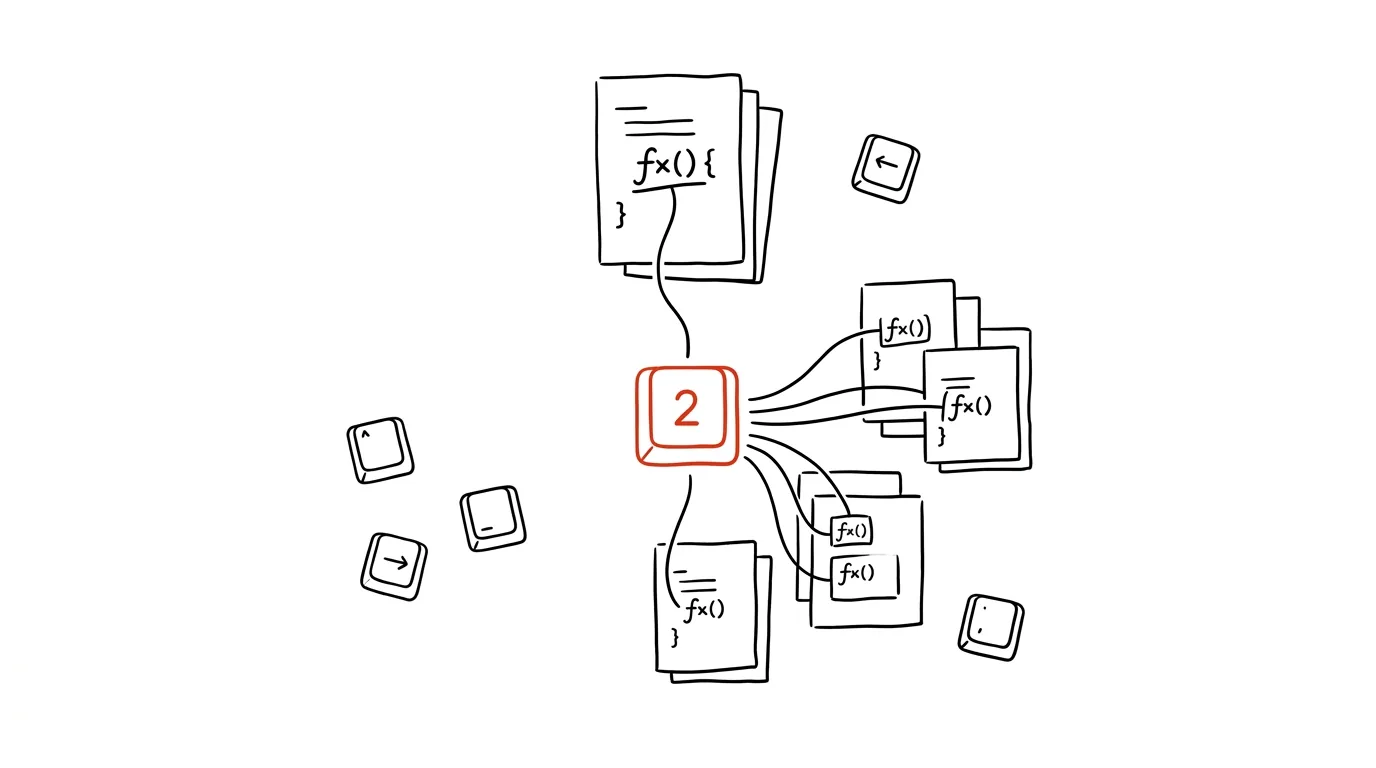
A badly named function stays badly named mainly because nobody wants to rename it: it's used in twenty places across eight files, and “find and replace” is a gamble — it'll also rewrite strings, comments, and unrelated words that just happen to look the same. Editors, though, can do this safely: put the cursor on the name and press F2. Through language analysis, VS Code identifies every place where this exact symbol is actually used, and renames them all at once — across the whole project, not just the open file.
How to do it
- Click the cursor onto the name of a function, variable, class, or parameter — anywhere it appears, not necessarily at its definition.
- Press F2 (the command is called Rename Symbol; you'll also find it in the right-click menu). A field with the current name appears.
- Type the new name and confirm with Enter — the editor updates the definition and every usage across the project's files. Changed files are marked as unsaved, so you can see the result and undo the whole thing with a single Ctrl+Z.
- To preview everything that will change first, confirm with Ctrl + Enter instead of Enter — a preview of all pending changes opens for your approval.
- In JetBrains IDEs (IntelliJ, WebStorm, PyCharm, Rider), Shift + F6 does the same thing. The principle is identical: renaming is driven by understanding the code, not by text matching.
A typical scenario
A developer inherits a project where a key function is called process2 — a name that tells you nothing and confuses every newcomer. With find and replace, he'd risk rewriting process2 inside log strings too, or missing a file he doesn't have open. With F2, he puts the cursor on the name, types calculateMonthlyInvoice, Enter — and within a second the change is made across all twelve files, imports included. Nothing more, nothing less: strings and comments with similar text stay untouched.
The difference from multi-cursor editing is scope: multi-cursor is great for edits within a single file you can see in front of you, F2 for renaming across an entire project you can't. The quality of the result depends on language support — for languages with strong analysis (TypeScript, C#, Java, Rust), renaming is practically infallible; for more dynamic languages, it's worth reviewing the change preview before confirming.
What you get out of it
Renaming stops being a risky operation, so you actually start doing it — code gradually works its way toward names that mean something. You save minutes on every refactor, and above all you eliminate the class of “it replaced something it shouldn't have” bugs that classic find and replace reliably produces.
Want to go deeper? The handbook has a whole chapter on it — The app categories that matter.
Similar tips
Three-finger drag: move windows without pressing down on the trackpad
A hidden option in Accessibility changes how you use the trackpad — drag windows and files with a light three-finger touch, no holding down and no thumb fatigue.
Universal Control: one mouse and keyboard for both Mac and iPad
Move the cursor past the edge of your Mac's screen — and it shows up on the iPad. One keyboard, one mouse, two devices, zero setup.
In-depth guide · 71 min
MCP connectors: the full guide
A complete guide with prompts: what MCP is, how official and community connectors differ, and what eight tool categories can do — from notes to CAD.
Was this helpful?
Liked this tip?
I send one like it every week by email. Two minutes to read, hours saved.
The Top 30 tips e-book, free — it lands in your inbox right away.
Then 1 tip a week · no spam · unsubscribe in one click
Prefer a system to single tips? The free email course — seven days, seven emails, one skill a day.