Tips & tricks · Apps · Mac · ~3 min a day · 2 min read
Three-finger drag: move windows without pressing down on the trackpad
Last reviewed:
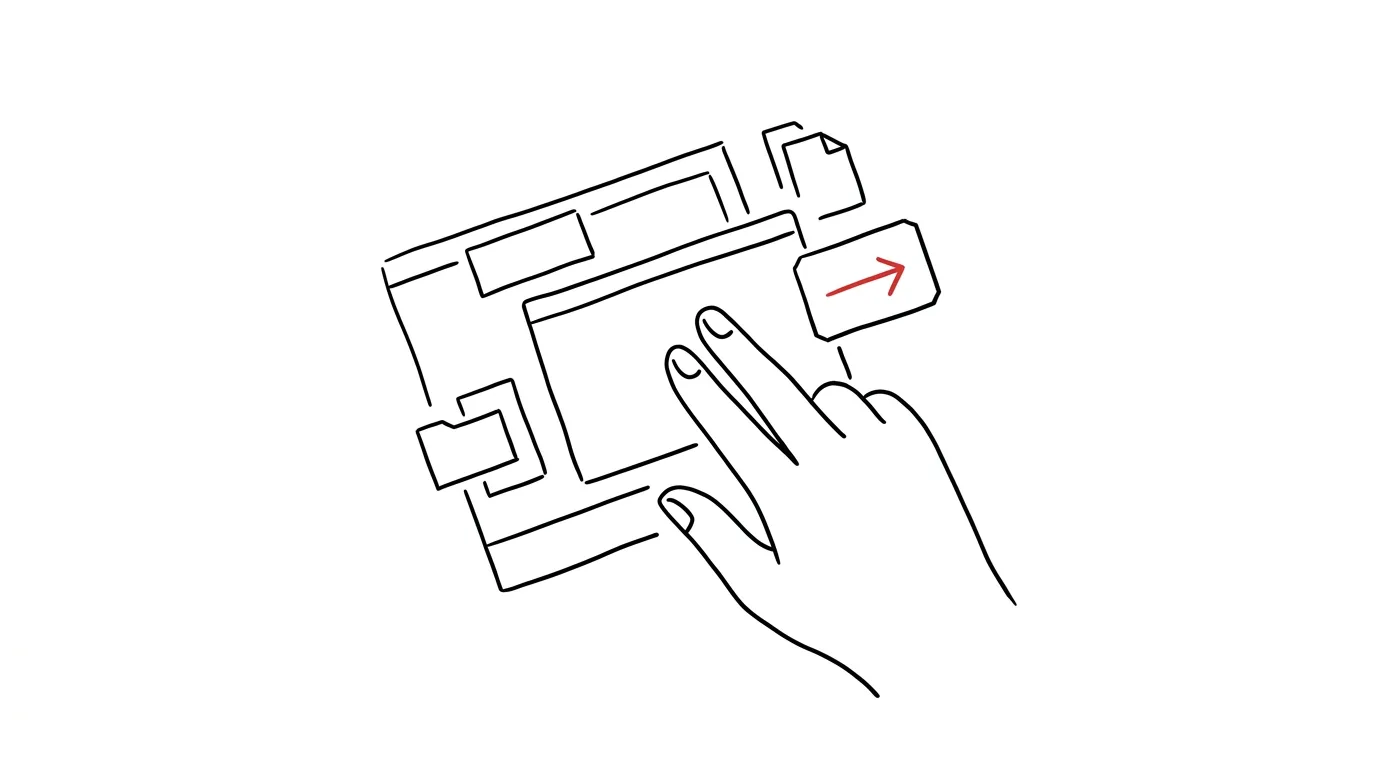
Dragging on a trackpad is the most uncomfortable gesture on the whole Mac: you have to press down on the trackpad, hold it down, and drag at the same time — for a longer move across the whole screen, your fingers slip and the selection breaks halfway there. Yet macOS has an elegant solution tucked away: three-finger drag. Put three fingers on a window and just move them — no pressing, no holding. The option is buried in Accessibility settings, where a regular user would never think to look, and yet it's one of the best trackpad upgrades there is. Try it once and you won't want to go back.
How to do it
- Open System Settings → Accessibility → Pointer Control.
- Click Trackpad Options….
- Turn on Use trackpad for dragging and set the dragging style to Three Finger Drag.
- From then on, you move a window by placing three fingers on its title bar and moving them — the window travels with them. Lift your fingers and the window stays put.
- The same works for dragging files in Finder, selecting text (three fingers swept across text selects it), and moving sliders in apps.
- Just note that gestures originally assigned to three fingers (switching Spaces, Mission Control) automatically move to four fingers — it takes a few days to adjust, then it becomes automatic.
- Classic click-and-drag doesn't stop working, either — both methods run side by side, so you're not risking anything and can go back to the old habit any time.
- A small thing that helps at first: if your three fingers reach the edge of the trackpad mid-drag, just lift them briefly and set them back down — the drag in progress continues, the selection doesn't drop.
A typical scenario
A graphic designer on a MacBook spends all day rearranging windows and dragging files from Finder into emails. With classic click-and-hold dragging, her thumb hurts by the afternoon, and she does long moves in two steps because the selection "drops" halfway. After turning on three-finger drag, a window slides over with just a light touch of her fingertips, a file lands in an in-progress message with one smooth motion, and selecting long paragraphs of text stops being an exercise in precision. Grip strength no longer matters — the trackpad doesn't get pressed even once all day. And because it's a system setting, it behaves the same in every app: a graphics editor, spreadsheets, or rearranging tabs in a browser.
What you get out of it
Less strain on your hand for the most frequent gesture you make on a trackpad, and noticeably more reliable long drags — a three-finger drag doesn't "let go" the way a held-down click does. Anyone who works on a MacBook without a mouse all day will notice the difference in hand comfort within a single afternoon — and selecting text with three fingers quickly becomes as natural as a click.
Want to go deeper? The handbook has a whole chapter on it — The app categories that matter.
Similar tips
Jump to any folder with Cmd+Shift+G
Cmd+Shift+G
You don't have to click through the folder structure. Cmd+Shift+G in Finder opens a field where you just type the path.
Quick Finder jumps: Desktop, Applications, Downloads
Cmd+Option+L
Finder has shortcuts for the folders you use most — Cmd+Shift+D for Desktop, Cmd+Option+L for Downloads, and more.
Finder tags: one file in multiple “folders” at once
Does an invoice belong in the project folder and in accounting? Tags solve the age-old dilemma of where to save a file — it can show up in more than one place at once.
Was this helpful?
Liked this tip?
I send one like it every week by email. Two minutes to read, hours saved.
The Top 30 tips e-book, free — it lands in your inbox right away.
Then 1 tip a week · no spam · unsubscribe in one click
Prefer a system to single tips? The free email course — seven days, seven emails, one skill a day.