Tips & tricks · Shortcuts · Windows · ~3 min a day · 3 min read
Two windows side by side in two seconds
Last reviewed:
Win+←Win+→
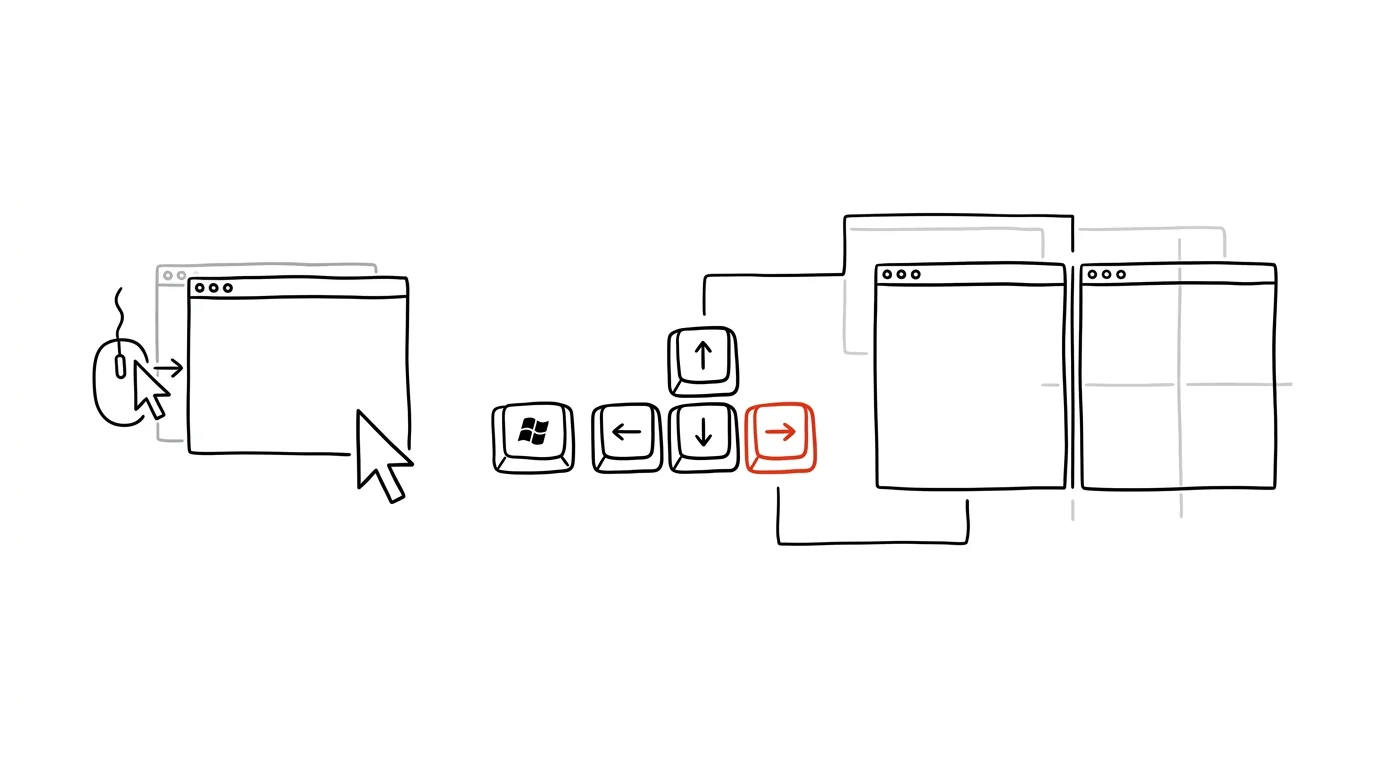
Writing text with a reference beside it. Comparing two spreadsheets. Watching a call while taking notes. Half of working at a computer is "two windows side by side" — and with a mouse it takes forever: grab a window by its title bar, drag it to the edge of the screen, wait for the snap hint, release, then repeat the same dance with the second window.
Win + ← snaps a window to the left half of the screen; a second window fills the right.
A typical scenario
You need to copy numbers from one spreadsheet into another, or read a PDF reference while writing a summary in Word. Without knowing the shortcut, you drag the window around with the mouse, miss the edge of the screen, the window doesn't snap, and you have to try again — and the same with the second window, which often ends up the wrong size too and needs further adjustment by dragging its corner.
With Win + ← and Win + →, all you need is for the window to be active, then press two keys — it snaps instantly to exactly half the screen. Windows then immediately offers thumbnails of the remaining open windows to fill the other half, so the whole layout is done in seconds.
How to do it
- Click the window you want to place so it's active, then press Win + ← — the window snaps to the left half of the screen.
- Press Win + → to snap it to the right half. Once one half is occupied, Windows automatically offers thumbnails of your other open windows to fill the other half — just click the right one.
- Win + ↑ maximizes the window to full screen, while Win + ↓ minimizes it or restores it from maximized.
- The combinations work repeatedly and let you split the screen into quarters too — see the Pro tip below.
The best tools
- The built-in Win + arrow shortcuts — free, work instantly on any Windows computer, the fastest way to split the screen.
- Snap Layouts (Win + Z) — for layouts more complex than just halves, offering grids and thirds of the screen at a glance.
- PowerToys FancyZones — a free add-on from Microsoft for custom, named layout zones, ideal for large or multiple monitors.
- Rectangle (macOS) — a similarly free keyboard-shortcut window splitter for Mac, which lacks the same built-in feature Windows has.
What you get out of it
- Time: roughly 2–3 minutes a day on tasks that would otherwise take slow mouse dragging — this adds up to dozens of hours a year if you often work with multiple windows.
- Precision: windows always align exactly to half the screen, with no annoying resizing by dragging an edge.
- Smoother multitasking: comparing documents, copying data, or watching a call while taking notes happens without constantly switching windows via Alt + Tab.
- Less frustration: no more "missing" the edge of the screen with the mouse, which used to often mean trying again.
Pro tip
The combinations also work in sequence: Win + ← followed by Win + ↑ puts a window in the top-left corner as a quarter of the screen — repeat this with four different windows and corners to get four windows neatly arranged side by side on one screen.
Want to go deeper? The handbook has a whole chapter on it — The app categories that matter.
Similar tips
In-depth guide · 78 min
Your brand as a system: from brand voice through brochure and website to CRM
A complete guide for absolute beginners — with a glossary of terms, step-by-step account setup, and an honest chapter on real-world costs in dollars: turn a brand manual into a lasting Brand Voice document, a print-ready brochure in Affinity through Claude Cowork, a website on Vercel, and a locked-down CRM on Supabase. One company, one continuous story, 19 prompts to copy.
In-depth guide · 19 min
Snap a photo and it's a task: Claude on mobile
14 prompts: a whiteboard into tasks, a receipt into a budget line, a poster into an event, a card into a contact — and a habit that empties your gallery.
Photograph the Whiteboard — Google Photos Will Find It by Its Text
Google Photos reads the text in your pictures. A photographed whiteboard or slide can then be found a month later just by searching for a term that was written on it.
Was this helpful?
Liked this tip?
I send one like it every week by email. Two minutes to read, hours saved.
The Top 30 tips e-book, free — it lands in your inbox right away.
Then 1 tip a week · no spam · unsubscribe in one click
Prefer a system to single tips? The free email course — seven days, seven emails, one skill a day.