Tips & tricks · Apps · Windows · ~15 min a month · 2 min read
winget: install and update programs with one command
Last reviewed:
In this article
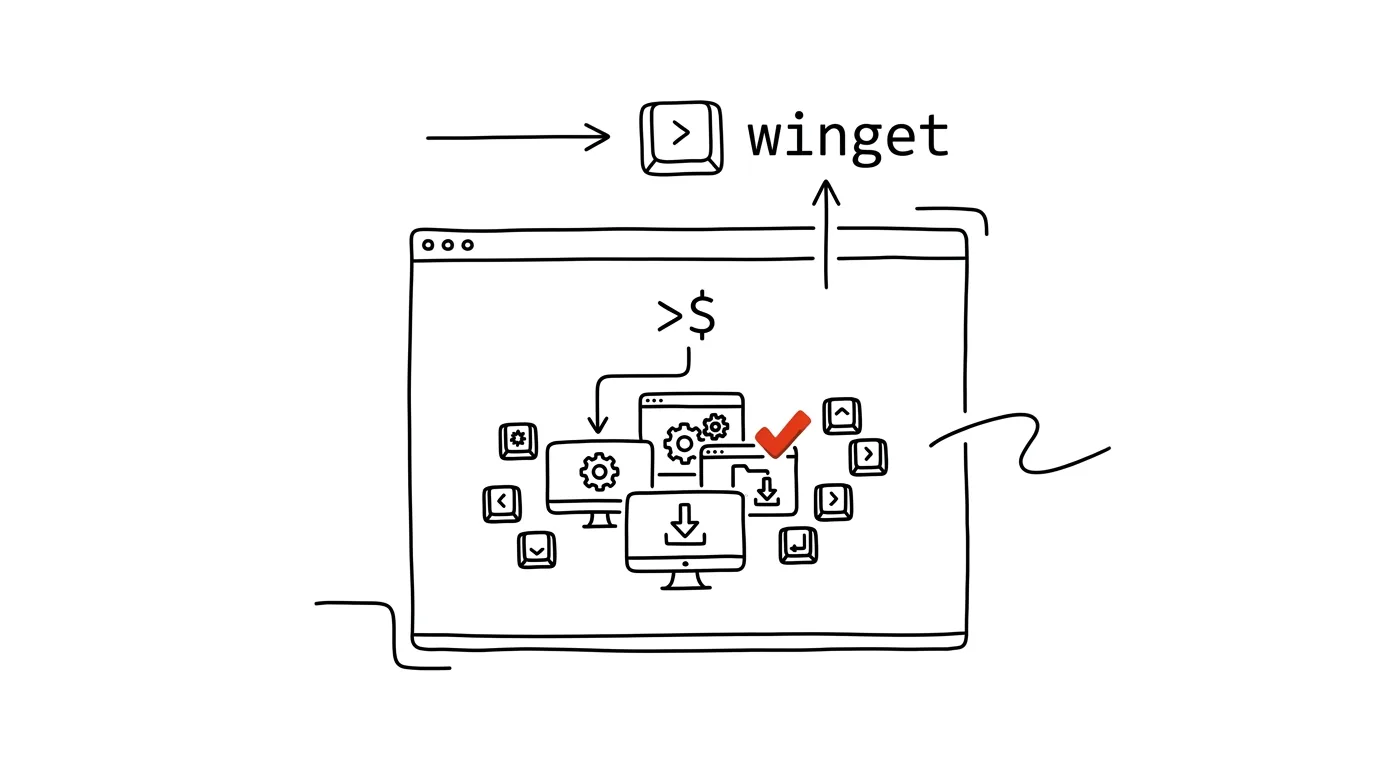
Installing a program on Windows has traditionally looked like this: Google the name, hope you've landed on the official site and not a page full of fake Download buttons, click through a wizard, decline the bundled toolbar. Yet Windows has included the winget package manager for years now: one terminal command downloads and installs a program from Microsoft's verified catalog — and another command updates everything on your computer in one go.
How to do it
- Open a terminal (Win + X → Terminal). Winget ships with modern Windows 10 and 11 — check it with
winget --version. - Find a program with
winget search name— for example,winget search vlclists the available packages with their identifiers. - Install it with
winget install --id VideoLAN.VLC(using the identifier from the previous step). No wizard, no checkboxes for bundled software — the install just happens. - The most powerful command:
winget upgradelists every program with a newer version available, andwinget upgrade --allupdates all of them at once. Computer maintenance in one command and one cup of coffee. - A bonus for switching computers:
winget export -o apps.jsonsaves a list of installed programs to a file, andwinget import -o apps.jsoninstalls all of them again on a new computer.
A typical scenario
A new work laptop. The old way: an afternoon spent walking through websites — browser, editor, Git, a mail client, a media player, a compression tool — with twenty separate install wizards. The new way: one file with the list, winget import, and off you go for coffee. Half an hour later, the computer is set up with everything the old one had.
And every month after that: instead of ignoring “a new version is available” notices in ten different programs, you run winget upgrade --all and enjoy peace of mind — security patches included, ones that would otherwise go unapplied.
What you get out of it
- Safer downloads: packages come from a verified catalog, not a random site with a big green Download button.
- Updates that actually happen: one command instead of twenty annoying dialogs means programs actually stay up to date.
- A new computer in half an hour: an exported app list turns moving to a new machine into a routine instead of a full-day project.
Pro tip
Winget pairs beautifully with aliases and scripts: set up an alias like up that runs winget upgrade --all — and system maintenance shrinks to two letters you type whenever you're stepping away from the computer. A handful of programs manage their own updates (browsers are the typical case), and winget may report version mismatches for those — just skip them; it takes care of the rest.
Want to go deeper? The handbook has a whole chapter on it — The app categories that matter.
Similar tips
In-depth guide · 27 min
Data Analysis in Plain Language: A Persistent Skill Built on DuckDB
A guide with prompts: why a chatbot silently gets math wrong, how a persistent DuckDB skill lets you query CSV or Excel in plain words — and check results.
In-depth guide · 20 min
Claude Code: a personal automation engine, not just for developers
A guide with prompts: installation, the first half hour, five typical tasks from folder cleanup to reports, and safety rules. It's how this site is made.
In-depth guide · 29 min
Morning brief: what needs a decision today
A complete guide with 14 prompts: Claude Cowork checks Slack, mail, calendar, and dashboards, then hands you a ranked list of what's on you today.
Was this helpful?
Liked this tip?
I send one like it every week by email. Two minutes to read, hours saved.
The Top 30 tips e-book, free — it lands in your inbox right away.
Then 1 tip a week · no spam · unsubscribe in one click
Prefer a system to single tips? The free email course — seven days, seven emails, one skill a day.