Tips & tricks · Shortcuts · Everywhere · ~5 min a week · 2 min read
Alt+drag in Word: a vertical text selection
Last reviewed:
In this article
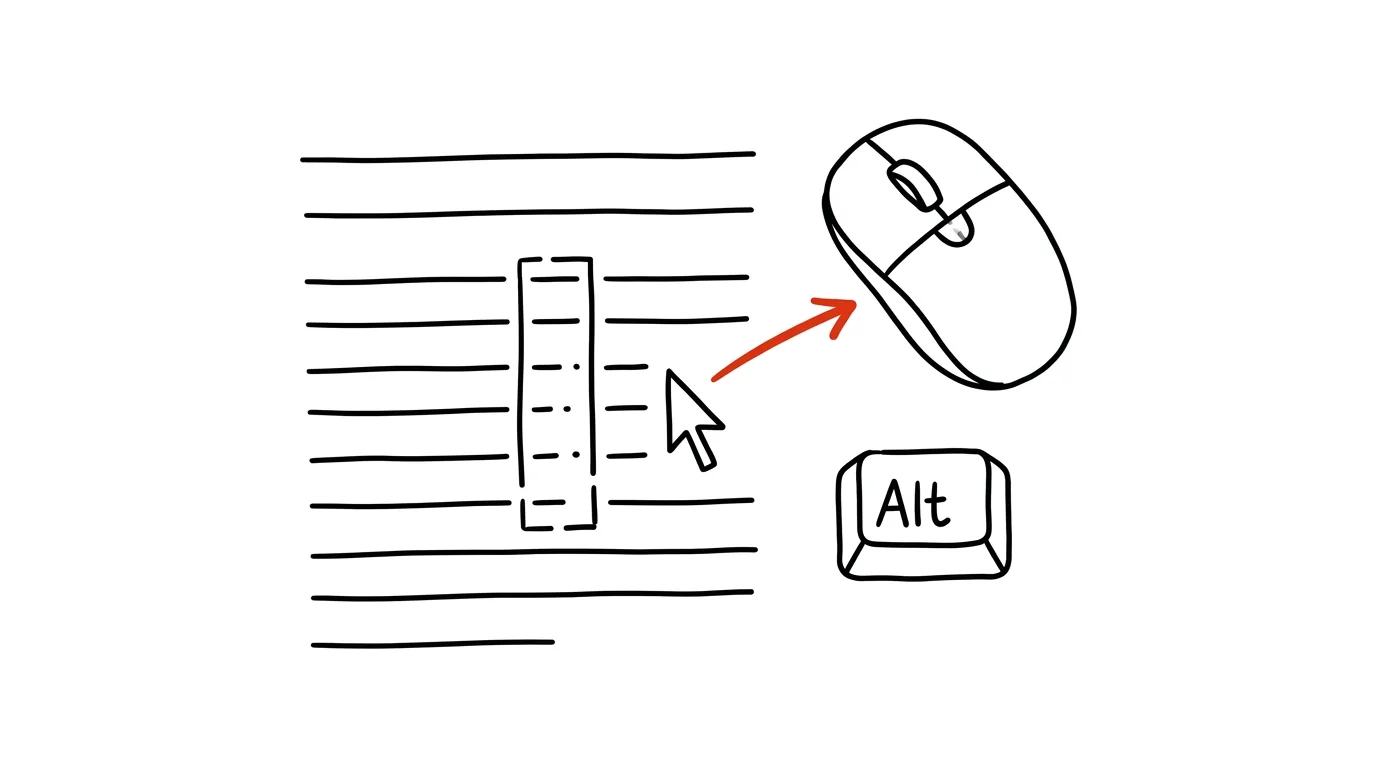
A normal mouse selection in Word runs by lines: from wherever you start to wherever you stop, including everything in between. But sometimes you need to select a vertical strip instead — say the dashes at the start of twenty lines, a column of numbers in text pasted from an email, or the first few characters of every line. Holding down Alt, Word selects a rectangle instead: only what's inside the drawn box, regardless of lines.
How to do it
- Hold Alt (Option on a Mac) and only then start dragging with the mouse across the text.
- Instead of the usual line-based selection, a rectangular area gets selected — a vertical strip of characters across lines.
- You then work with the selection normally: Delete removes it, Ctrl + C copies it, and you can even change its formatting all at once — bold the first word of every line, for instance.
- Mind the order: hold Alt first, then click and drag. If you click first, Word interprets the gesture differently.
- If you don't want to let go of the keyboard, you can also turn on block selection without the mouse: Ctrl + Shift + F8 starts vertical-selection mode, arrow keys expand the rectangle, and Esc exits the mode.
You can also type directly into a selected block — whatever you type replaces the highlighted rectangle on the first line. Most often, though, you'll simply delete the block or reformat it.
A typical scenario
Tom receives an emailed list where every line starts with “> ” from being forwarded. There are forty lines. Deleting them one by one means forty clicks and forty presses of Delete; find and replace would work too, but he'd need to get the pattern exactly right. With Alt+drag, he selects the vertical strip of every “> ” at once and one press of Delete leaves the whole list clean.
The same trick is a lifesaver for text pasted from a PDF or terminal, where line numbers or spaces ended up at the start of every line — a rectangular selection grabs them all at once.
What you get out of it
Edits that would mean dozens of repeated clicks get done in one motion. It's not something you need every hour, but when it comes up — broken pasted text, a column of unwanted characters — it saves you five minutes of mechanical work and, more importantly, keeps you from losing patience by line forty. And because the same gesture is known to developer editors too, it's a skill that carries over between tools.
Pro tip
Word has other little-known selections too: Ctrl + click anywhere in a sentence selects the whole sentence (handy when rewriting a complex one), and a triple click selects an entire paragraph. Together with Alt+drag, they cover most situations where a plain mouse drag is needlessly slow.
Want to go deeper? The handbook has a whole chapter on it — The app categories that matter.
Similar tips
Shift+Click on the Taskbar Opens a Second Window of an App
Clicking a running app's taskbar icon just brings it to the front. Shift+click opens a new window, Ctrl+Shift+click launches it as admin — three tricks in one icon.
The Action Button: A Physical Shortcut on the Side of Your iPhone
Newer iPhones have a programmable button above the volume controls. Voice memo, flashlight, camera, or a custom shortcut with one press-and-hold.
Three fingers on iPhone: copy, paste, and undo
The iPhone has gestures for working with text: a three-finger pinch copies, a spread pastes, and a swipe left undoes the last action.
Was this helpful?
Liked this tip?
I send one like it every week by email. Two minutes to read, hours saved.
The Top 30 tips e-book, free — it lands in your inbox right away.
Then 1 tip a week · no spam · unsubscribe in one click
Prefer a system to single tips? The free email course — seven days, seven emails, one skill a day.