Tips & tricks · Shortcuts · Everywhere · ~2 min a day · 3 min read
Delete word by word, not letter by letter
Last reviewed:
Ctrl+BackspaceCtrl+Delete
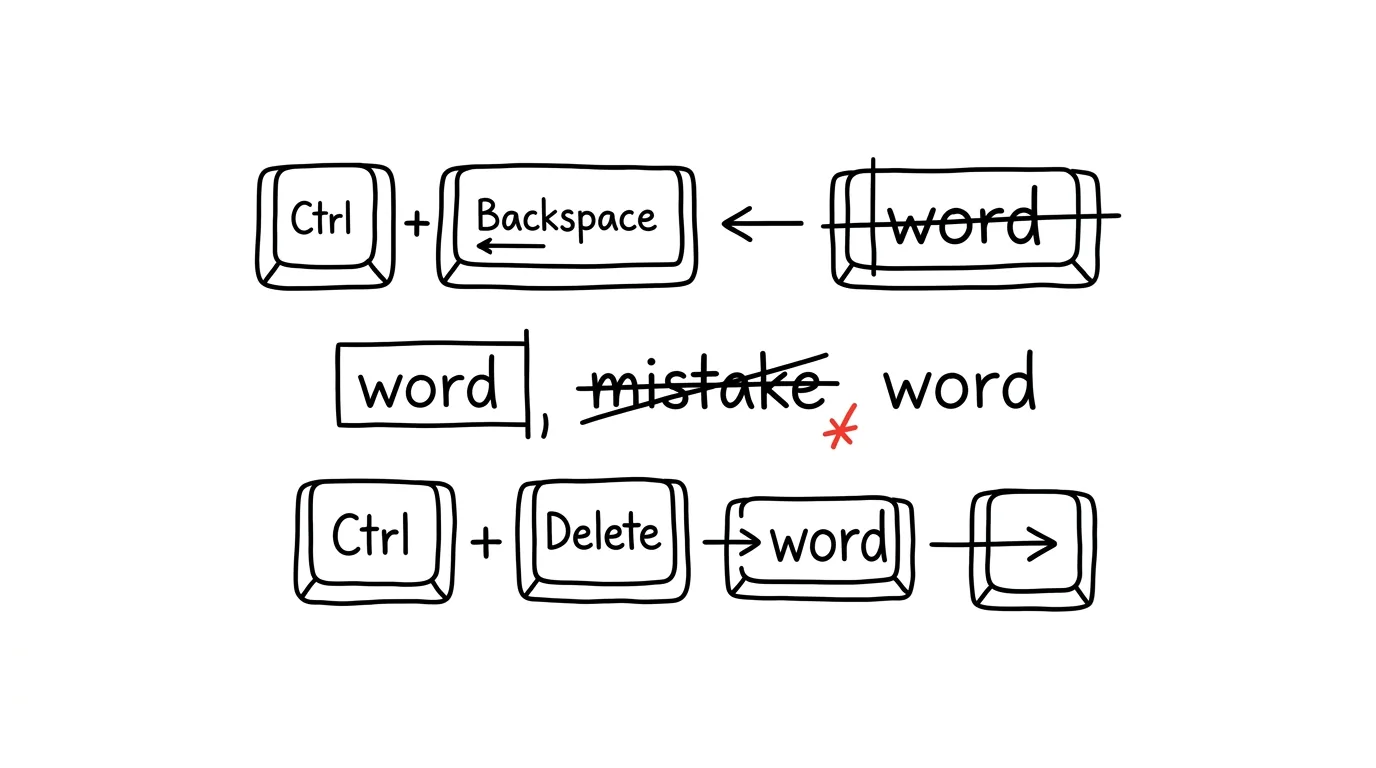
A typo at the start of a word and you're tapping Backspace eight times in a row? Deleting letter by letter is the slowest way to fix text there is, and yet almost everyone does it automatically because they never got used to any other way. Both Windows and macOS have a shortcut that deletes an entire word in one press.
A typical scenario
Adéla, a copywriter, is writing a long piece and notices a typo in the middle of a word — she typed "productivityy" instead of "productivity." With classic letter-by-letter deletion, she has to press Backspace as many times as there are extra letters to remove, land exactly on the right spot, and then retype the word from that same point. For a longer word, that's ten or more presses just for one small fix.
With Ctrl + Backspace, the whole wrong word disappears in one press and she retypes it in full. Instead of counting letters and pressing precisely, she wipes out a whole chunk of text at once and keeps going — a fix that used to take ten keystrokes now takes two.
How to do it
- Place your cursor right after the word you want to delete (or anywhere within it).
- Press Ctrl + Backspace — it deletes the entire word to the left of the cursor, not just one letter.
- Press Ctrl + Delete — it deletes the entire word to the right of the cursor, useful when you're fixing text ahead of you rather than behind you.
- The shortcut repeats — holding it down and pressing repeatedly deletes multiple words in a row, just like classic Backspace.
- It works almost everywhere you type text: Word, browsers, email, Slack, and note-taking apps — it's standard system behavior, not a feature of a specific app.
- On Mac, Option + Delete does the same thing instead of Ctrl + Backspace.
The best tools
- The system's built-in shortcut — works on both Windows and macOS with no setup at all, just start using it.
- Text editors with custom shortcuts (VS Code, Word) — some programs let you customize word-based deletion further, say to delete a whole sentence or paragraph at once.
- Key-remapping tools (PowerToys Keyboard Manager, Karabiner on Mac) — useful if you want to assign this and similar shortcuts to other keys, for a more comfortable hand position.
What you get out of it
- Time: an estimated 2 minutes a day saved on repeatedly tapping Backspace during everyday typing and fixes.
- Smoother writing: corrections interrupt your train of thought less, since they don't take as long and don't require precise letter counting.
- Less finger fatigue: for people who type a lot of text daily, small but frequent actions like deleting add up to a noticeable difference.
- Fewer mistakes while fixing: deleting letter by letter makes it easy to press one time too many and delete a bit of correct text along with it — deleting by word carries less of that risk.
Pro tip
The same logic applies to cursor movement, not just deletion: Ctrl + ← and Ctrl + → jump the cursor by whole words instead of single letters. Combining both — jumping and deleting by word — makes fixing text almost twice as fast. Add Shift to the movement (Ctrl + Shift + ←/→) and you select the whole word at once, handy when you want to retype it rather than just delete it.
Want to go deeper? The handbook has a whole chapter on it — The app categories that matter.
Similar tips
In-depth guide · 19 min
AI voice mode: think out loud while you walk
A complete guide with prompts: when talking to AI beats typing, how to run a conversation that resolves something, and where voice mode hits hard limits.
In-depth guide · 21 min
AI music: stings and background tracks without licensing headaches… almost
A complete guide with prompts: the anatomy of a music brief, the path from variants to a final track, and a sober look at the licensing reality most skip.
In-depth guide · 19 min
The first answer is a draft: the complete guide to iterating with AI
A complete guide with prompts: phrases for sharpening, narrowing, and shifting tone, variants instead of guessing, and when to scrap a chat and restart.
Was this helpful?
Liked this tip?
I send one like it every week by email. Two minutes to read, hours saved.
The Top 30 tips e-book, free — it lands in your inbox right away.
Then 1 tip a week · no spam · unsubscribe in one click
Prefer a system to single tips? The free email course — seven days, seven emails, one skill a day.