Tips & tricks · Shortcuts · Browser · ~5 min a day · 3 min read
Ctrl+F: don't read the page, search it
Last reviewed:
Ctrl+F
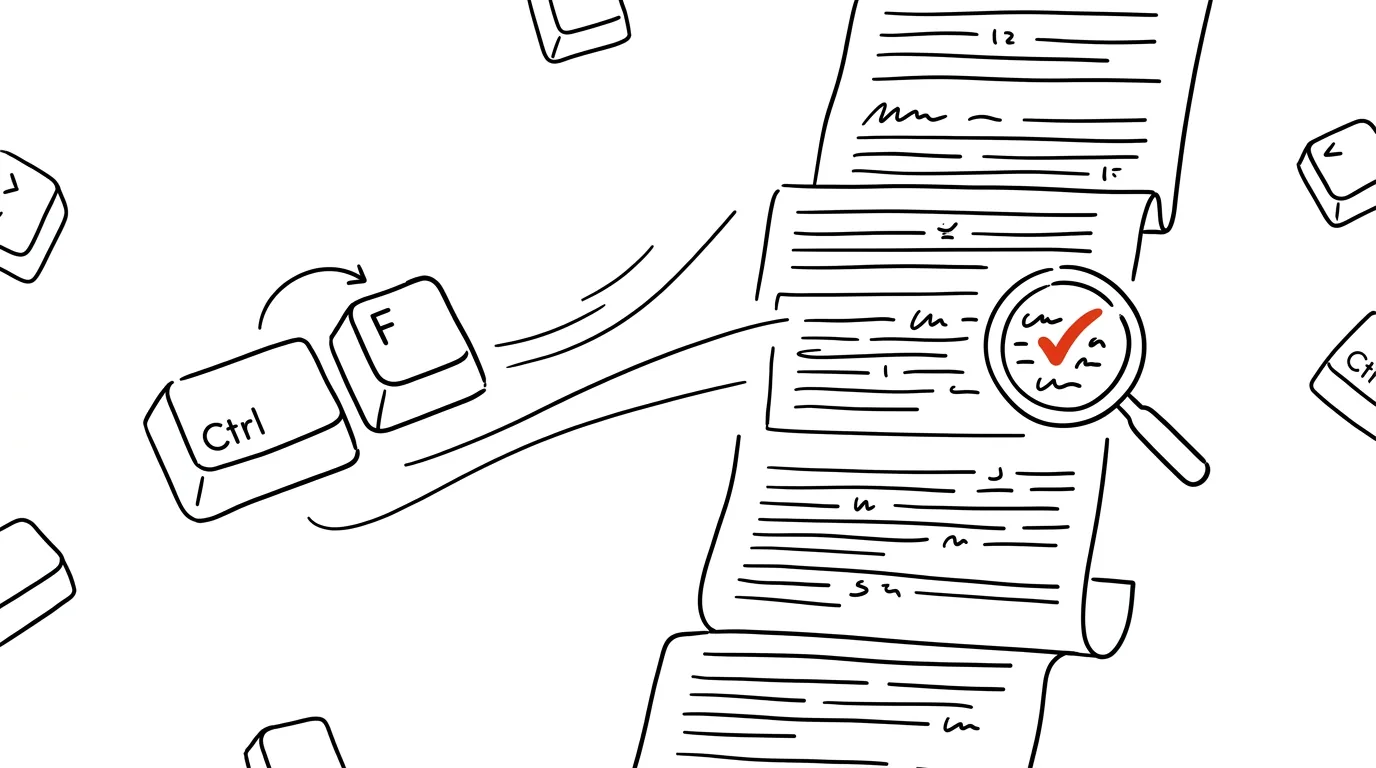
Reading an entire document for the sake of one piece of information is a waste. Whether you're looking for a specific clause in terms and conditions, a name in a long list, or a single sentence in a lengthy article, scanning the whole text with your eyes is slow and it's easy to miss the important passage. Ctrl + F searches the page for you.
A typical scenario
Radek, a student, needs to find a passage about a specific formula in a hundred-page PDF of lecture notes, and he can't remember which page it was on. Without search, he'd have to go through the document page by page, slowing down at every point where he suspects the formula might be, and risk missing it anyway among similar-looking text.
With Ctrl + F, he types just part of the formula's name, the browser or PDF reader highlights every occurrence in the whole document, and he clicks through them with Enter until he finds the right passage. A search that could easily take ten minutes of manual flipping is done in a few seconds.
How to do it
- Press Ctrl + F (Cmd + F on Mac) — a small search box opens, usually in the top-right corner of the window.
- Type your search term — the page or document immediately highlights every match found, usually in yellow, with the current one highlighted more strongly.
- Press Enter to jump to the next match, Shift + Enter to jump to the previous one — no need to reach for the mouse or scroll at all.
- It works not just in web browsers but in most PDF readers, text editors, and email clients too — same shortcut, same behavior.
- Search for a short, unique fragment rather than a whole phrase — long phrases run a higher risk of not matching exactly (due to different spacing or capitalization, for instance), while a short, specific fragment is found reliably.
- If the page finds nothing, check whether you're searching for a different grammatical form of the word — search is literal, not smart.
The best tools
- Built-in on-page search (Ctrl+F) — works in every common browser and most other apps with nothing extra to install.
- Extended find and replace in text editors (Word, Notepad++, VS Code) — useful when you want to not just find but also replace a term throughout the whole document.
- Full-text search in PDF readers (Adobe Acrobat, Preview on Mac) — for scanned PDFs, it also works after text recognition (OCR), if the document itself contains only an image.
- Search across multiple documents (Everything on Windows, Spotlight on Mac) — if you don't even know which file the information is in, these tools search the content of your entire drive at once.
What you get out of it
- Time: an estimated 5 minutes a day saved for people who regularly work with longer documents or pages.
- Confidence nothing was missed: manual reading easily overlooks a single mention buried in a long text; searching always finds it.
- Less reading fatigue: you don't have to slog through the whole text just to find one specific piece of information.
Pro tip
For long pages, try shortening your search term to its most unique part — if you're looking for a specific contract clause, search for just its number or a few unmistakable words from it, not the whole sentence verbatim. It's also worth it for studying: when reviewing before an exam, this quickly finds every place a term appears in your notes, instead of you hunting for it from the start of the document. And if you're looking for information you know you've seen before but not on this particular page, combine on-page search with search across the whole browser (@tabs, history) — together they cover the vast majority of situations where you're not sure exactly where you saw something.
Want to go deeper? The handbook has a whole chapter on it — The app categories that matter.
Similar tips
Space bar: preview a file without opening an app
Space
Select a file in Finder and press Space. PDFs, photos, video, and spreadsheets appear instantly — no waiting for an app to launch.
Quick Note: Fn+Q opens a sticky note anywhere in the system
Fn+Q
An idea or a phone call in the middle of work? Fn+Q brings up a floating note over whatever you're doing — and it saves itself to Notes.
Look up a word with three fingers: the built-in dictionary
Ctrl+Cmd+D
Tap a word with three fingers (or Ctrl+Cmd+D) and up pops a definition, translation, and Wikipedia entry — without leaving the text.
Was this helpful?
Liked this tip?
I send one like it every week by email. Two minutes to read, hours saved.
The Top 30 tips e-book, free — it lands in your inbox right away.
Then 1 tip a week · no spam · unsubscribe in one click
Prefer a system to single tips? The free email course — seven days, seven emails, one skill a day.