Tips & tricks · Shortcuts · Mac · ~5 min a day · 3 min read
Space bar: preview a file without opening an app
Last reviewed:
Space
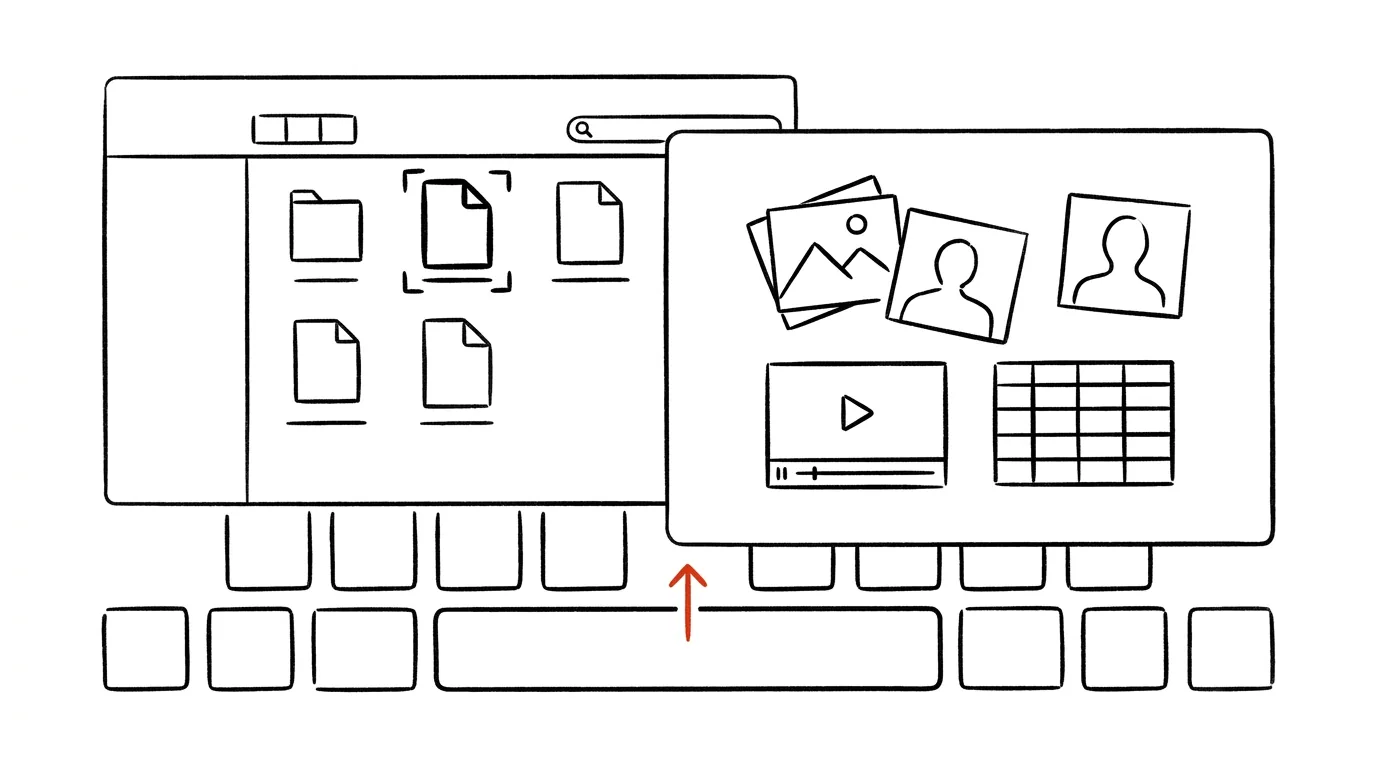
Opening ten files one after another just to find the right one among them is a needless waste of time — every open means waiting for the app to launch, finding the file, and closing it again. Yet all it takes is a single key that even a complete beginner can press. Quick Look bypasses that whole cycle entirely: select a file in Finder, press Space, and within a fraction of a second you can see its contents, whether it's a PDF, a photo, a video, or a spreadsheet.
A typical scenario
You're looking for a specific invoice among twenty PDF files named things like "invoice_2026_03.pdf" through "invoice_2026_08.pdf," but you need the one with a specific amount you can't quite recall from the filename. Without a preview, you'd have to open them one by one in Preview or Acrobat, waiting each time for the app to launch.
With the Space bar, you flip through files with the arrow keys and the preview updates instantly for each one — you find the right invoice in a few seconds without opening a single app. It works just as well flipping through a folder of hundreds of photos, when you're looking for a specific shot and don't want to wait for the Photos app to launch.
How to do it
- In Finder, select the file you want to view.
- Press Space — a large window opens with a preview of the contents.
- Use the ← / → arrow keys to flip through other files in the same folder without closing the preview — the content switches instantly.
- Quick Look handles PDFs (even multi-page ones, letting you flip through pages right there), photos, videos (play them right in the preview with the play button), spreadsheets, text documents, and plenty of other formats.
- Press Space again to close the preview and return to Finder.
- If the preview isn't enough for editing, there's an Open With icon at the top of the window that opens the file straight in its default app.
- Select multiple files at once and press Space, and Quick Look offers a grid view of all the selected files together — handy for a quick check that you've really picked the right photos.
The best tools
- Built-in Quick Look — the fastest route, works on any file regardless of format, no installation.
- Third-party Quick Look extensions (for example, to display source code with syntax highlighting, or for formats the system doesn't natively recognize) — installed as add-ons that expand what the preview can show.
- Gallery view in Finder — for quickly flipping through a folder's contents with previews, without opening each file in Quick Look individually.
- Preview as a full app — for when you need to not just view a file but also edit or annotate it.
What you get out of it
- Time: finding the right file among many similarly named ones takes seconds instead of minutes of repeatedly opening and closing apps.
- Flow: flipping through with the arrow keys, without closing the window, keeps your attention on the content rather than the controls.
- Less strain on the system: a preview doesn't launch a whole app, so it's noticeably faster even on an older computer.
- Fewer open windows: once you're done browsing, you don't have to worry about closing apps you only opened for a single look at a file.
Pro tip
In a PDF preview, you can flip through pages directly, and with video you can play it without a separate player window — and if all you need is to confirm it's the right file, you don't need to reach for anything else. The Open With icon at the top of the window is your fallback for those moments when the preview really isn't enough and you need to actually edit the file.
Want to go deeper? The handbook has a whole chapter on it — The app categories that matter.
Similar tips
Three fingers on iPhone: copy, paste, and undo
The iPhone has gestures for working with text: a three-finger pinch copies, a spread pastes, and a swipe left undoes the last action.
iPhone: tapping the back triggers anything
A double-tap on the back of your phone can launch the flashlight, a screenshot, or a shortcut. A hidden button hardly anyone knows about.
iPhone search: swipe down to find anything
Swiping down on the home screen opens search — apps, contacts, messages, and calculations. Faster than hunting for icons.
Was this helpful?
Liked this tip?
I send one like it every week by email. Two minutes to read, hours saved.
The Top 30 tips e-book, free — it lands in your inbox right away.
Then 1 tip a week · no spam · unsubscribe in one click
Prefer a system to single tips? The free email course — seven days, seven emails, one skill a day.